

The router has status LEDs and buttons on the top.
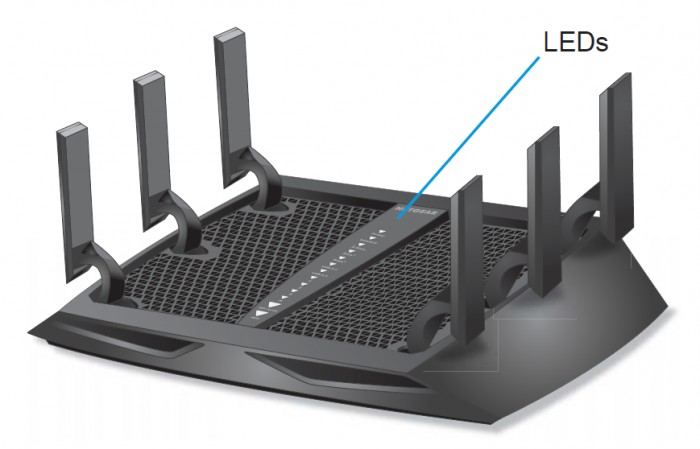
Router LEDs and buttons
LED and button descriptions
| LED | Description |
Power |
• Solid amber. The router is starting. • Blinking amber. The firmware is upgrading, or the Reset button was pressed. • Solid white. The router is ready. • Blinking white. The firmware is corrupted. • Off. Power is not supplied to the router. |
Internet |
• Solid white. The Internet connection is ready. • Solid amber. The router has detected an Ethernet cable connection to the modem. • Off. No Ethernet cable is connected between the router and the modem. |
|
2.4 GHz Wireless |
• Solid white. The 2.4 GHz WiFi radio is operating. • Blinking. The router is sending or receiving WiFi traffic. • Off. The 2.4 GHz WiFi radio is off. |
5 GHz WiFi1 |
• Solid white. The 5 GHz-1 WiFi radio is operating. • Blinking. The router is sending or receiving WiFi traffic. • Off. The 5 GHz-1 WiFi radio is off. |
5 GHz WiFi2 |
• Solid white. The 5 GHz-2 WiFi radio is operating. • Blinking. The router is sending or receiving WiFi traffic. • Off. The 5 GHz-2 WiFi radio is off. |
|
USB 3.0 port USB 2.0 port |
The USB 1 LED is for the USB 3.0 USB port on the front panel. The USB 2 LED is for the USB 2.0 port on the rear panel. • Solid white. A USB device is connected and is ready. • Blinking. A USB device is plugged in and is trying to connect. • Off. No USB device is connected or someone clicked the Safely Remove Hardware button, and it is now safe to remove the attached USB device. |
|
Ethernet ports 1-4
|
The LED color indicates the speed: white for Gigabit Ethernet connections and amber for 100 Mbps or 10 Mbps Ethernet connections. • Solid. A powered-on device is connected to the Ethernet port. • Blinking. The port is sending or receiving traffic. • Off. No device is connected to this Ethernet port. |
WiFi On/Off button with LED |
Pressing this button for two seconds turns the 2.4 GHz and 5 GHz WiFi radios on and off. If this LED is lit, the WiFi radios are on. If this LED is off, the WiFi radios are turned off and you cannot use WiFi to connect to the router. |
WPS button with LED |
This button lets you use WPS to join the WiFi network without typing the WiFi password. The WPS LED blinks white during this process and then lights solid white. |


You can use the LED On/Off switch on the rear panel of the router to turn the LEDs on the top of the router on or off.
Last Updated:07/07/2025
|
Article ID: 25333