

The ReadyNAS makes a great file sharing device when you’re on a local network, but what about when you’re at work, on a business trip, or on vacation, and you need access to your data? Have no fear. There’s something called Web-based Distributed Authoring and Versioning (WebDAV). WebDAV is an extension to HTTP that allows you to access and store your files remotely over HTTP or HTTPS. The user interface is similar to file explorer and you can drag and drop files to manage your data.
This Article applies to ReadyNAS OS 6.
To set up WebDAV access, you must do three things:
- Set up ReadyNAS for WebDAV access.
- Set up your router for remote access to the WebDAV share on the ReadyNAS.
- Configure Windows (or whatever client OS you are using) to allow access to the ReadyNAS over WebDAV.
Note: Windows 7 does not need to be configured. Windows 7 removed the necessary Authentication-Capabilities to connect to a ReadyNAS.
Set Up ReadyNAS (Firmware 6.x) for WebDAV Access
- From the Frontview Share Listing page, select the share on which you want to enable WebDAV service.
- Click the Settings icon.
- Select Network Access > HTTP.
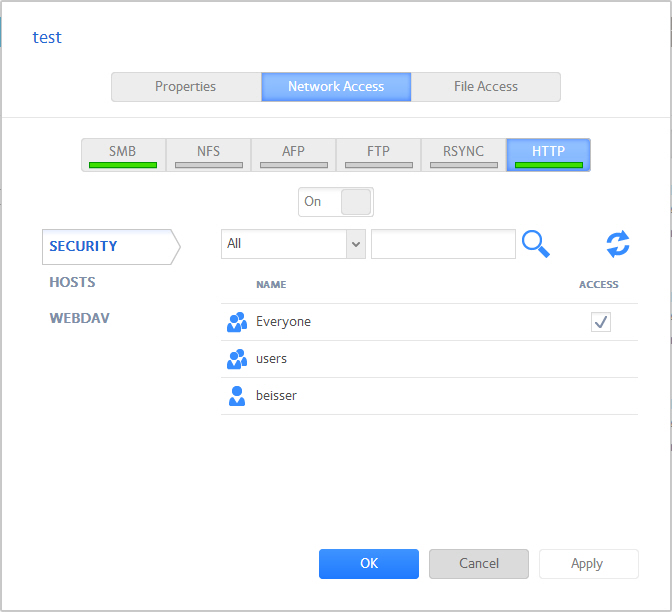
- In the Security section, specify permissions for users or for everyone.
- Click the OK button.
- To enable WebDAV, select the Enable WebDAV check box and click the OK button.
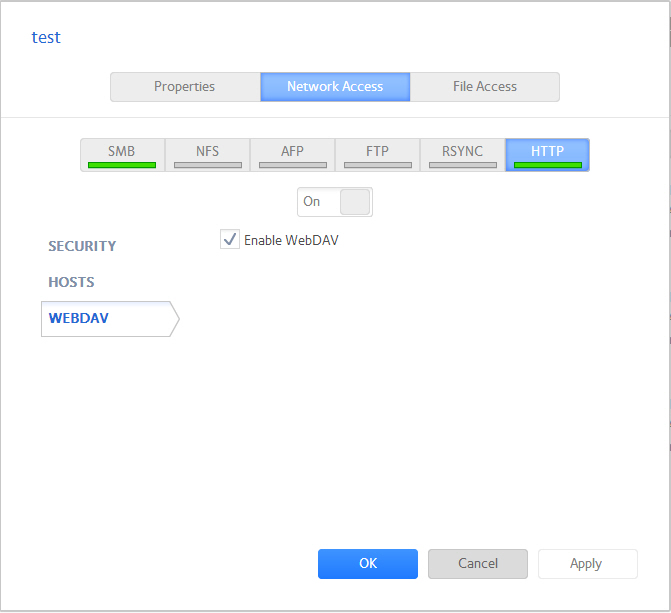
WebDAV is enabled.
Set Up your Router for Remote Access
You must open access through a port in your router firewall to allow access to the ReadyNAS WebDAV-enabled share. Opening this port also gives you access to FrontView since it uses the same port. This example uses an encrypted-only connection so that all access to the ReadyNAS — login, password, and data — is encrypted. NETGEAR recommends this method to avoid compromising the data on your ReadyNAS system.
The router must forward all HTTPS access to your external IP address to the ReadyNAS, HTTPS, or numeric port 443, the port that is is used for encrypted access for WebDAV access.
- To find out what your external IP address is, visit http://www.google.com/search?.
Every home has an IP address assigned by the ISP.
-
Write down this IP address.
You will need this later.
-
Forward port 80 on your router to the ReadyNAS.
If you are not sure how, follow the instructions on this link . This link directs you to a site where you can find out how you can forward the HTTP (port 80) on your router model.
-
To verify that the port forwarding is working correctly, access FrontView with:
http://external_ip_address/sharename
Where external_ip_address is the external IP address found above and the sharename with the Share on which you enabled WebDAV.
Set Up Windows XP to Access the ReadyNAS WebDAV Share
The following instructions provides a general idea of how to set up a WebDAV client. If you are running Vista, OS X, or Linux, you can search the web to find instructions about how to set up WebDAV in those environments.
Windows 7 does not require set up because Windows 7 removed the necessary Authentication-Capabilities to connect to a ReadyNAS.
- Fom the Windows Start menu, select My Network Places.
- Click Add a network place.
The wizard displays:
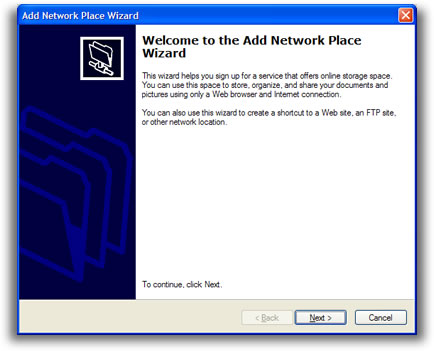
- Click the Next button.
- Select Choose Another Network Location and click the Next button.
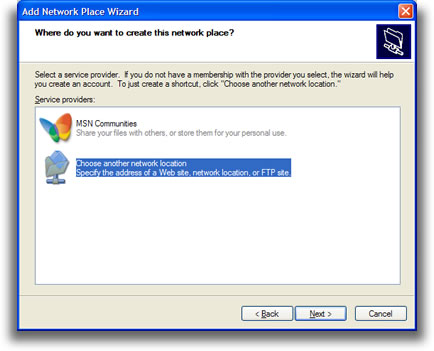
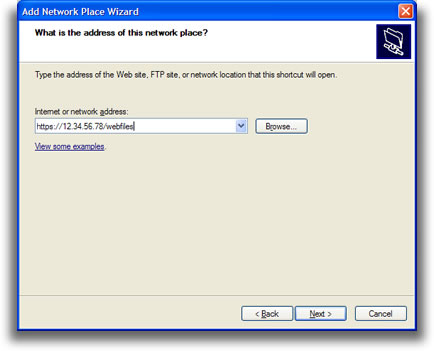
- Specify the path to your WebDAV share.
The path uses this convention: https://external_ip_address/sharename
In this example, the external IP address is 12.34.56.78 and the WebDAV share name is webfiles.
- Click the Next button.
A warning about SSL certificate displays.
- Accept the warning.
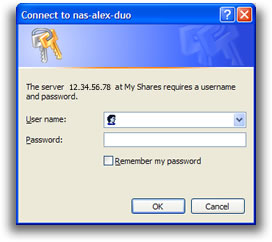
- When prompted, enter your user name and password to access the share.
Enter a user name and password that has access to the Share. If you are using Share level security on your ReadyNAS, the user name is the same as the share name. In the previous example, the user name would be webfiles and then the password.
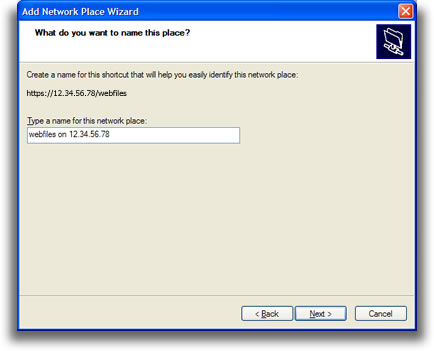
- Enter the name of this network place, or accept the auto-generated name.
This example uses webfiles on 12.34.56.78. This is the short-cut name that will show up in My Network Places.
- Click the Finish button.
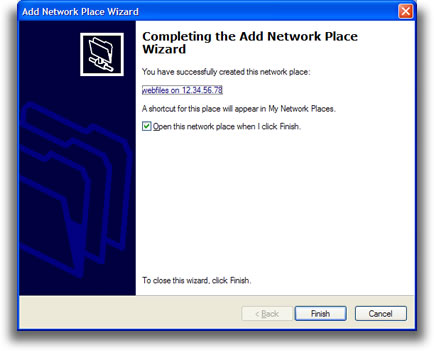
WebDAV File Explorer displays. You can drag and drop files to and from this window.
The following example shows the webfiles share displayed in the window.

Now you can use remote file sharing to access your ReadyNAS from anywhere on the Internet.


