

This article applies to all ProSAFE routers and ProSECURE UTM's
Examples are FVS318G, FVS318N. UTM 25, UTM50 etc.
Usually the single DMZ port, is on the right of the group of 4 LAN ports. An FVS318N is used in this example.
On the routers, customers sometimes want a separate network with different firewall rules from their LAN. The DMZ can be set with more or less restrictions than the LAN network.
For the ProSAFE range, you must put in DMZ-WAN Rules for Inbound and Outbound.
DMZ is considered "locked down". You must specify the required services.
At a minimum, both an inbound and outbound ANY ANY rule must be specified.
DMZ in this article is not to be treated the same as DMZ port on modems, and home routers.
Creating DMZ range:
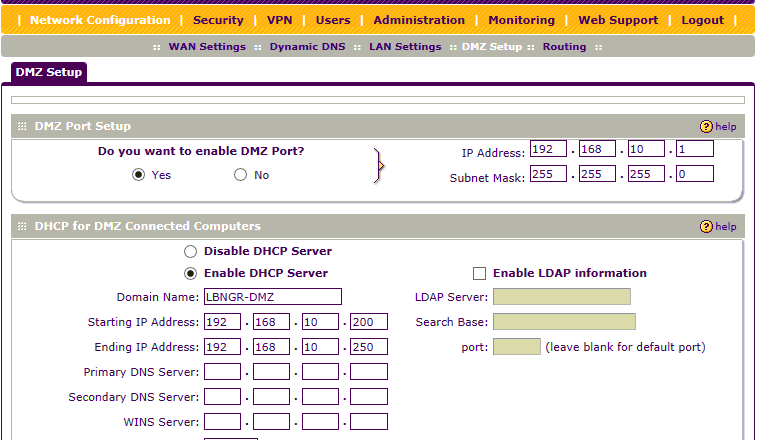
Go to Network Configuration >> DMZ setup.
Enable DMZ, and Create pool as shown.
In this example the "10 " subnet, in the 3rd Octet, must be different from your normal LAN subnet.
You should see the green LED beside port 8 on FVS318N illuminating.
Creating WAN--DMZ Inbound and Outbound rules
Go to Security>> Firewall >> DMZ WAN rules.
For example purposes, I am creating general rules, but the user will need to edit to suit the business need.
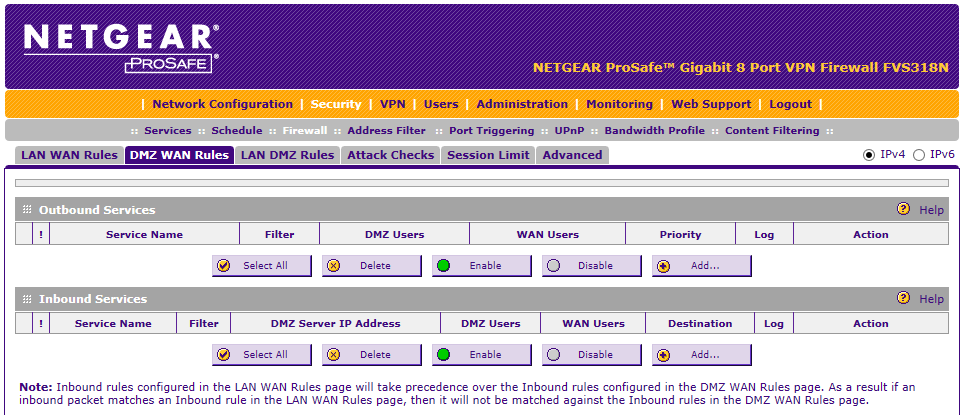
This is an example of adding a DMZ-WAN Outbound rule.
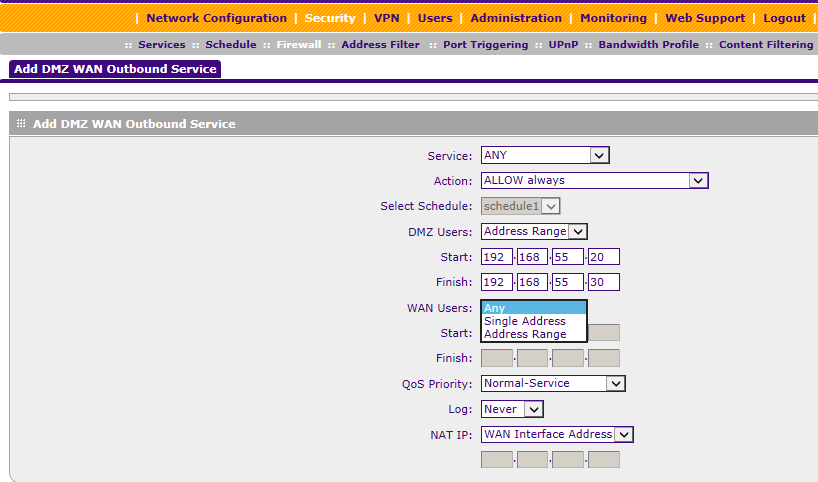
DMZ users can be specified to be ANY, or a single user, or address range.
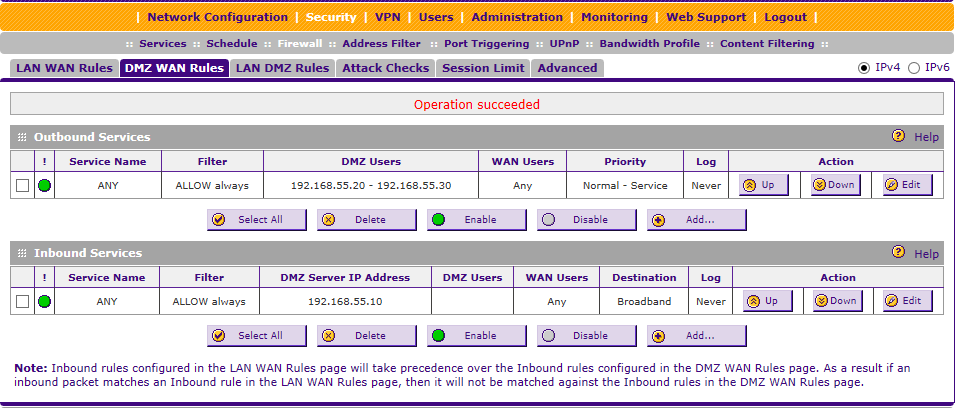
You repeat similarly to create an Inbound rule.
I am showing the required minimum ANY ANY rules under both inbound and outbound services. While this is displayed
for example purposes, I advise they refer to specific services eg HTTP, SMTP, TELNET and so on.
Proceed to plug in PC/Server/Switch into DMZ port 8.
Product page: http://support.netgear.com/product/FVS318N