

Quality of Service (QoS) is an advanced feature that prioritizes internet traffic for applications, online gaming, Ethernet LAN ports, or specified MAC addresses to minimize the impact of busy bandwidth.
To create a QoS policy for a specific MAC address on a Nighthawk router:
- Connect your computer to the Nighthawk router and launch a web browser.
- Visit http://www.routerlogin.com. If http://www.routerlogin.com does not work, try the following:
- http://www.routerlogin.net
- http://192.168.1.1
- http://192.168.0.1
- http://10.0.0.1
- How do I access my NETGEAR home router?
- You are prompted to enter a user name and password. Enter the following default login credentials:
Note: User name and password are both case sensitive.Note: If the default login credentials do not work, you might have changed the admin password. If you cannot remember your new password, you must perform a factory reset to restore the router to its factory default settings. For more information, see Restoring a NETGEAR home router to the factory default settings- User Name: admin
- Password: password
- NETGEAR genie home page displays.
- Click ADVANCED > Setup > QoS Setup > Upstream QoS > Setup QoS rule.

- QoS Priority Rule list displays. Scroll down and click +Add Priority Rule.

- QoS - Priority Rules screen displays. Under Priority Category, select MAC Address.
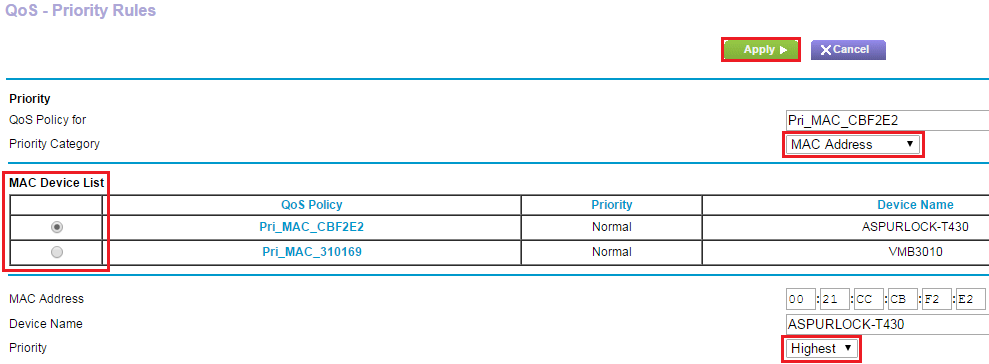
- Under MAC Device List, select your desired device. The MAC Address and Device Name fields populate.
Note: If the fields do not populate, the information can be typed manually. - Under Priority, select Highest. The options are Highest, High, Normal, and Low.
- Click Apply.
Last Updated:07/07/2025
|
Article ID: 24301