

To display Internet port statistics:
- Launch an Internet browser from a computer or wireless device that is connected to the network.
- Type http://www.routerlogin.net or http://www.routerlogin.com.
A login screen displays. - Enter the router user name and password.
The user name is admin. The default password is password. The user name and password are case-sensitive.
The BASIC Home screen displays. - Click the ADVANCED tab.
The ADVANCED Home screen displays. - In the Internet Port pane, click the Show Statistics button.
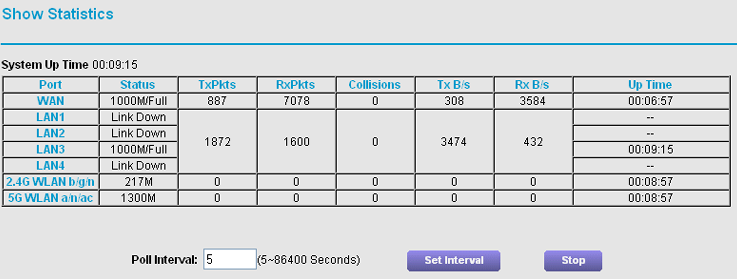
The following information displays:- System Up Time. The time elapsed since the router was last restarted.
- Port. The statistics for the WAN (Internet) and LAN (Ethernet) ports. For each port, the screen displays:
-
- Status. The link status of the port.
- TxPkts. The number of packets transmitted on this port since reset or manual clear.
- RxPkts. The number of packets received on this port since reset or manual clear.
- Collisions. The number of collisions on this port since reset or manual clear.
- Tx B/s. The current transmission (outbound) bandwidth used on the WAN and LAN ports.
- Rx B/s. The current reception (inbound) bandwidth used on the WAN and LAN ports.
- Up Time. The time elapsed since this port acquired the link.
- Poll Interval. The interval at which the statistics are updated in this screen.
- To change the polling frequency, enter a time in seconds in the Poll Interval field and click the Set Interval button.
- To stop the polling entirely, click the Stop button.
Last Updated:07/07/2025
|
Article ID: 24222