

You can specify the device name, workgroups, and network folders for your USB device.
To specify the USB access settings:
1. Launch an Internet browser from a computer or wireless device that is connected to the network.
2. Type http://www.routerlogin.net or http://www.routerlogin.com.
A login screen displays.
3. Enter the router user name and password.
The user name is admin. The default password is password. The user name and password are case-sensitive.
The BASIC Home screen displays.
4. Select ADVANCED > USB Functions > ReadySHARE Storage.
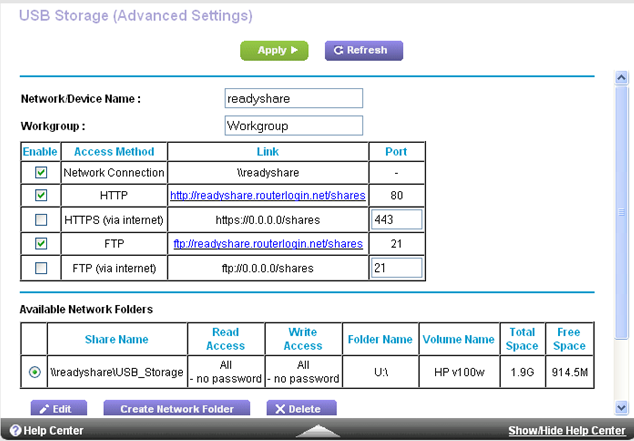
5. Specify access to the USB storage device:
-
Network Device Name. This is the name used to access the USB device connected to the router. The default is readyshare.
-
Workgroup. If you are using a Windows workgroup rather than a domain, the workgroup name is displayed here. The name works only in an operating system that supports NetBIOS, such as Microsoft Windows.
-
Access Method. Select the check boxes for the access methods that you want:
-
Network Connection. Enabled by default.
-
HTTP. Enabled by default. You can type http://readyshare.routerlogin.net/shares to access the USB drive.
-
HTTPS (via Internet). Disabled by default. If you enable this feature, remote users can type http://<public IP address/shares> (for example, http://1.1.10.102/shares) or a URL domain name to access the USB drive over the Internet. This feature supports file uploading only.
-
FTP. Disabled by default.
-
FTP (via Internet). Disabled by default. If you select this check box, remote users can access the USB drive through FTP over the Internet. This feature supports both downloading and uploading of files.
-
6. If you changed the settings, click the Apply button.
Your changes are saved.
Last Updated:07/07/2025
|
Article ID: 24068