

To set up an IPv6 Internet connection with a DHCP server:
1. Launch an Internet browser from a computer or wireless device that is connected to the network.
2. Type http://www.routerlogin.net or http://www.routerlogin.com.
A login screen displays.
3. Enter the router user name and password.
The user name is admin. The default password is password. The user name and password are case-sensitive.
The BASIC Home screen displays.
4. Select ADVANCED > Advanced Setup > IPv6.
The IPv6 screen displays.
5. In the Internet Connection Type list, select DHCP.
The screen adjusts:
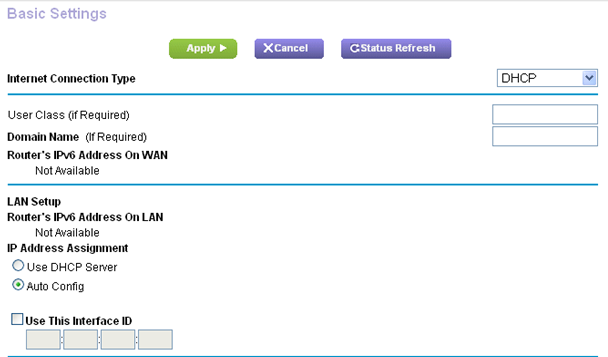
The router automatically detects the information in the following fields:
-
Router's IPv6 Address on WAN. This field shows the IPv6 address that is acquired for the router's WAN (or Internet) interface. The number after the slash (/) is the length of the prefix, which is also indicated by the underline (_) under the IPv6 address. If no address is acquired, the field displays Not Available.
-
Router's IPv6 Address on LAN. This field shows the IPv6 address that is acquired for the router's LAN interface. The number after the slash (/) is the length of the prefix, which is also indicated by the underline (_) under the IPv6 address. If no address is acquired, the field displays Not Available.
6. (Optional) In the DHCP User Class (If Required) field, enter a host name.
Most people can leave this field blank, but if your ISP gave you a specific host name, enter it here.
7. (Optional) In the Domain Name (If Required) field, enter a domain name.
You can type the domain name of your IPv6 ISP. Do not enter the domain name for the IPv4 ISP here. For example, if your ISP's mail server is mail.xxx.yyy.zzz, type xxx.yyy.zzz as the domain name. If your ISP provided a domain name, type it in this field. For example, Earthlink Cable might require a host name of home, and Comcast sometimes supplies a domain name.
8. Specify how the router assigns IPv6 addresses to the devices on your home network (the LAN) by selecting one of the following radio buttons:
-
Use DHCP Server. This method passes more information to LAN devices, but some IPv6 systems might not support the DHCv6 client function.
-
Auto Config. This is the default setting.
9. (Optional) Select the Use This Interface ID check box and specify the interface ID that you want to be used for the IPv6 address of the router's LAN interface.
If you do not specify an ID here, the router generates one automatically from its MAC address.
10. Click the Apply button.