

You can manually delete snapshots from the Snapshots screen.
To manually delete a snapshot:
1. Select Shares.
2. Click the Snapshot button (with a clock,  ).
).
The Snapshot screen displays.
The shares and LUNs are displayed on the left of the screen.
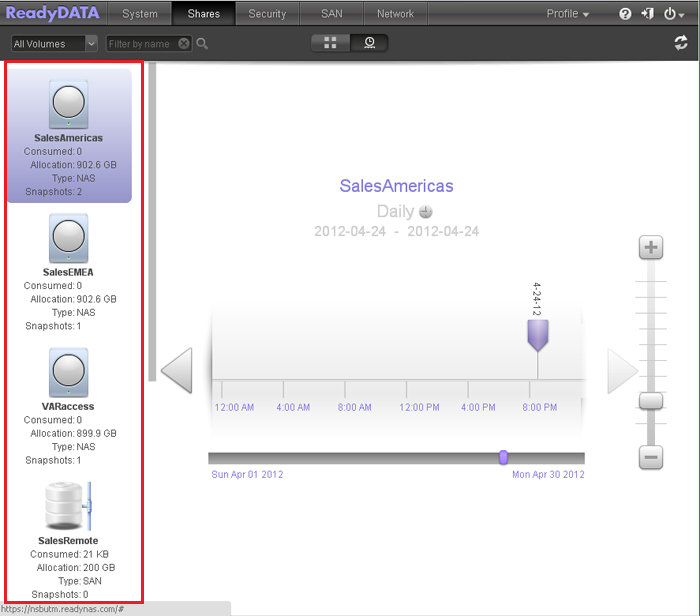
3. Select the share or LUN whose snapshots you want to view.
4. Locate the snapshot using the controls on the timeline.
Snapshots are displayed as purple marker icons along the timeline.
-
The timeline centers on the zoom icon (
 ) as you zoom in and out. You can move the zoom icon by clicking anywhere along the timeline. Moving the zoom icon establishes a new center of focus when you zoom in and out.
 -
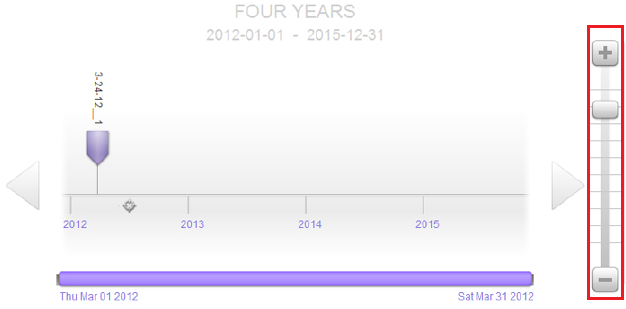
Adjust the vertical slider on the right of the timeline as needed. To expand the timeline to years, click the + button. To limit the timeline to hours, click the - button.
-
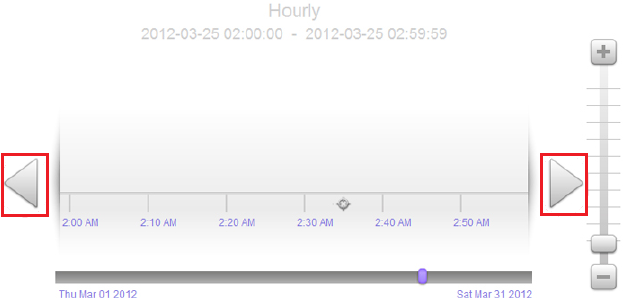
Use the arrow buttons to the left and right of the timeline as needed to move forward in time (right arrow button) or back in time (left arrow button) in time.
Note: The following screenshot does not include a snapshot because it was not taken in the 2:00 AM-2:50 AM timespan.
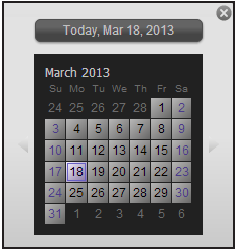
Tip: Click the clock icon that is located in the middle of the Snapshot screen under the name of the selected share or LUN. A calendar pop-up screen displays, allowing you to jump to a desired month and date.
5. Right-click the snapshot that you want to delete.
6. From the pop-up menu that displays, select Remove.
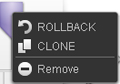
A pop-up screen displays:
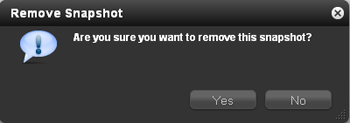
7. Confirm your decision by clicking Yes.
The selected snapshot is deleted.