

Users can access shares on the ReadyDATA using a network-attached OS X device.
To access an AFP or SMB share using a network-attached OS X device:
1. In Finder, select Go > Connect to Server.
The Connect to Server dialog screen displays.
2. Connect to the ReadyDATA using either AFP or SMB:
-
AFP. Enter either one of the following commands in the Server Address field:
afp://<ip address>
or
afp://<host name>
-
SMB. Enter either one of the following commands in the Server Address field:
smb://<ip address>
or
smb://<host name>
<ip address> is the IP address of the ReadyDATA.
<host_name> is the host name of the ReadyDATA.
3. Click the Connect button.
You are prompted to log in to your ReadyDATA.
4. Enter a user name and password.
You are prompted to select a volume.
Note: Mac OS X calls ReadyDATA shares volumes.
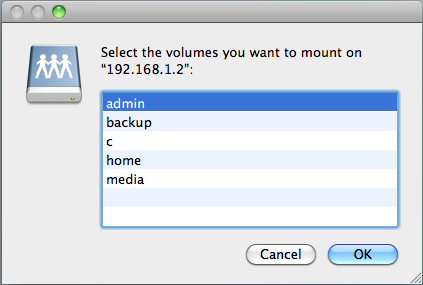
5. Select a volume or volumes (that is, share or shares on the ReadyDATA).
6. Click the OK button.
Finder displays the contents of the share or shares in a window.