

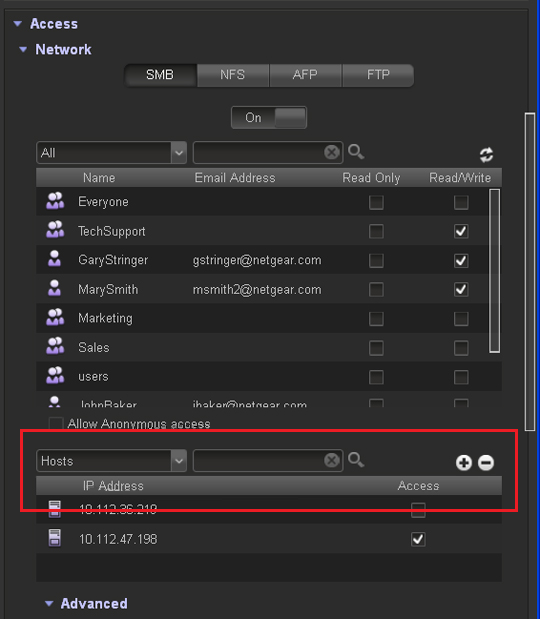
For SMB, NFS, and FTP, you can configure access rights for users on hosts. The access rights that you configure for one host apply to all users on the host. For NFS, you can also configure the access rights that apply to any host, and, for individual hosts, you can configure whether root access is granted. Host settings do not apply to AFP.
If the table contains many hosts, use the search field on the right to search for a particular host.
The following figure shows the Network section on the Properties pane of a share:
To add a host and configure host access settings:
1. To add the IP address of a host from which access can be granted, click the + button ( ).
).
The Add Host pop-up screen displays.
2. Enter the host IP address in the IP address field.
3. Click Add.
The host is added to the table.
Note: For NFS only, you can set access rights for AnyHost, which is a default entry in the host table. You cannot grant root access to AnyHost.
4. For each host to which you want to grant access to the share, select one of the following check boxes:
-
Read Only. The users on the selected host are permitted to read only files on the share.
-
Read/Write. The users on the selected host are permitted to read, edit, create, and delete files on the share.
5. (Optional for NFS) For each host for which you want to grant the users root access, select the Root Access check box.