

To view the properties of a volume:
1. Select System > Storage.
The Storage screen displays.
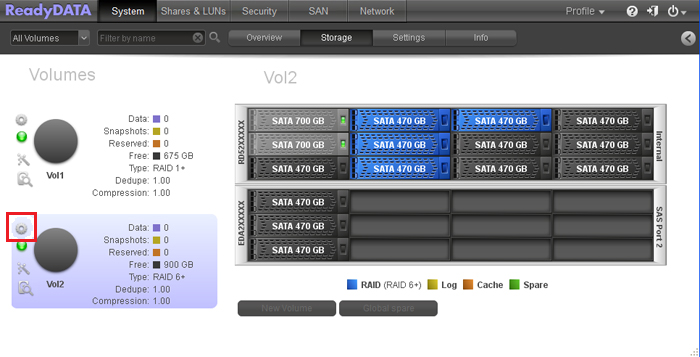
2. To the left of the graphical enclosure, click the volume that you want to explore.
3. Click the gear icon.
A pop-up menu displays (see the figure in Step 4).
4. Select Properties.
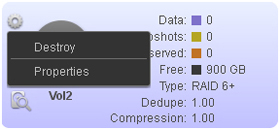
The properties of the volume display at the right side of the screen in the Summary section (see the figure in Step 7).
5. (Optional) Click I/O Stats.
I/O statistics display.
6. (Optional) Click Disks.
7. Status and health information about the disks that are members of the volume displays.
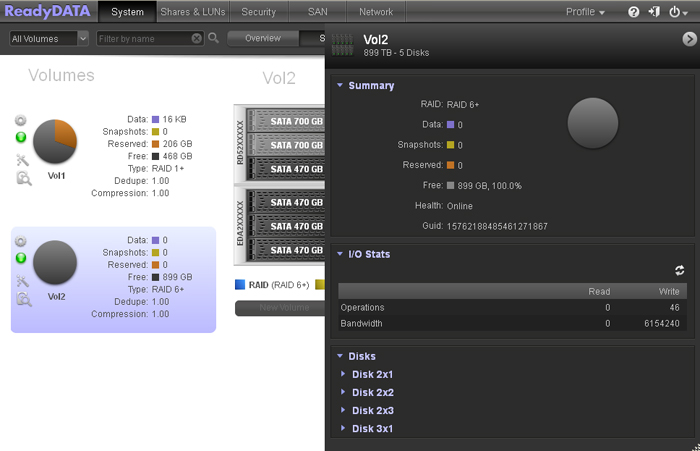
Note: You can also use a shortcut to display the properties of a volume. Click the screen Expand button ( ) on the top right of the screen to display the properties (see the red oval in the previous figure). Click the same button (which now shows a reversed arrow
  ) again to hide the properties (see the red oval in the previous figure).
The following table explains the properties:
|
Item |
Description |
|
Summary |
|
|
RAID |
The configured RAID level. |
|
Data |
The storage space that is consumed by data in MB, GB, or TB. |
|
Snapshots |
The number of snapshots that have been taken. |
|
Reserved |
The storage space that is reserved in MB, GB, or TB. |
|
Free |
The storage space that is available in MB, GB, or TB and in a percentage. |
|
Health |
The health of the volume. The options are:
|
|
Guid |
The globally unique identifier (GUID) for the volume. The GUID allows you to use the volume GUID path, for example, "\?Volume{17303906860048588325}". |
|
I/O Stats |
|
|
Operations |
The number of read operations and the number of write operations on the volume. |
|
Bandwidth |
The volume bandwidth throughput in bytes. |
|
Disks |
|
|
For information about health and status information that is displayed for each disk that is a member of the volume, see the How do I view disk status and health information for an individual disk on my ReadyDATA storage system? |
|