

Enhancements & Bug Fixes:
- Removed WEP key generating button and input box when setup connection between repeater and Root-AP to prevent confusion with WEP key index.
- Solved occasional connection issues in some environments.
To Upgrade
NOTE: In order to ensure successful upgrade, the firmware upgrade instructions below must be followed if your WN1000RP has firmware version that is lower than v1.0.0.32.
- Using the Download Link below, download and extract the new firmware to a convenient place such as your desktop. The filename after extracting is wn1000rp-V1.0.0.32.img.
Download Link: http://www.downloads.netgear.com/files/GDC/WN1000RP/WN1000RP-V1.0.0.32_FW_and_Upgrade_Utility.zip
- The downloaded archive file includes the latest WN1000RP firmware (wn1000rp-V1.0.0.32.img) and upgrade utility (WN1000RP_upgrade_utility.exe).
- Connect your PC to the WN1000RP WLAN and run the upgrade utility by double clicking WN1000RP_upgrade_utility.exe.
- If the below screen appears, you can reboot WN1000RP and proceed to step 7.

- If you see the screen below, proceed to step 3.

- Reset WN1000RP to factory default settings.
- Power up WN1000RP.
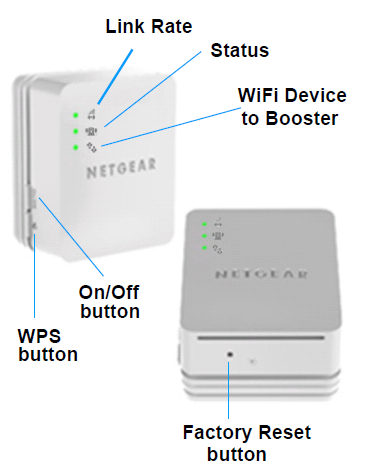
- Use paperclip to push Factory Reset Button and release when you see Status LED is blinking red.
- WN1000RP will reset itself to factory default settings and reboot.
- After device reboots, use your PC connect to WN1000RP's default network name (SSID) "NETGEAR_EXT".
For detailed steps on how to connect, please refer to section Option 2: Connecting with web browser setup guide in WN1000RP's Installation Guide. Installation guide can be downloaded here:
http://support.netgear.com/product/WN1000RP - Open WN1000RP_upgrade_utility.exe again.
The utility will automatically detect and check connection to WN1000RP.
- If you see the below message, your PC might not be connected to WN1000RP. Please close the utility and repeat step 2 again

- If following screenshot shown, proceed to step 6.

- Using the utility, click the Start button and wait for the message You can upgrade firmware now as shown below.

Please DO NOT close this window during firmware upgrade. - Open your browser and connect to http://www.mywifiext.net/ . You will be prompted for a log in username/password. Use the default admin as username and password as password. You should be redirected to WN1000RP settings page.
IMPORTANT: Once you are logged in the WN1000RP GUI, , PLEASE wait until the detection is done and displays "No Internet Connection" page as shown below.
You will see the screen below during the automatic firmware check progress.

Firmware check incomplete due to the WN1000RP not being connected to the Internet.

- Go to Maintenance -> Firmware Upgrade. Click Browse button and locate the firmware that you'd downloaded previously in step 1. Then, click Upload button.

WN1000RP will go through the firmware update and automatically reboot. Please note that your wireless connection will be dropped while the WN1000RP is restarting. - Wait until WN1000RP restarts and Status LED becomes green. Make sure that the wireless connection to WN1000RP is established before doing the following procedures. Follow the Installation guide to install your WN1000RP again if necessary. Go to the utility again to check if the connection is established as shown in following screenshot.

Click End button, and close the program.

The upgrade procedure is done, please follow next step to ensure upgrade is successful. - Run the utility again to ensure the software upgrade is successful. If you see the below screenshot, the upgrade failed. Please repeat the steps above starting with step 2.

If following screenshot is shown, your previously steps to upgrade firmware is successfully. You could close the program now.

Maximum wireless signal rate derived from IEEE Standard 802.11 specifications. Actual data throughput will vary. Network conditions and environmental factors, including volume of network traffic, building materials and construction, and network overhead, lower actual data throughput rate.
This product includes software code developed by third parties, including software code subject to the GNU General Public License ("GPL") or GNU Lesser General Public License ("LGPL"). As applicable, the terms of the GPL and LGPL, and information on obtaining access to the GPL Code and LGPL Code used in this product, are available to you at NETGEAR's Open Source Code Web page