

Your ReadyNAS system can manage backup and recovery for many devices on your network. For example, you can back up data that is stored on your ReadyNAS storage system to secondary devices, such as a USB drive. You can also use your ReadyNAS storage system to store backed-up data from other devices, like your laptop.
Backup Concepts
A backup is a copy of data that you use if your primary copy is deleted or damaged. The process of storing primary data on a second device is called backing up.
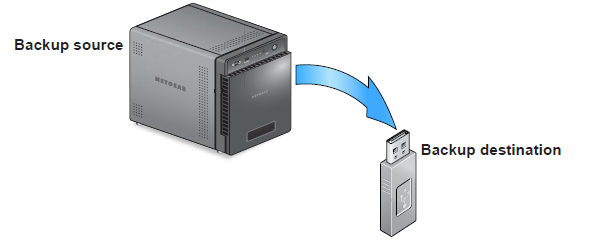
A backup source is the place where you store the primary copy of the data that you want to back up. A backup destination is the place where you store the backed-up data.
If you store primary copies of your data on your ReadyNAS system, you can create a backup job to back up your data to a secondary device on the same network.
If you store primary copies of your data on your computer or other device, you can create a backup job to back up your data to a ReadyNAS system that is on the same network.

A full backup makes a copy of all of the data stored on the primary system. Your first backup of a primary system is always a full backup job. The amount of time a full backup takes depends on the amount of stored data.
An incremental backup copies only the data that changed since your last backup process. An incremental backup job takes much less time than a full backup job.
Note: RAID configuration of disks is not a substitute for backing up data. RAID configuration protects you only from data loss if a disk fails.
A backup source or destination can be local (stored on the ReadyNAS) or remote (stored somewhere else). If the backup source or destination is remote, you must select the backup protocol that you want to use.
Local options for backup sources and destinations are described in the following table.
|
Item |
Description |
|
volume: <volume name> |
Source or destination is volume on the ReadyNAS. |
|
share: <share name> |
Source or destination is a shared folder on the ReadyNAS. |
|
All Home Shares |
Source or destination is every user's home share on the ReadyNAS. |
|
home: <home share name> |
Source or destination is a user's home share on the ReadyNAS. |
|
External Storage (<location of connection>) |
Source or destination is connected a USB or eSATA port on the ReadyNAS. |
|
Time Machine |
Source or destination is the Time Machine data stored locally on the ReadyNAS. |
Recovery Concepts
The process of restoring backed-up data to the device where the primary copy is kept is called recovery.
A recovery source is the place where you store the backed-up data. A recovery destination is the place to which you want to restore the backed-up data. The recovered data replaces a deleted or damaged primary copy.
If you store backed-up data on the ReadyNAS system, you can create a recovery job to recover backed-up data to your computer or other primary device.

If you store backed-up data on another device on the network, such as a USB drive, you can create a recovery job to recover backed-up data to your ReadyNAS system.

The ReadyNAS system treats recovery jobs like backup jobs. You use the Backup screen to create a recovery job. In a recovery job, you reverse the source and destination that you used when you backed up the data. The recovery source is the backup destination and the recovery destination is the backup source.
Secure Cloud Backups
A secure cloud backup lets you use online backup and recovery tools, such as ReadyNAS Vault, to save data over the Internet to a remote location and restore the data, if needed. For more information about backing up your data using ReadyNAS Vault, see the What is the ReadyNAS Vault and how do I set it up on my ReadyNAS OS 6 storage system?
Backup Protocols
When you back up data to a remote destination or recover it from a remote source, data is transferred over a network using file-sharing protocols.
You can select which protocol you want to use for the job. The options that are available to you depend on how your ReadyNAS system is configured. Backup protocols are described in the following table.
|
Item |
Description |
|
Windows/NAS (Timestamp) |
Source or destination is a share on a Windows computer. Incremental backups with this protocol use timestamps to determine whether files should be backed up. |
|
Windows (Archive Bit) |
Source or destination is a share on a Windows computer.
Incremental backups with this protocol use the archive bit of files, similar to Windows, to determine whether they should be backed up. |
|
FTP |
Source or destination is an FTP site or a path from that site. |
|
NFS |
Source or destination is on a Linux or UNIX device accessed using NFS.
Mac OS X users can also use this option by setting up an NFS share from the console terminal. |
|
Rsync server |
Source or destination is accessed using an Rsync server.
Rsync was originally available for Linux and other UNIX-based operating systems, but is also popular under Windows and Mac for its efficient use of incremental file transfers. Using Rsync is the preferred backup method when backing up from one ReadyNAS device to another. |
|
Rsync over Remote SSH |
Source or destination is accessed using an Rsync server.
Rsync data transfers to go through a secure, encrypted SSH tunnel. Using remote SSH is recommended when backups are being transferred over the Internet. |
Backup Job Recommendations
By default, all backup jobs are scheduled to run every day. You can edit these settings after you create each backup job. For more information, see the How do I schedule a backup job on my ReadyNAS OS 6 storage system? support article.
The first few times you back up data, it is a good practice to perform the backup manually. With a manual backup, you can make sure that access is granted to the remote backup source or destination and see how long the backup takes to run. You need to know how long the backup job takes so that you can allow enough time in the schedule for it to complete before you schedule the next backup. You can run a manual backup after you create each backup job. For more information, see the How do I manually start a backup or recovery job on my ReadyNAS OS 6 storage system?
Note: Backup and recovery jobs using Time Machine (Mac OS X) use different procedures. For more information, see the How do I back up Time Machine data to my ReadyNAS OS 6 storage system?
This article applies to the following ReadyNAS and EDA storage system models:
-
ReadyNAS 102
-
ReadyNAS 104
-
ReadyNAS 312
-
ReadyNAS 314
-
ReadyNAS 316
-
ReadyNAS 516
-
ReadyNAS 2120
-
ReadyNAS 3220
-
ReadyNAS 4220
-
EDA 500