

Scenario :
- You have a NETGEAR Modem/Router supplied to you by Optus (Optus is an Internet Service Provider (ISP) in Australia).
- You want to connect a wireless device to your wireless network, but you do not know the wireless network name (SSID) or password/passphrase/key required to connect successfully.
- Or, you may want to change your wireless password, to prevent people who may know the current password from connecting to your network.
Resolution :
- The wireless settings that were on the router when Optus supplied it to you are printed on a sticker on the underside of the router :
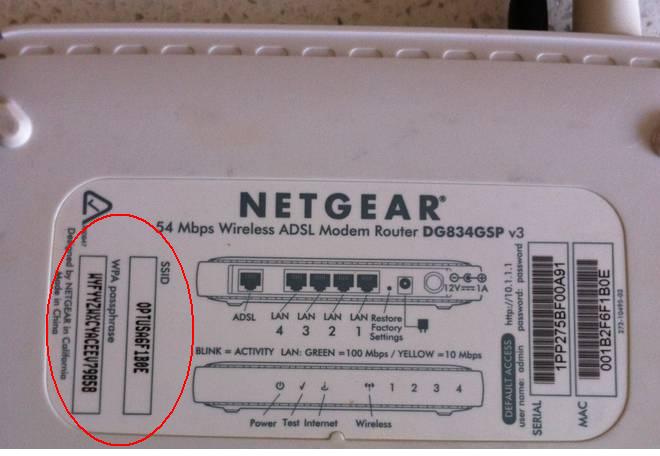
- The "SSID" is what you should see on your wireless device when you "scan for available wireless networks".
- The "WPA passphrase" is what you should type when your device tries to connect to the SSID, and prompts you for a password.
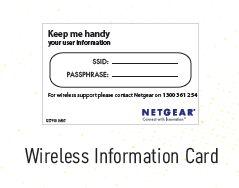
- The default wireless SSID and password are also written on the "Keep Me Handy" card, also provided by Optus :
- If using these default wireless details does not allow you to connect your wireless device to the network, it is likely that the router's default wireless settings have been changed. You will have to access the modem/router's management interface to find what the wireless details currently are, or to change them if you wish to :
- On a computer that can access the internet through the modem/router, open a browser and in the address bar enter 10.1.1.1 . This is the default IP address of the modem/router. If it's IP address has been changed, type the new IP address. If you don't know what the new IP address is, you may be able to find it by looking at the network settings of your computer, in most cases it is the "default gateway" IP address.
- By default, the modem/router does not ask for login details. If it does prompt for a userid and password, the default details are : userid = "admin", password = "password". If these have been changed, and you do not know the correct login details, you will have to contant NETGEAR technical support.
- The administration interface should appear on your screen. On the menu on the left, click on Wireless Settings :
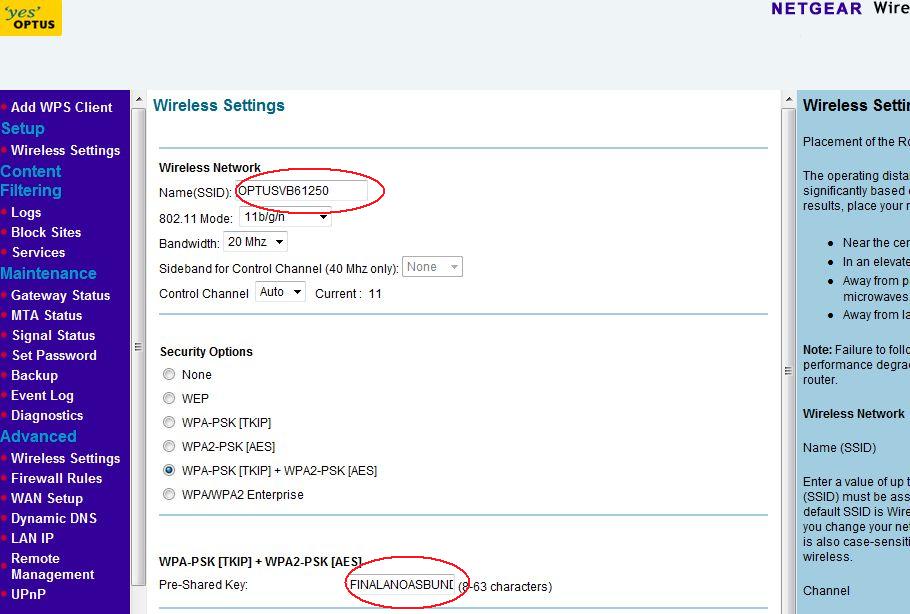
- The wireless network name (SSID) and password/passphrase/key can be read from the screen as marked on the screenshot above.
- To change any of these details, type in the required details and click Apply at the bottom of the screen (not shown in the screenshot above). Remember that all wireless devices that were previously connecting successfully to the network will stop doing so, you will have to reconnect each of them using the new SSID/password that you have set.
Last Updated:07/07/2025
|
Article ID: 23287