

You can configure your ReadyNAS system to power itself on and off automatically according to a schedule.
Not all ReadyNAS systems support this feature. If your system does not, the Power On option does not display in the Action list.
When the power timer is enabled, if the unit is disconnected from AC power it will power on when AC power is reconnected.
Note: If you schedule this device to power off, data transfers will be interrupted and pending backup jobs will not run.
To enable the power timer:
1. Select System > Settings > Power.
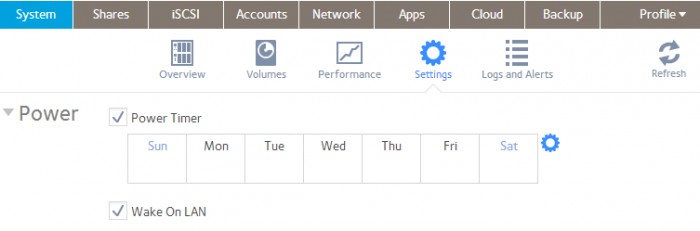
2. Select the Power Timer check box.
3. Click the gear icon ( ) next to the weekly calendar.
The Power Timer pop-up screen displays.
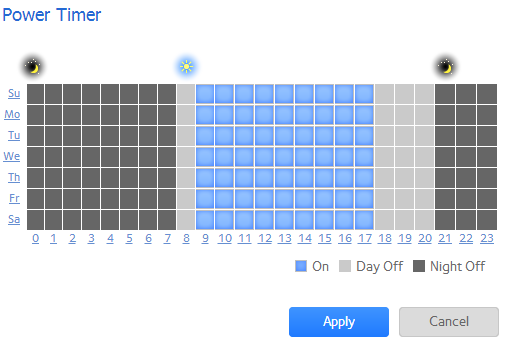
4. Set the power schedule for the system by clicking squares on the grid.
-
Blue squares indicate time when the system is scheduled to be powered on.
-
Light and dark gray squares indicate time when the system is scheduled to be powered off.
Tip: You can click the sun and moon icons at the top of the Power Timer pop-up screen to select entire day and night sections of the schedule. You can click the name of a day or the hour to select an entire row or column of the schedule.
By default, the system is scheduled to remain powered off.
5. Click the Apply button.
Your changes are saved.