

To configure FTP:
1. Select System > Settings > Services.
2. Click the FTP button.
The FTP Settings screen displays.
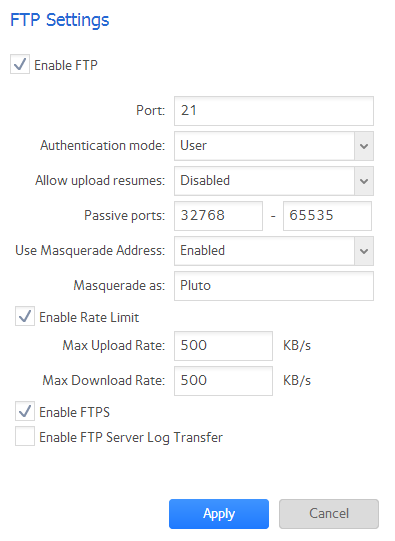
3. Configure the settings as explained in the following table:
|
Item |
Description |
|
|
Enable FTP |
Select the check box to enable FTP globally. Clear the check box to disable FTP globally. |
|
|
Port |
Enter the number of the port that is used for FTP control traffic on the ReadyNAS. The default port number is 21. |
|
|
Authentication mode |
Select the authentication mode from the drop-down list:
|
|
|
Allow upload resumes |
Select whether users are allowed to resume a paused or stalled upload by making a selection from the drop-down list:
|
|
|
Passive ports |
Enter the beginning port and ending port of the passive port range. This is the port range on the ReadyNAS that is available to clients who initiate a connection to the ReadyNAS. The default range is 32768-65535. |
|
|
Use Masquerade Address |
Select whether the ReadyNAS displays its real IP address or masks this with another IP address or DNS name by making a selection from the drop-down list:
|
|
|
Masquerade as |
Enter a public IP address or DNS name. |
|
|
Enable rate Limit |
Max Upload Rate |
Enter the maximum upload rate per session in KB/s. |
|
Max Download Rate |
Enter the maximum download rate per session in KB/s. |
|
|
Enable FTPS |
Select the check box to allow FTP connections with TLS encryption.
|
|
|
Enable FTP Server Log Transfer |
Select this check box to include FTP file transfers in the system log. |
|
4. Click the Apply button.
Your changes are saved.
This article applies to the following ReadyNAS and EDA storage system models:
-
ReadyNAS 102
-
ReadyNAS 104
-
ReadyNAS 312
-
ReadyNAS 314
-
ReadyNAS 316
-
ReadyNAS 516
-
ReadyNAS 2120
-
ReadyNAS 3220
-
ReadyNAS 4220
-
EDA 500