

To set the network access rights to an individual shared folder, you configure the network access settings for each file-sharing protocol used to access the shared folder on your storage system.
To set the network access rights for a shared folder:
1. Select Shares > Shares.
A list of shared folders and LUNs on each volume displays.
2. Select the shared folder that you want to configure.
3. From the pop-up menu that displays, select Settings.

The shared folder settings display in a pop-up screen.
4. Select the Network Access tab.
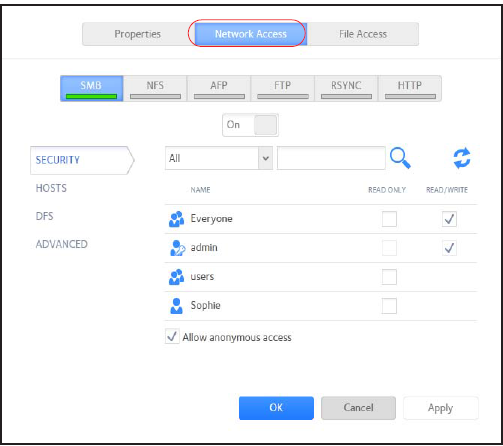
5. Click one of the file-sharing protocol buttons:
- SMB
- NFS
- AFP
- FTP
- RSYNC
- HTTP
The screen adjusts to display the access properties for the selected protocol.
6. Configure the network access settings for the selected protocol.
For more information on these settings, see the following support articles (not all selections apply to all protocols):
- How do I configure host access settings on my ReadyNAS OS 6 storage system?
- How do I hide a shared folder on my ReadyNAS OS 6 storage system?
7. Set the On-Off slider for the selected protocol:
-
To enable the protocol for the selected folder, set the On-Off slider so the slider shows the On position.
The indicator on the protocol button turns green.
Note: When you enable a file-sharing protocol for an individual shared folder, the protocol is also enabled globally.
-
To save the configured access settings but prevent them from taking effect, set the On-Off slider so the slider shows the Off position.
The indicator on the protocol button turns gray.
Note: When you disable a file-sharing protocol for an individual shared folder, the protocol remains enabled globally so that you can still access other folders that might be using the protocol.
8. Click the Apply button.
9. Click the OK button.
Your changes are saved and the pop-up screen closes.