

ReadyCLOUD is the online service that you use to discover and set up ReadyNAS storage systems on your network. You can also use ReadyCLOUD to access and manage data on your ReadyNAS systems. For you to use ReadyCLOUD, your computer and storage system must have Internet access.
Note: If your computer and storage system do not have Internet access, install and run the RAIDar utility instead. RAIDar is on the resource CD that came with your system. It includes versions for Windows, Mac, and Linux operating systems. It is also available at ReadyNAS Downloads.
When you discover your device using ReadyCLOUD, you can choose between two setup modes:
- ReadyCLOUD Mode. This setup mode allows you to securely access and manage your ReadyNAS system from anywhere that has an Internet connection. If you select ReadyCLOUD mode, you must create a free MyNETGEAR account or sign in using your existing MyNETGEAR account.
- Offline Mode. This setup mode makes your ReadyNAS data available only inside your home or office network. Selecting this setup mode takes you directly to the local admin page for your ReadyNAS system.
To discover and set up your ReadyNAS storage system:
- Visit http://readycloud.netgear.com on a computer that uses the same local area network (LAN) and Internet connection as your ReadyNAS system.
- Click the Start button under Set up a new ReadyNAS.
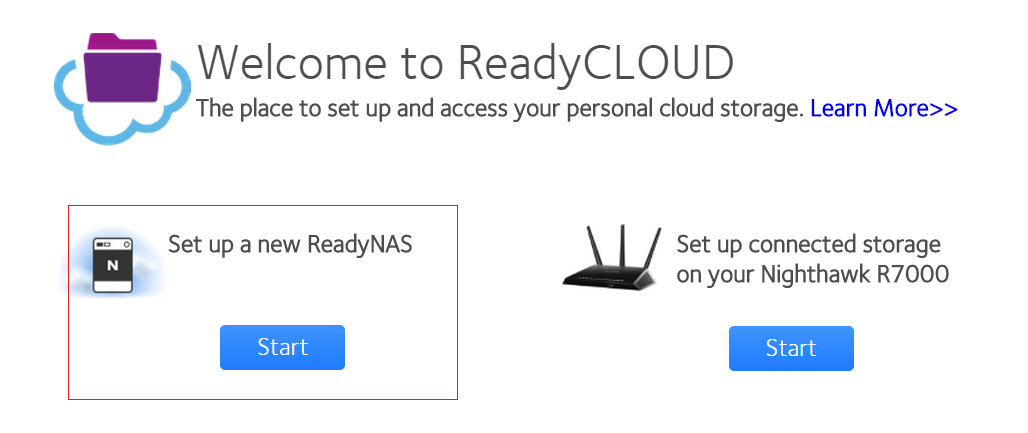
- Click the Discover button.

ReadyCLOUD automatically detects your ReadyNAS system on the network.
Your new ReadyNAS system is marked with a NEW label.

- Click the Setup button.
- Select the mode that you want to use to set up your system.
Option 1. Select ReadyCLOUD Mode.
-
a. Sign in to ReadyCLOUD using your MyNETGEAR account. If you do not have a MyNETGEAR account, create one.
- b. Follow the prompts to set up your ReadyNAS system.
Option 2.Select Offline Mode.
An SSL certificate security warning displays. This warning ensures an encrypted authentication and secure access to the ReadyNAS local admin page for your storage system. The warning appears because the certificate used in the ReadyNAS is self-signed.
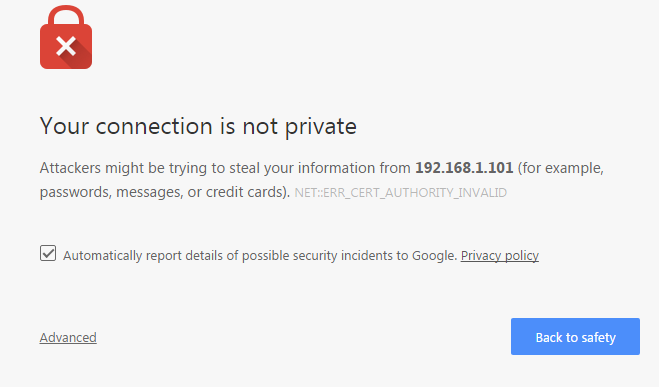
a. Accept the certificate.
A login prompt displays.

b. Enter admin for the user name, enter password for the password, and click Log In.
Both user name and password are case-sensitive.
You can change these credentials when you configure your system. NETGEAR recommends that you change your password as soon as possible.
The ReadyNAS local admin page displays in your browser and launches a setup wizard
c. Follow the prompts of the setup wizard that launches in your browser