

The MyMedia feature on the NETGEAR genie Mobile App is used to play media from devices on your home network on your mobile device. For example, music or video stored on your desktop PC could be played on your iPad. You can also play media that is on your phone or iPad on other devices in your home network.
Note 1 : The mobile device must have a Wi-Fi connection to a NETGEAR home router that has the genie user interface.
Note 2 : For the genie mobile app to find the network devices, each device must use Universal Plug and Play (UPnP).
Note 3 : Make sure that you have the free genie Mobile App installed on your iOS or Android mobile device :
Installing the NETGEAR genie Mobile App
MyMedia has four different views. The views depend on which item you select at the bottom of the screen (Source, Player, Playing, Option).

- Source. View a list of devices on your network that are sharing media files.
- Player. View a list of devices that can play media files over the network.
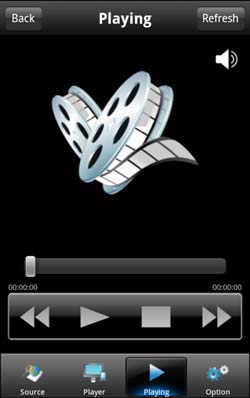
- Playing. View and control media that is currently playing on the selected player.
- Option. Go to the Option screen.
To play media on your mobile device :
- Tap the MyMedia icon :

- Tap the Source button to view the UPnP devices on your network.
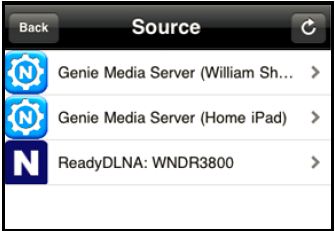
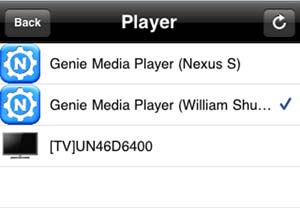
- Tap the device on your home network that is the source for your media files.
The media folders on that device are displayed.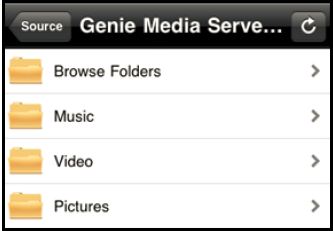
- Tap the folder that you want, and the media file within the folder.
The media file plays on the selected player.
Play and Control Media Files on Your Mobile Device :
When you play media that is on your mobile device (Android phone, iPhone, or iPad), how you control that media depends on which device you are using.
To play and control media files on an Android phone :
Note : With an Android phone, the media plays in full screen.
- Tap the Back button to stop the media from playing.
- Tap the Refresh button to update the playing progress.
To play and control media files on iPhones and iPads :
Note : iPhones and iPads (iOS devices) use two modes for media: Play mode and Control mode.
- Tap icon in top right-hand corner to switch between Playmode and Control mode.
- In Play mode, you can see the media playing. If you play media files on a different device on your network, Play mode is not available.
- Control mode is always available because it shows the playing media name, play progress, volume, and play controls.
Play mode :
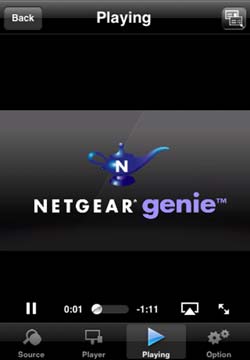
Control Mode :

Media Options
To view or change MyMedia options :Tap the Option icon on the MyMedia screen.
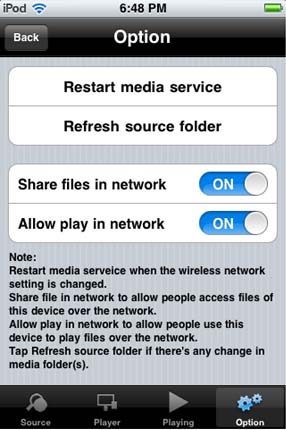
The following settings are available :
- Restart media service. Restart MyMedia service when a wireless setting is changed or no player is found.
- Refresh source folder. Scan the source device list when no source device is found.
- Share files in network. This setting is ON by default to let you use other devices on your home network to play media on this phone or iPad. If you do not want to use this option, then you change the setting to OFF.
For example, you could be using your mobile phone with the genie mobile app at home, while a guest is using your iPad, which also has the genie mobile app. From your phone, you could remotely play a song on the iPad, or play a photo slide show on the iPad for your guest. - Allow play in network. This setting is ON by default to play media that is on this phone or iPad on other devices on the same network. If you do not want to allow play in network, change the setting to OFF.
For instance, if you have photos on a computer or other mobile devices on your home network, and you want to view them on this phone or iPad, leave the Allow play in network check box selected. This setting controls whether the photos from other devices can be viewed on this phone or iPad.
Media Option Tips :
- Use Restart media service or Refresh source folder, if you are not able to see all network UPnP devices.
- To play, the device needs to support the DLNA Player profile. Game consoles (like Xbox 360 or PS3) and DVRs do not support the DLNA Player profile. For this reason, they do not show up as players in MyMedia.
- MyMedia finds only the media types supported by the player. For example, an iPad does not play Adobe Flash files as this format is not supported.