

ReadySHARE Cloud can give you remote access over the Internet on your USB storage device attached to your router’s USB port. All you need is to create your ReadySHARE Cloud account and install the ReadySHARE utility on your Windows PC or MAC computer. You can also use your Smart Phone or Tablet to access your ReadySHARE Cloud.
How to create your ReadySHARE Cloud account?
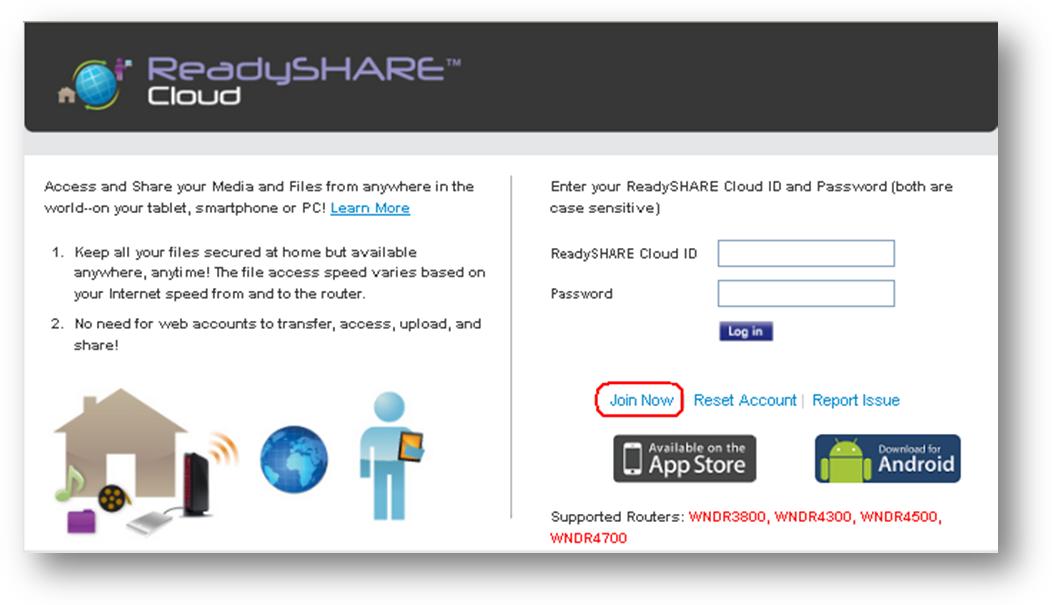
- Go to this link https://readyshare.netgear.com/login/index.html and click on Join Now.
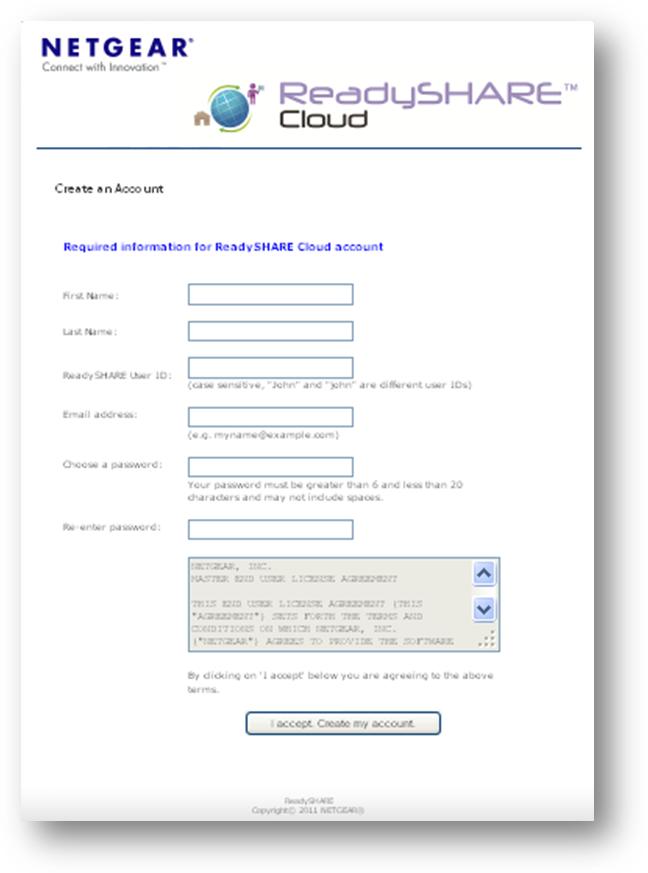
- Fill out the form and click on I accept. Create my account.
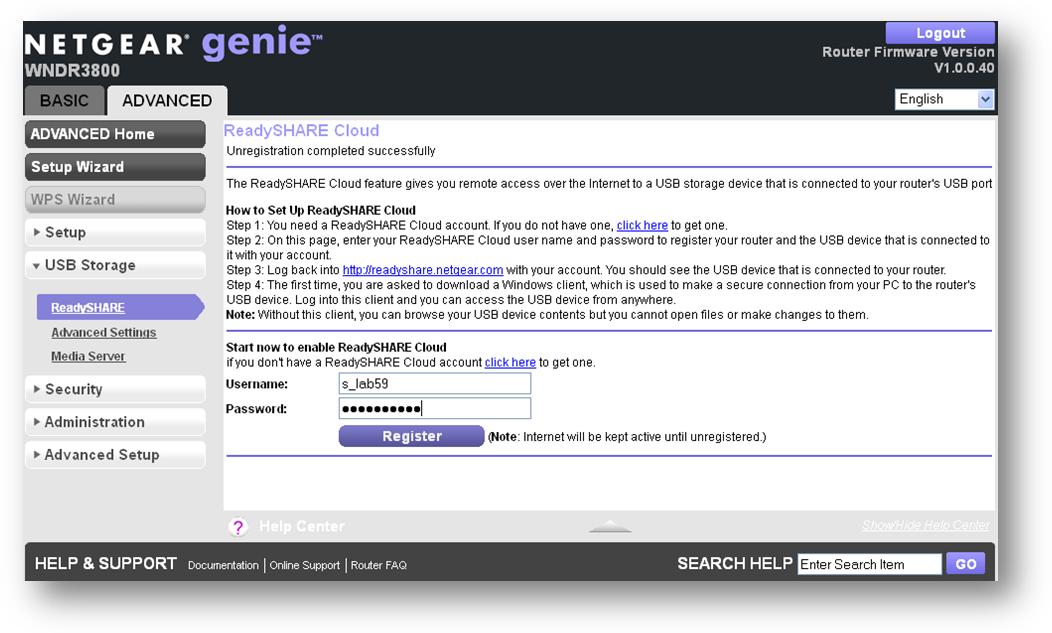
- Open the router’s GUI and click on ReadySHARE under USB Storage of the Advanced tab. Click on ReadySHARE Cloud.
- Type in your username and password then click on Register.
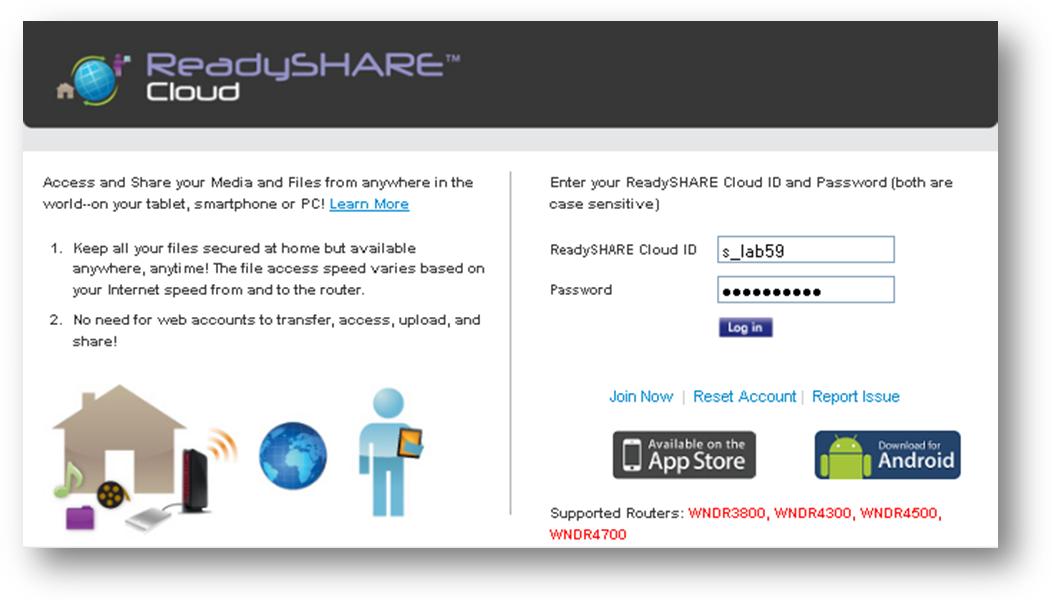
- Go back to http://readyshare.netgear.com and enter your ReadySHARE Cloud account.
- Once logged in, you can now see the device(s) registered on your account. Click on the device to browse the content of your USB storage.

Note: Using web browser, you can only browse the USB storage contents, if you want to do more than browsing your files, you need to install the ReadySHARE Cloud utility.
How to install ReadySHARE Cloud utility?
Using Windows Operating System:
Note: This utility will not be supported on Windows 10.
- Once you have logged in to the ReadySHARE Cloud site, the page will give you the option to download and install the utility. Just click on Yes and install the software.

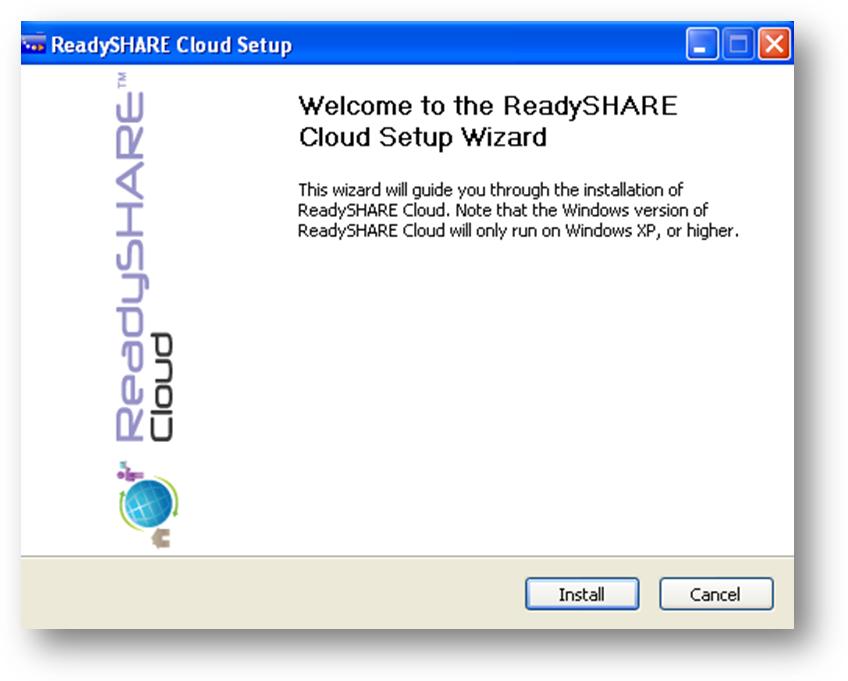
- Run the executable file and click Install.
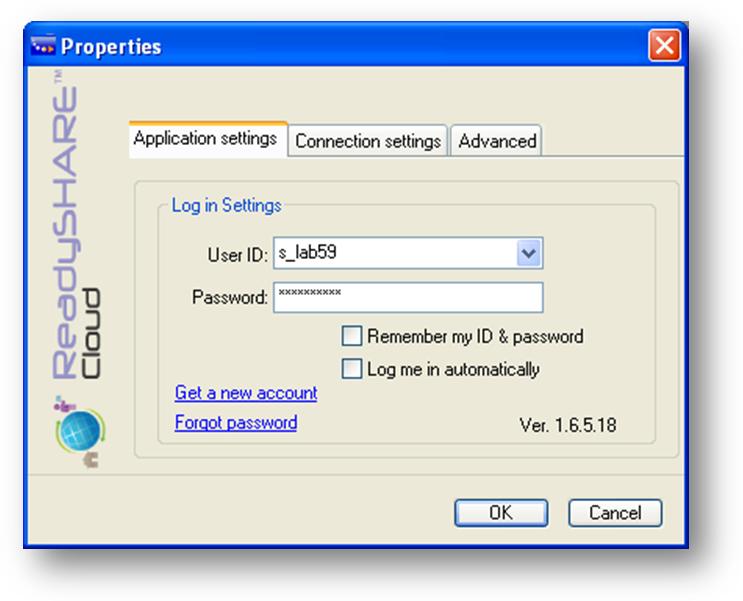
- Once installed, open the ReadySHARE Cloud utility. Click on New User if you have want to create a new account or click on Log in to use your existing ReadySHARE Cloud account.

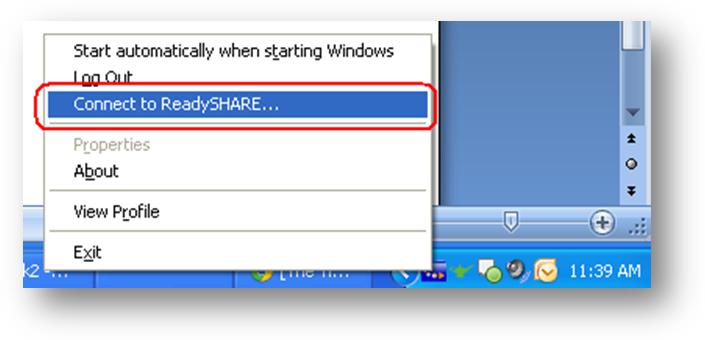
- Once you are logged in, right-click the ReadySHARE Cloud icon on your task bar and click on Connect to ReadySHARE.
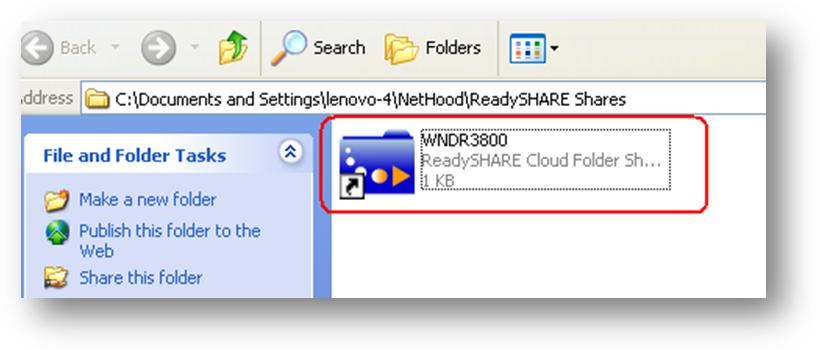
- Double click on the ReadySHARE Cloud folder to open your USB hard drive. After that, you are now ready to copy, save or edit files on your USB hard drive.
Using MAC Operating System:
- Go to http://www.netgear.com/readyshare and click the link for MAC Utility.
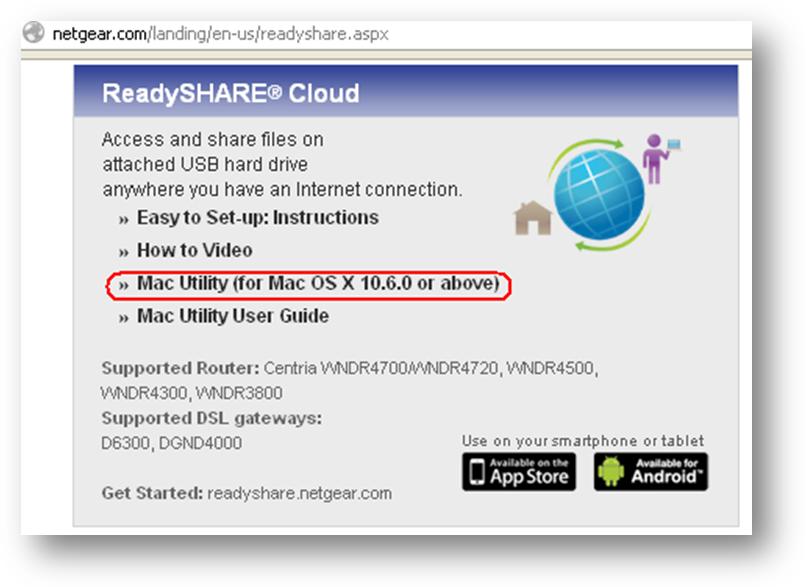
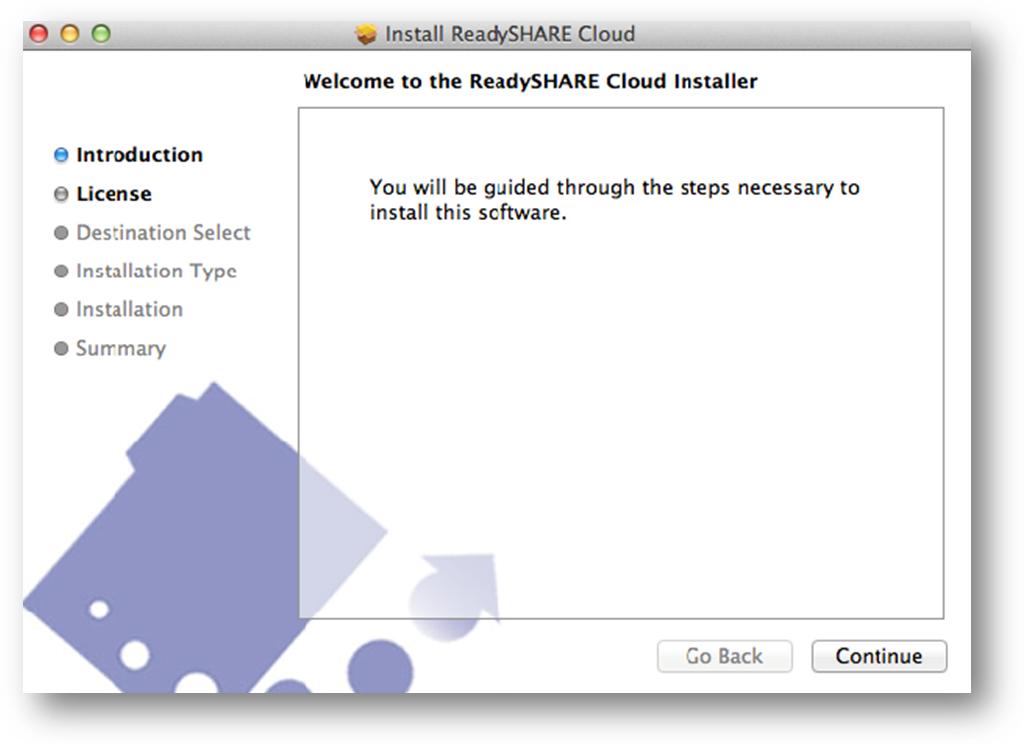
- Install the utility.
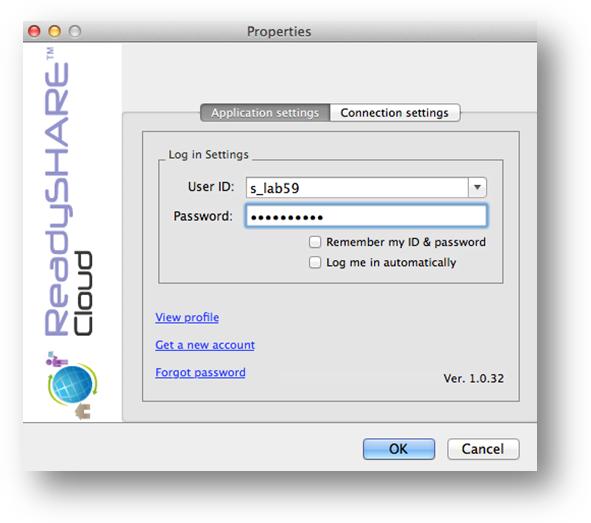
- After installation, go to Properties option of the ReadySHARE Cloud utility and set the User ID and Password. Login after typing in the User ID and Password.
- Once logged in, click the ReadySHARE Cloud icon and select Connect to ReadySHARE.
- Click on the device and wait for it to connect to the SMB.
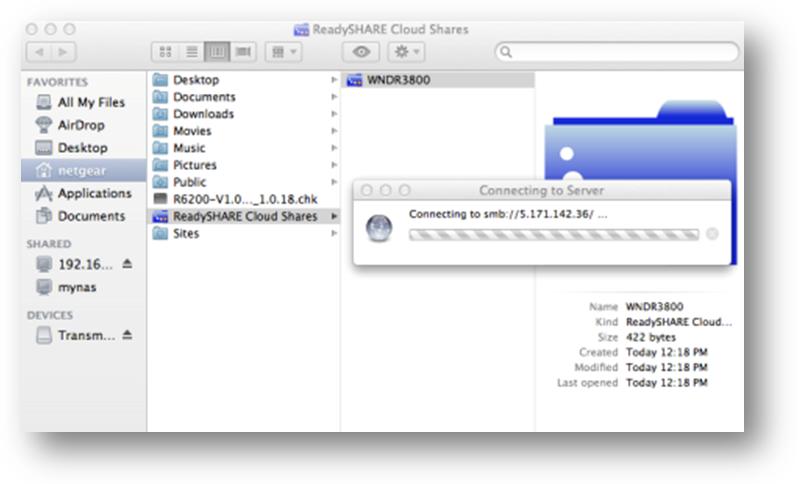
- Select the volume that you want to mount.

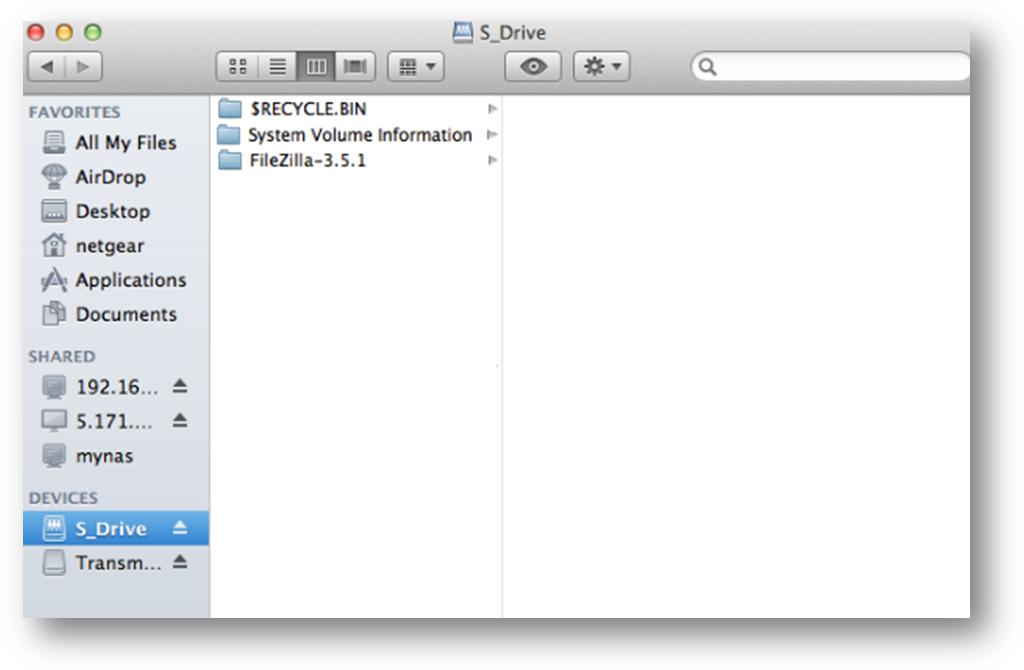
- The volume will be displayed under devices. You can now start to save, copy or edit files on your USB hard drive.
Last Updated:07/07/2025
|
Article ID: 22067