

- Download a backup image using tftp.
- Select Maintenance > Download > File Download.
A screen similar to the following displays.

- In the File Type list, select Archive.
- In the Image Name list, select image2.
- In the Transfer Mode list, select TFTP.
- In the Server Address Type list, select IPv4.
- In the Server Address field, enter 10.100.5.17(tftp server IP address).
- In the Remote File Name, enter gsm73xxse-r8v0m0b3.stk.
- Click Apply.
- Select Maintenance > Download > File Download.
- Activate image2.
- Select Maintenance > File Management > Dual Image Configuration.
A screen similar to the following displays.
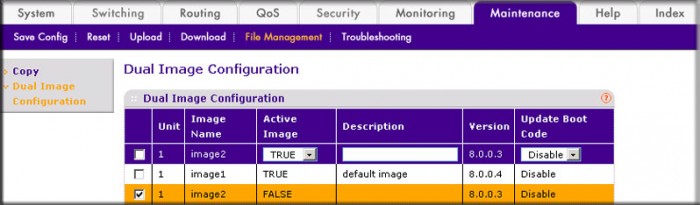
- Under Dual Image Configuration, scroll down and select the Image 2 check box.
The image2 now appears in the Image name field at the top.
- In the Active Image field, select TRUE.
- Click Apply.
- Select Maintenance > File Management > Dual Image Configuration.
For more information, see the following support articles:
- What is the dual image feature and how does it work with my managed switch?
- How do I download a backup image and make it active using CLI commands on my managed switch?
This article applies to the following managed switches and their respective firmware:
- M5300 - firmware version 10.0.0.x
-
- M5300-28G (GSM7228S)
- M5300-5G (GSM7252S)
- M5300-28G3 (GSM7328Sv2h2)
- M5300-52G3 (GSM7352Sv2h2)
- M5300-28G_POE+ (GSM7228PSv1h2)
- M5300-52G-POE+ (GSM7252PSv1h2)
- M5300-28GF3 (GSM7328FSv2)
- M4100 - firmware version 10.0.1.x
-
- M4100-26G (GSM7224v2h2)
- M4100-50G (GSM7248v2h2)
- M4100-26G-POE (GSM7226Pv1h1)
- M4100-50G-POE+ (GSM7248Pv1h1)
- M4100-26G-POE (FSM7226Pv1h1)
- M4100-50-POE (FSM7250Pv1h1)
- M4100-D12G (GSM5212v1h1)
- M4100-D10-POE (FSM5210Pv1h1)
- M7100 - firmware version 10.0.1.x
-
- M7100-24X (XSM7224)
- XSM7224S - firmware version 9.0.1.x
Last Updated:07/07/2025
|
Article ID: 21855