

sThis example redirects the HTTP traffic stream received in port 1/0/1 to port 1/0/19.
- Create an IP access control list with the name redirectHTTP.
- Select Security > ACL > Advanced > IP ACL.
A screen similar to the following displays.
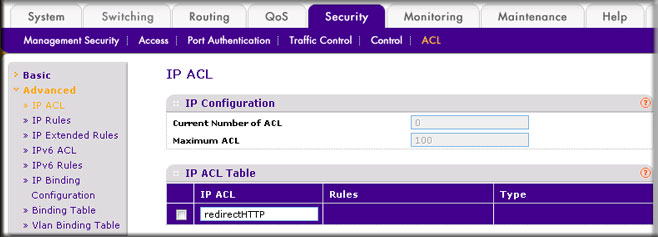
- In the IP ACL field, enter redirectHTTP.
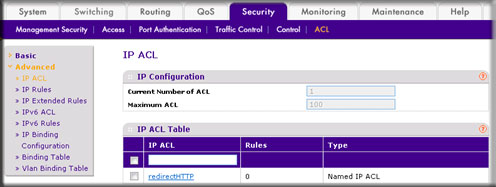
- Click Add to create the IP ACL redirectHTTP.
A screen similar to the following displays.
- Select Security > ACL > Advanced > IP ACL.
- Create a rule to redirect HTTP traffic.
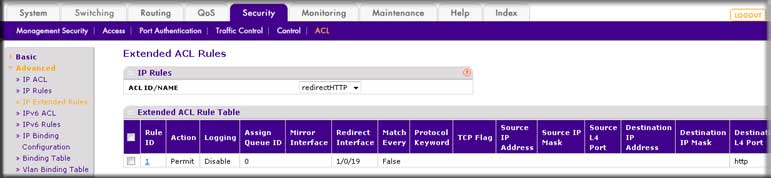
- Select Security > ACL > Advanced > IP Extended Rules.
A screen similar to the following displays.
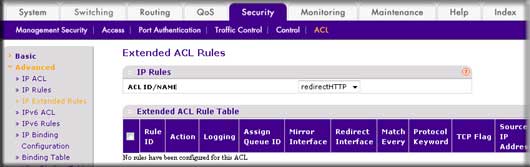
- Click Add, and the Extended ACL Rule Configuration screen displays.
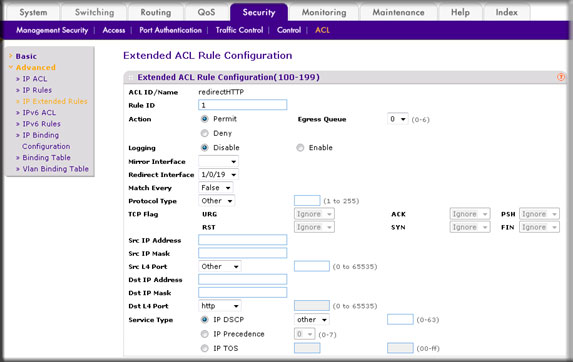
- In the Rule ID field, enter 1.
- For Action, select the Permit radio button.
- In the Redirect Interface list, select 1/0/19.
- In the Dst L4 Port list, select http.
- Click Apply.
The Extended ACL Rules screen displays, as described in the next step in this procedure.
- Select Security > ACL > Advanced > IP Extended Rules.
- Create a rule to match every other traffic.
- Select Security > ACL > Advanced > IP Extended Rules.
A screen similar to the following displays.
- Click Add, and the Extended ACL Rule Configuration screen displays.
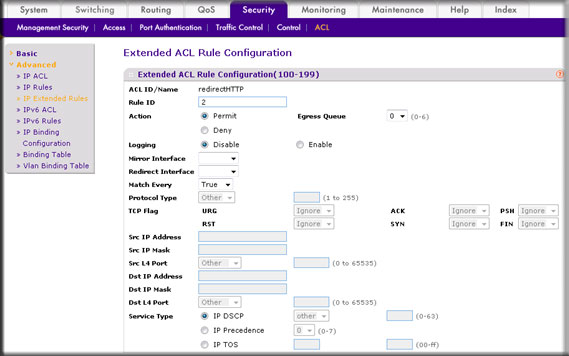
- In the Rule ID field, enter 2.
- For Action, select the Permit radio button.
- In the Match Every field, select True.
- Click Apply.
A screen similar to the following displays.
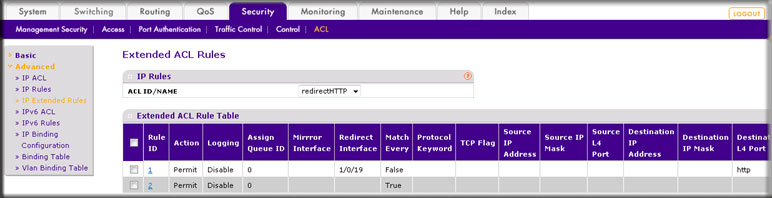
- Select Security > ACL > Advanced > IP Extended Rules.
- Bind the ACL with interface 1/0/1.
- Select Security > ACL > Advanced > IP Binding Configuration.
A screen similar to the following displays.
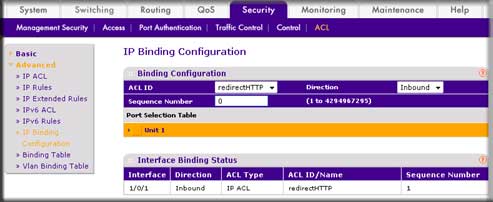
- In the Sequence Number field, enter 1.
- In the Port Selection Table, click Unit 1 to display all the ports.
- Select the check box below Port 1.
- Click Apply.
At the end of this configuration a screen similar to the following displays.
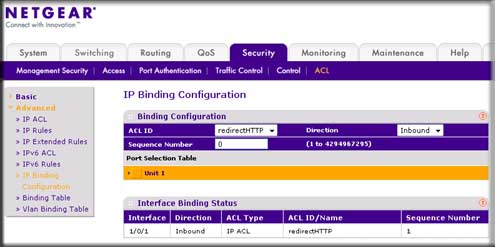
- Select Security > ACL > Advanced > IP Binding Configuration.
For more information, see the following support articles:
- What are Access Control Lists (ACLs) and how do they work with my managed switch?
- What is an Access Control List (ACL) redirect and how does it work with my managed switch?
- How do I redirect a traffic stream using CLI commands on my managed switch?
This article applies to the following managed switches and their respective firmware:
- M5300 - firmware version 10.0.0.x
-
- M5300-28G (GSM7228S)
- M5300-5G (GSM7252S)
- M5300-28G3 (GSM7328Sv2h2)
- M5300-52G3 (GSM7352Sv2h2)
- M5300-28G_POE+ (GSM7228PSv1h2)
- M5300-52G-POE+ (GSM7252PSv1h2)
- M5300-28GF3 (GSM7328FSv2)
- M4100 - firmware version 10.0.1.x
-
- M4100-26G (GSM7224v2h2)
- M4100-50G (GSM7248v2h2)
- M4100-26G-POE (GSM7226Pv1h1)
- M4100-50G-POE+ (GSM7248Pv1h1)
- M4100-26G-POE (FSM7226Pv1h1)
- M4100-50-POE (FSM7250Pv1h1)
- M4100-D12G (GSM5212v1h1)
- M4100-D10-POE (FSM5210Pv1h1)
- M7100 - firmware version 10.0.1.x
-
- M7100-24X (XSM7224)
- XSM7224S - firmware version 9.0.1.x
Last Updated:07/07/2025
|
Article ID: 21728