

- Select Routing > Routing Table > Basic > Route Configuration to display the Route Configuration screen.
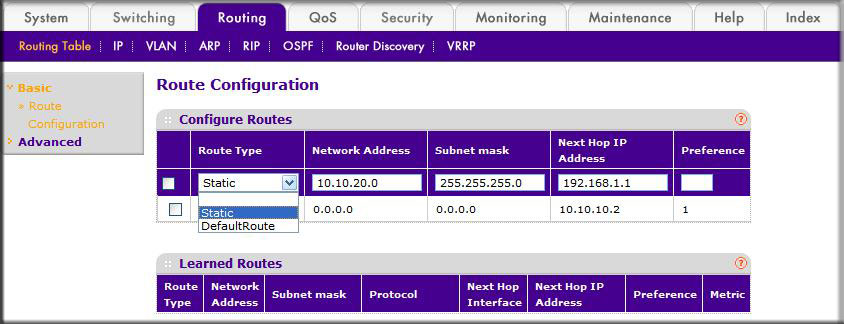
- In the Route Type list, select Static.
- Fill in the Network Address field. Note that this field should have a network IP address, not a host IP address.
Do not enter something like 10,100.100.1. The last number should always be zero.
- In the Subnet Mask field, enter a value that matches the subnet range that you want to use.
- The Preference field is optional.
A value of 1 is entered by default if you do not enter a number.
- Click Add on the bottom of the screen.
The screen is updated with the static route shown in the routing table.
- To remove a route entry, either static or default, select the check box to the left of the entry, and click Delete on the bottom of the screen.
Last Updated:07/07/2025
|
Article ID: 21654