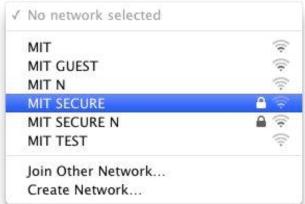
Overview
This article will help you delete preferred wireless network or profiles saved on a Mac OSX.
Symptoms
- unable to connect to wireless network due to new wireless settings
- delete a saved wireless network
Resolution
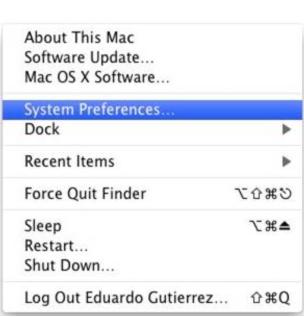
1. Click on the Apple icon in the top left-hand corner of the the screen in the Menu Bar.

2. Select System Preferences
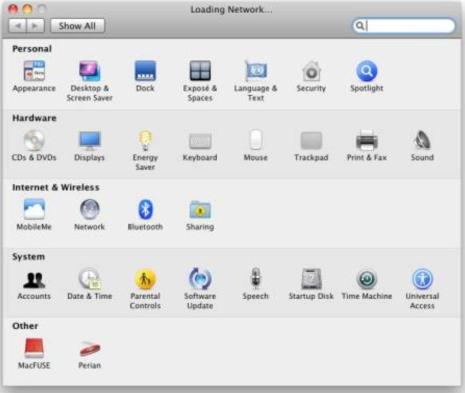
3. In System Preferences, click on the Network icon
4. In the Network preference pane, select "Airport" from the list on the left.
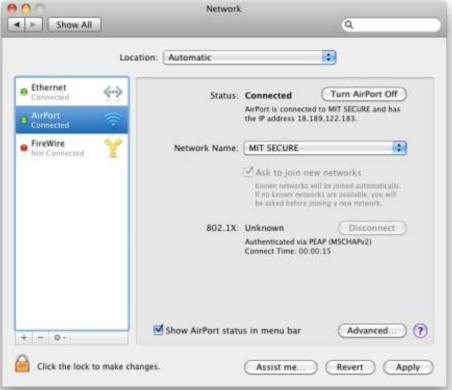
5. Click the button Turn Airport Off and then click the Advanced button.
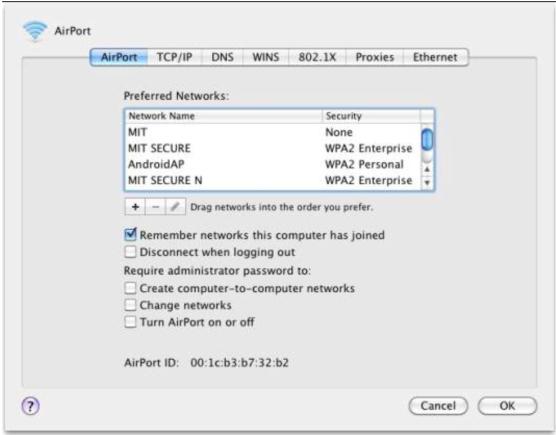
6. Under the Airport tab, there will be a list titled Preferred Networks listing the network name and security type.
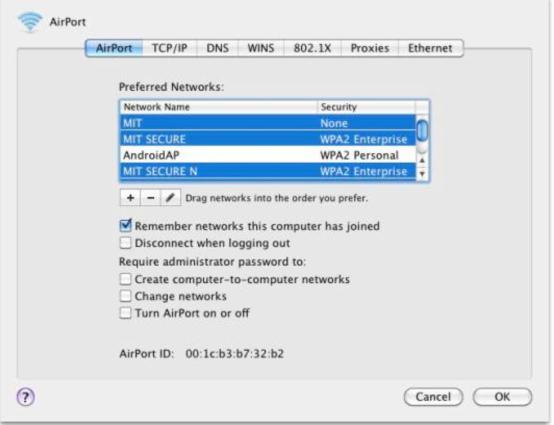
7. Select the networks to be removed by pressing and holding the Command (key with the Apple logo on it) while clicking on any networks listed. If you wish to remove all networks in the list, click on one of the networks listed and press Command + A to select all the networks.
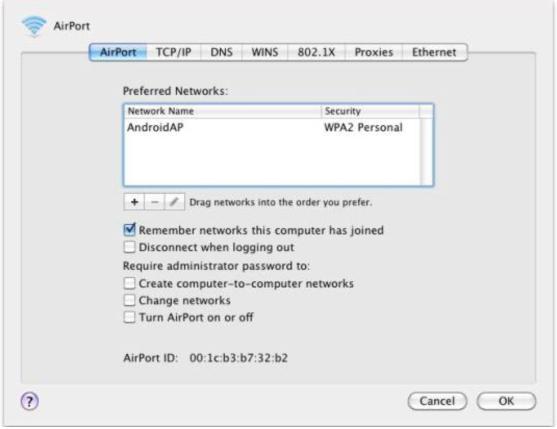
8. Once you've selected the networks, press the Minus button below the list. Then click the OK button.
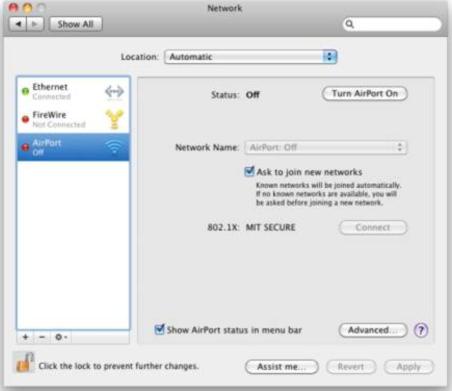
9. Click the Apply button and then click button Turn Airport On.