

Checklist:
- Supported Operating Systems: Windows XP SP1 or Higher, Windows 2000 SP4 or Higher, Windows 2003 Server, Windows Vista (with Firmware version 4.23 or above).
- DHCP enabled network.
- SC101 software must be installed on every computer on the network that will access the unit.
Note - Unsupported Operating Systems: Macintosh, UNIX, 64 Bit Operating Systems, Linux, etc...
Hard drive compatibility:
- The newer 133 drives are recommended.
- All the ATA 6 drives are supported.
- ATA 5 drives are not supported.
- Serial ATA (SATA) drives are not supported.
- The drives formatted on a different file system will not be read by the SC101.
You can also refer to the Hard drive compatiblity list
Physical connection:
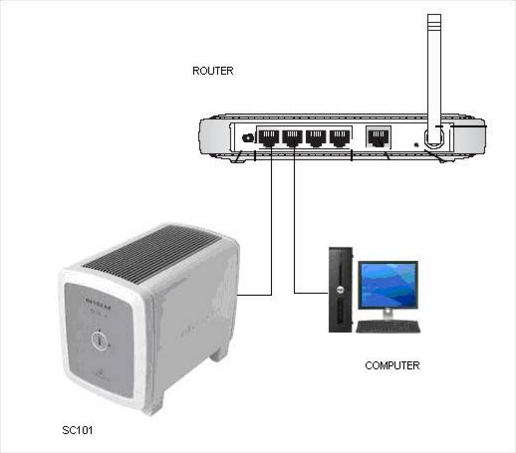
The computer and the SC101 must be connected to an active DHCP server (Router).
Installation procedure:
- Check the physical connections.
- Make sure the Jumper Settings on the drives are selected in the Cable Select Mode.
- Light Status of the SC101.

- Disable all the firewalls, including Windows built-in Firewall.
- Install the SCM Utility on the computer.
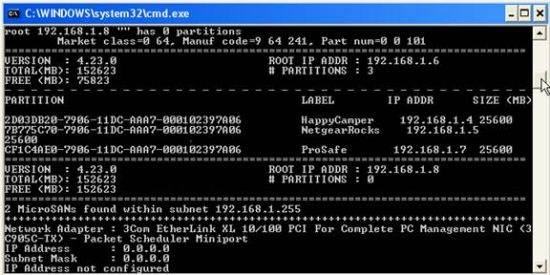
- On the command prompt, type UT listall command and note the following:
-
- Root IP address.
- Partition IP Address.
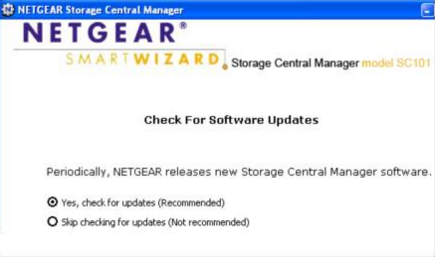
- Open the SCM Utility.8
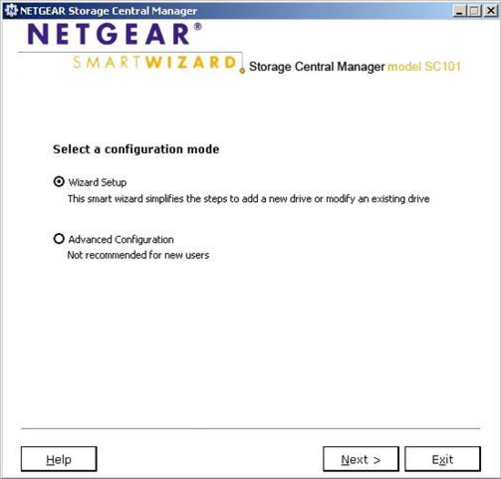
- Select the option — Wizard Setup.
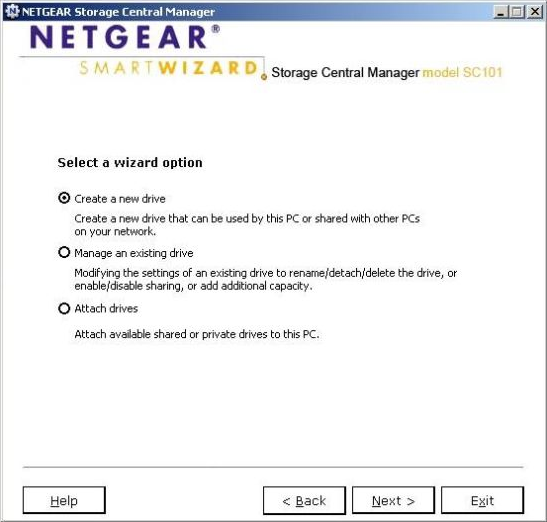
- Select the option “Create a New Drive.”
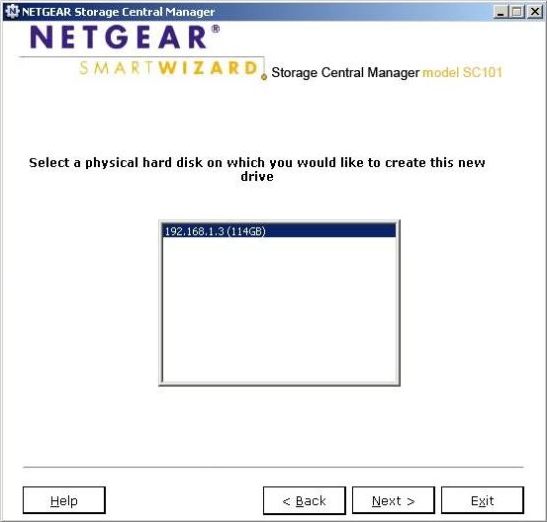
- Select the IP Address and click Next.
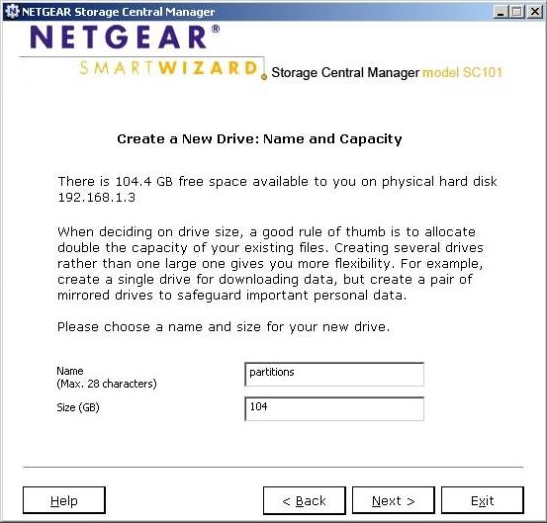
- Type the Name and the size of the Partition and Click Next.
- Enable Mirroring (What is Disk Mirroring?) if required and click Next.
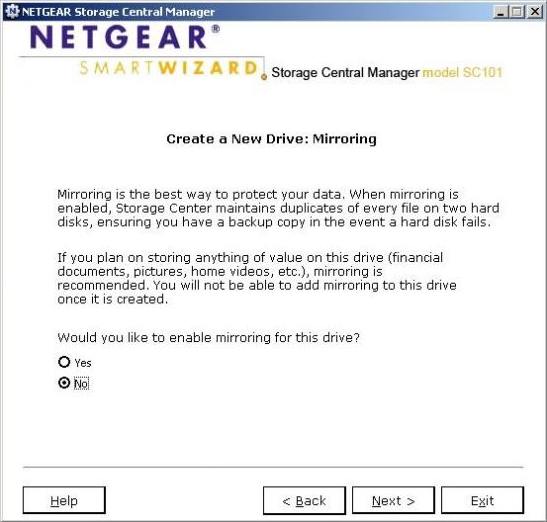
Note: Mirroring cannot be enabled once the partition is created.
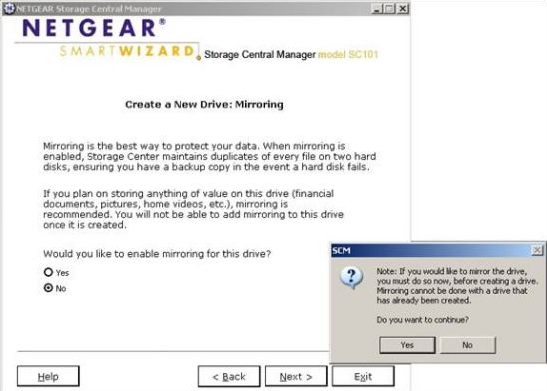
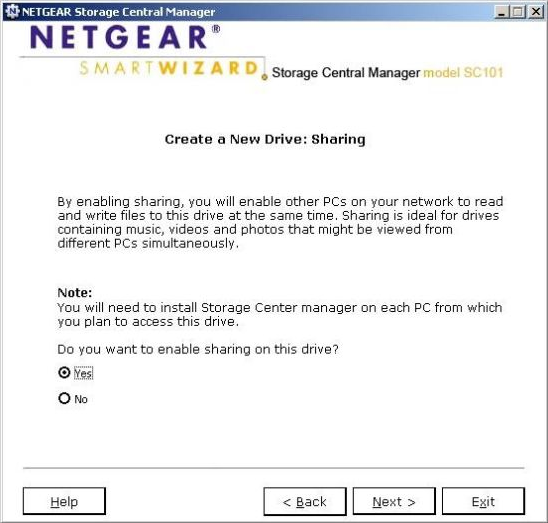
- Enable Sharing if required and press Next.
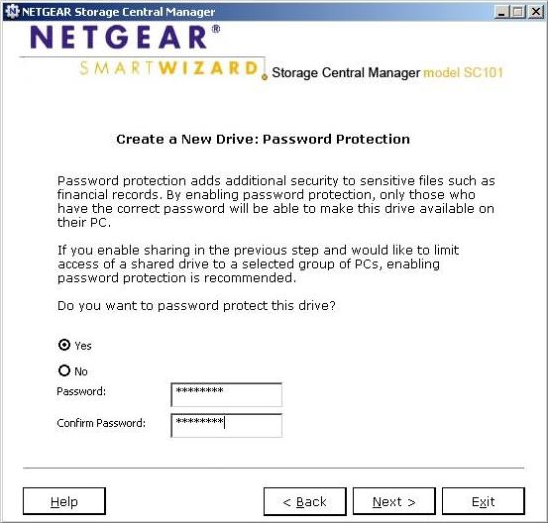
- Enable Password Protection if the partitions are shared and click Next.
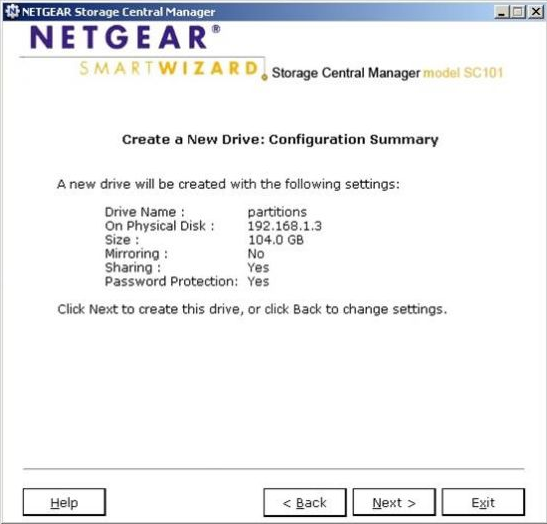
- Check the Configuration Summary and click Next.
- The created partition is displayed in the “My Computer” with a Z symbol on the network drive.
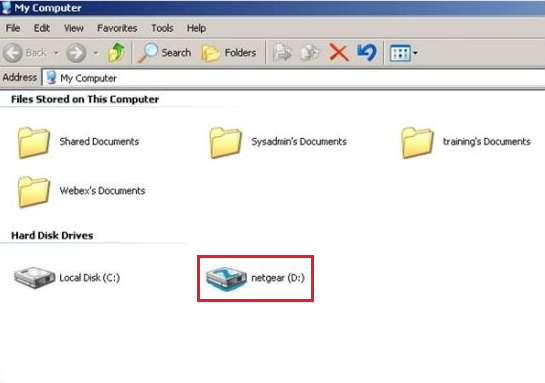
Now you have successfully completed the SC101 installation and the Network Drive is created and ready to use.
Product page: http://support.netgear.com/product/SC101
Note: This article dates from 2005. NETGEAR have ceased manufacturing this device in 2009. Editor Aug 2014
Last Updated:07/07/2025
|
Article ID: 195