

Over the lifetime of a hard disk it is possible it will generate reallocated sectors. A reallocated sector occurs when the hard disk cannot read/write from/to a sector of the disk. The disk allocates another sector and marks the bad sector as reallocated.
If the reallocated sector count begins to increase steadily on a disk it is a sign that the disk may fail. The disk should be monitored for further reallocated sector events.
There is no defined number of reallocated sectors to signal when a hard disk will fail, however there are some patterns to look out for when assessing if the disk should be replaced;
1. If the reallocated sector count is continually increasing over time, even in small amounts, then the disk should be replaced before it fails.
2. If the reallocated sector count is increasing rapidly over a short period of time, the disk should be replaced before it fails.
To identify if there is a disk in the chassis experiencing reallocated sectors please check the log file of the ReadyNAS.
Find out how to retrieve the logs files
ReadyNAS OS 6
Check the Disk Info log file
For each disk listed in the log check the Reallocated Sectors.
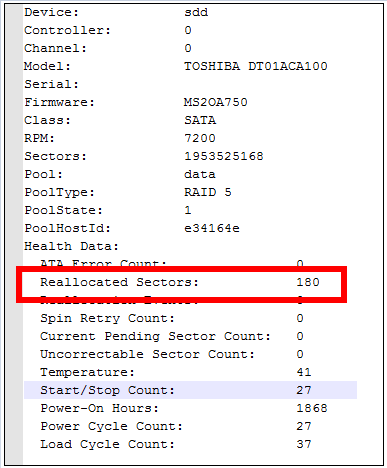
Cross reference with Status log will indicate if the Reallocated Sector Count is increasing on multiple occasions.
RAIDiator 4 and 5
Check the Disk Smart log file.
For each disk listed in the log check Reallocated sector count
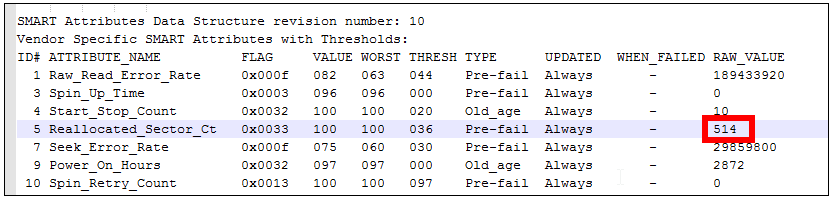
Cross reference with Status log will indicate if the Reallocated Sector Count is increasing on multiple occasions.
Disks replacement should only be considered when Reallocated Sector count is increasing on a regular basis.
Single Reallocated Sector increases do not warrant disk replacement. Reallocated Sector count should be increasing steadily over a period of time before replacing the disk.
Enabling email alerts is best practice to monitor status of disk and performance of the ReadyNAS.
Note: NETGEAR will only replace original disks that are supplied with ReadyNAS chassis.
Please ensure that your data volume (ideally backed up) is accessible before replacing any disk in the ReadyNAS. If data is not accessible do not replace the disk and contact support. Replacing a disk while another disk is failing may cause loss of data.
NETGEAR ReadyNAS have an inbuilt disk test facility. Please use the boot menu for instructions on how to carry out a disk test for each model ReadyNAS.