

Overview
This article describes setting and restricting share access on ReadyNAS units. Refer to your user manual for instructions on adding shares.
Steps
From Frontview, select Security > Security Mode to adjust share access. Depending on the ReadyNAS model, one or more of the following modes will be available:
- User or Domain Security
- Share Security
To set or view the security mode in Frontview, select Security from the left menu.
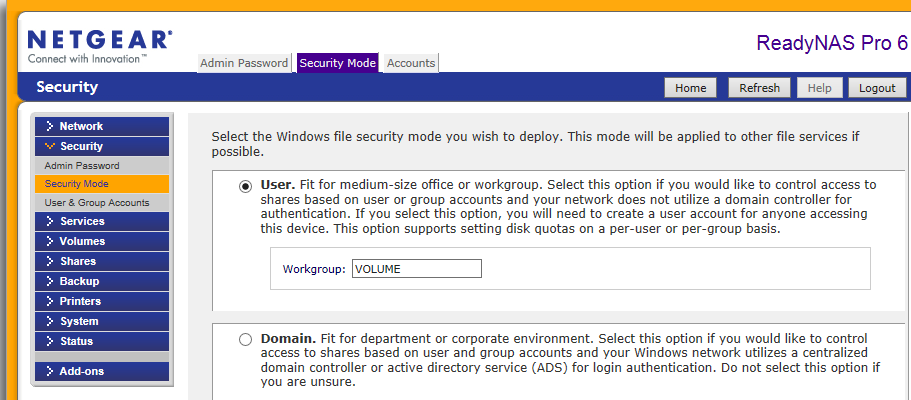
To Set Share Access in User and Domain Mode:
From the Share List screen, click the CIFS link next to the share whose access will be changed.

Possible Configurations:
A. Specific users have read/write access; guest users have read-only access.
B. Specific users have read/write access; no guest users allowed to access share.
C. Specific computers have read/write access, regardless of user.
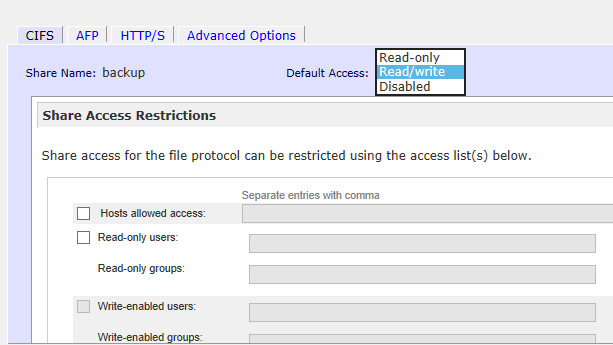
Setup A: Specific users have read/write access; guest users have read-only access.
- From the Default access drop-down, select Read-only. This will prevent other users or anonymous users from editing or deleting items on the share.
- Enable the "Write-enabled users" checkbox and enter a user or group name in the associated textbox.
- Enable the "Allow guest access" checkbox to allow anonymous users to login to the share.
Setup B: Specific users have read/write access; no guest users allowed to access share.
- From the Default access drop-down, select Read-only. This will prevent other users or anonymous users from editing or deleting items on the share.
- Enable the "Write-enabled users" checkbox and enter a user or group name in the associated textbox.
- Disable the "Allow guest access" checkbox to prevent anonymous users from logging into the share.
Setup C: Specific computers have read/write access, regardless of user.
- From the Default access drop-down, select Read/write. This will grant permission to users to edit or delete items on the share.
- Enable the Hosts allowed access checkbox and type the IP address that is allowed to access the share. This option restricts access to the share to the computer associated with that IP address.
- Disable the "Allow guest access" checkbox to prevent anonymous users from logging into the share.
To Set Share Access in Share Mode:
From the Share List screen, select the CIFS link of the share whos access is to be changed.
Possible Configurations:
- Limit the default access to Read/Write and list the hosts allowed to access the share. All other hosts will be denied access.
- Limit the default access to Read-only and list multiple hosts allowed to access the share. All other hosts will be denied access.