

New Features and Enhancements:
This firmware addresses the following new features and enhancements which are available in the device UI only. Insight currently does not support these new features and enhancements.
- Support for Dual WAN Load Balancing.
This feature allows the simultaneous use of two separate Wide Area Network (WAN) connections to ensure uninterrupted connectivity and optimal utilization of available bandwidth. The router uses dual WAN load balancing to:- Reduce delays due to sharing and transmission
- Adjust the network bandwidth by combining the cumulative bandwidth speed of different connections.
- Support for Dual WAN rules enhancement during failover scenario:
This enhancement provides the network administrator with an accurate way to control the routing based on configured policy. - Added weight in percentage for WAN 1 and WAN2
- Added sticky timeout option which allows traffic from the same source IP address to use the same WAN interface as the previous session if within the timeout limit.
- Domain name support over Dual WAN Failover and Dual WAN Load balancing features.
- Support for LAG (Link Aggregation):
Link Aggregation is a networking technique that combines multiple physical network connections into a single logical link. - Supported LAG types:
- Static
- Dynamic/LACP
- Supported Hash policy:
- Layer 2
- Layer 2+3
- Layer 3+4
- Support for secure DNS. This feature encrypts DNS queries using DoT (DNS over TLS), DoH (DNS over HTTPs) and DoQ (DNS over QUIC) protocols to enhance network privacy.
- Support for the UI Dark theme, Light theme, and Device default modes.
- Support for sequential IP Address option on VLAN Settings. This option is disabled by default.
- Increase to the VPN client number limit, as shown in below table:
|
Protocol |
VPN client limit in V2.6.0.80 and older |
VPN client limit in this release |
|
IPSec |
IPsec site-to-site: 30 IPsec client to site: 30 |
IPsec site-to-site: 30 IPsec client-to-site: 70 |
|
OpenVPN |
30 |
100 |
|
WireGuard |
30 |
100 |
Security Fixes:
This firmware addresses security vulnerabilities. For more information about security vulnerabilities, visit https://www.netgear.com/about/security.
Bug Fixes:
- Fixes the issue where the Automatically adjust time for DST toggle button is missing for Canberra, Melbourne, and Sydney.
- Fixes the issue where the domain name resolution does not work across VLANs.
- Fixes the issue where the DHCP option 15 does not work for ping with DNS resolution with hostname and dnslookup utilities.
- Fixes the issue where the IPSec tunnel hangs when the WAN IP address changes.
Known Issues:
- Current Insight does not support Dual WAN Load Balancing configurations.
Workaround: Configure Dual WAN Load Balancing in local GUI. - A WireGuard full tunnel VPN client cannot access its local network because all traffic is directed to VPN tunnel.
- Workaround: Uncheck WireGuard client software “Block untunneled traffic” option or disable WireGuard VPN tunnel to access local network.
- In a Dual WAN configuration, an IPSec tunnel shows the status as “UP” on the secondary WAN interface while the primary WAN interface is active.
Workaround: The IPSec tunnel works on the active WAN interface. The other tunnel operates as backup. - You can configure the OpenVPN IP address range for VPN clients in the same subnet as the LAN and WAN subnets.
Workaround: Configure the OpenVPN IP address range for VPN clients in a different subnet from the LAN and WAN subnets. - Clients that are connected over VPN cannot access the Internet if the site-to-site remote IP address is the same as an IP address in the range for VPN clients.
Workaround: Ensure that the site-to-site remote IP address does not conflict with an IP address in the range for VPN clients. - With more than one VLAN configured, the IP address of a connected client is not updated after the LAN IP address change
Workaround: Disconnect and reconnect the LAN port network cable. - The time stamp of a syslog entry does not adjust according to the local time zone.
Workaround: Interpret the log events according to the system time. - After you change the default VLAN IP address range, the IP address does not immediately update on the Domotz server.
Workaround: Wait until the IP address updates on the Domotz server.
Download link: https://www.downloads.netgear.com/files/GDC/PR460X/PR460X-V2.7.0.111.zip
Firmware Update Instructions:
To update your product’s firmware, follow the instructions in your product’s user manual. To find your user manual, visit https://www.netgear.com/support/, enter your model number in the search box, and click the Documentation button on the product page.
The following sections also describe how you can update the firmware.
Manually Update Firmware after Initial Setup
- Download the latest PR460X V2.7.0.xx firmware file from the NETGEAR support site (https://www.netgear.com/support/).
- Launch a web browser from a computer that is connected to a PR460X LAN port.
- Enter the IP address that is assigned to the Router.
If your computer is directly connected to the LAN port, enter https://www.routerlogin.net. Otherwise, enter https://<IP-address-of-router>.
Note: If the IP address of the router is its 192.168.1.1 default address, enter https://192.168.1.1.
A login page displays.
If your browser displays a security warning, you can proceed, or add an exception
for the security warning. For more information, see https://kb.netgear.com/000062980 - Enter the router username and password. The username is admin. The password is the one that you specified when you set up the router. The username and password are case-sensitive.
If you did not yet specify a custom password, the default password is password (also stated on the router label). - Click the LOGIN button.
The Dashboard page displays. - Select Administration > Firmware Update.
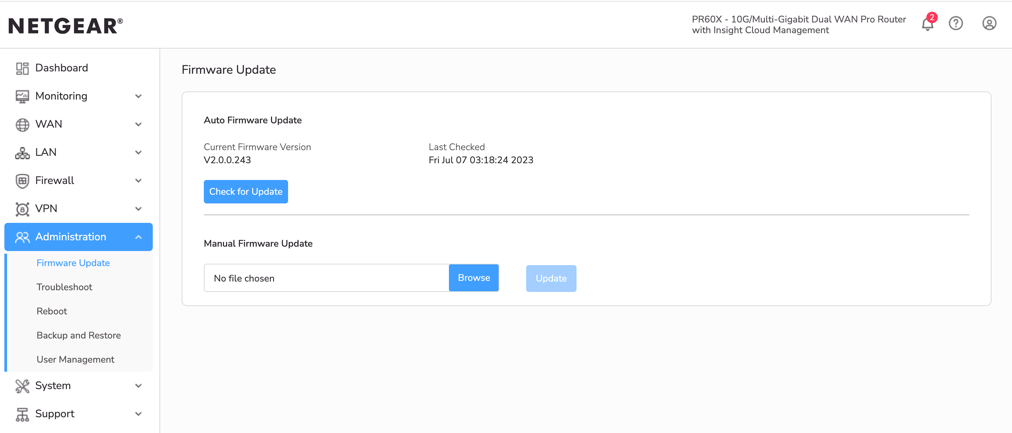
- Locate and select the firmware file on your computer by doing the following:
- In the Firmware Update section, click the Browse button.
- Navigate to the firmware file.
The file name ends in .bin. - Select the firmware file.
- Click the Update button.
A Firmware update confirmation pop-up window displays. - Click the Update button.
The page displays the update progress. The update takes about 90 seconds.
WARNING: To avoid the risk of corrupting the firmware, do not interrupt the update. For example, do not close the browser, click a link, or load a new page. Do not turn off the router. Wait until the router finishes. -
When the update is finished, log back into the router.
The firmware version displays on the Dashboard page.
Let the Router Automatically Update the Firmware During Initial setup: - Launch a web browser from a computer that is connected to a PR460X LAN port.
- Enter the IP address that is assigned to the Router.
If client is directly connected to the routers LAN network, you can enter https://www.routerlogin.net. Otherwise, enter https://<IP-address-of-Router>.
Note: If the IP address of the router is its 192.168.1.1 default address, enter https://192.168.1.1.
A login page displays.
If your browser displays a security warning, you can proceed, or add an exception
for the security warning. For more information, see https://kb.netgear.com/000062980. - Enter password as the router login password (also stated on the router label) and click the LOGIN button. The password is case-sensitive.
The Welcome page displays. - Click the Next button.
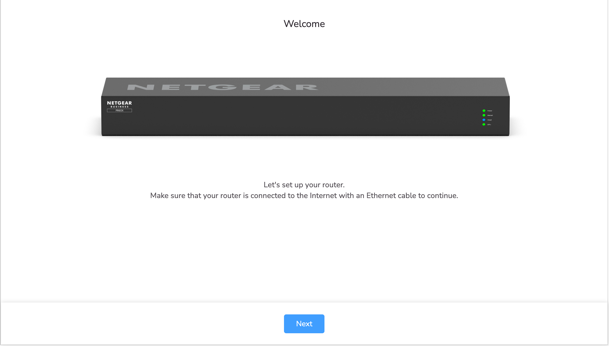
- On the Terms of Services page, click the I Agree button.
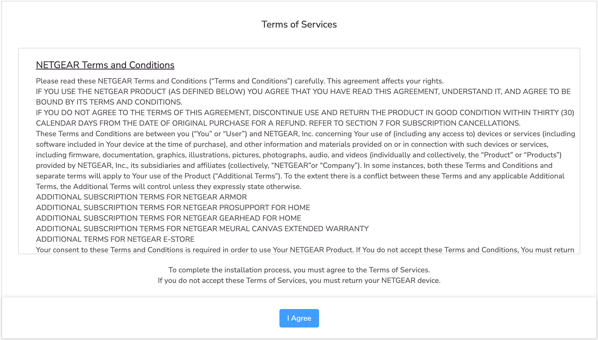
- On the Internet Detected page, click the Next button.
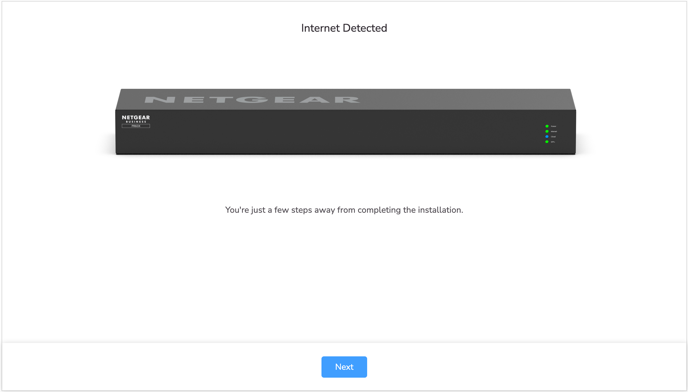
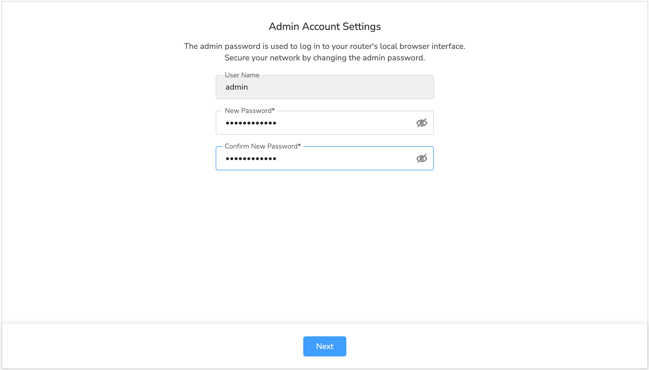
- On the Admin Account Settings page, set a new router login password, and click the Next button.
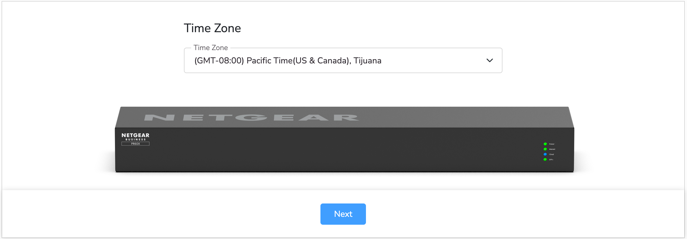
- On the Time Zone page, select your time zone, and click the Next button.
- If the New Firmware Detected page displays, click the Next button.
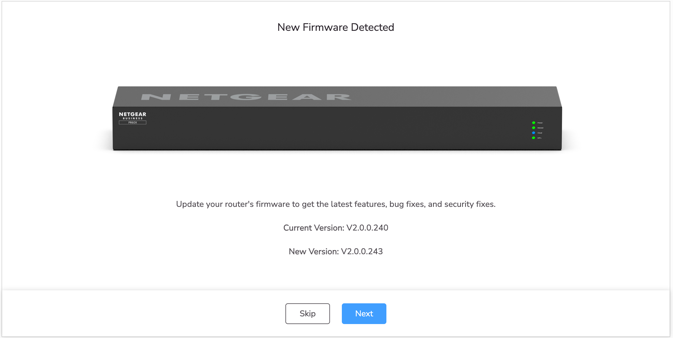
A pop-up window displays. - In the pop-up window, click the Update button.
- Wait for the upgrade to complete.
- In the Firmware update complete pop-up window, click the OK button.
- When the update is finished, log back into the router.
The firmware version displays on the Dashboard page.
Let the Router Automatically Update the Firmware when the Router Detects a New Version:
- Launch a web browser from a computer that is connected to a PR460X LAN port.
- Enter the IP address that is assigned to the router.
If your computer is directly connected to the LAN port, enter https://www.routerlogin.net. Otherwise, enter https://<IP-address-of-router>.
Note: If the IP address of the router is its 192.168.1.1 default address, enter https://192.168.1.1.
A login page displays.
If your browser displays a security warning, you can proceed, or add an exception
for the security warning. For more information, see https://kb.netgear.com/000062980. - Enter the router username and password. The username is admin. The password is the one that you specified when you set up the router. The username and password are case-sensitive.
If you did not yet specify a custom password, the default password is password (also stated on the router label). - Click the LOGIN button.
The Dashboard page displays.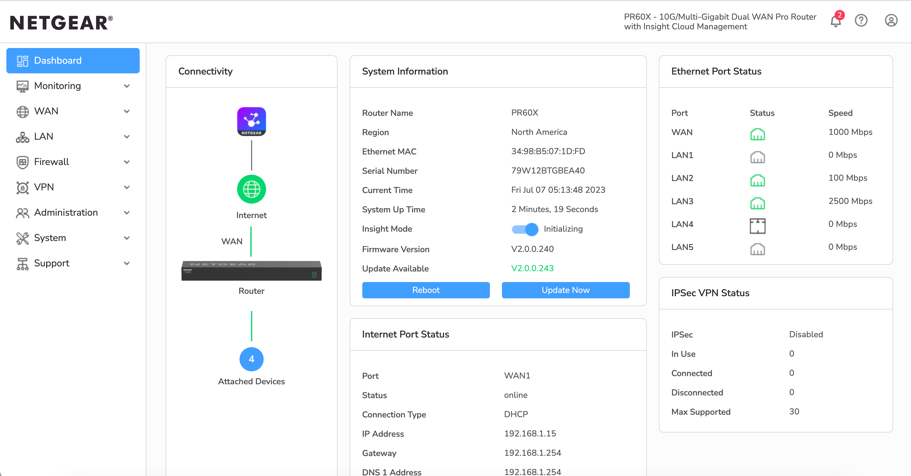
- In the System Information pane, click the Update Now button.
A Firmware update confirmation pop-up window displays. - Click the Update button.
The router locates and downloads the firmware and begins the update. The page displays the update progress. The update takes about 90 seconds.
WARNING: To avoid the risk of corrupting the firmware, do not interrupt the update.
For example, do not close the browser, click a link, or load a new page. Do not turn off the router. Wait until the router finishes. - When the update is finished, log back into the router.
The firmware version displays on the Dashboard page.