Mac OS has an inbuilt utility that allows the wireless NIC to capture packets over the air. The sniffer feature in the Mac OS wireless diagnostics will capture all wireless packets on a set radio channel and channel width. This is useful when troubleshooting WiFi issues.
Finding the wireless channel and channel width:
The first step is finding the channel and channel width configured on the access point. These values are found in the local web admin interface or Insight.
If the access point is managed using the local web admin interface:
- Launch a web browser from a computer that is connected to the same network as the access point or directly to the access point through an Ethernet cable or WiFi connection.
- Enter the IP address that is assigned to the access point. A login window displays.
- Enter the access point user name and password. The user name is admin. The password is the one that you specified. The user name and password are case-sensitive.
- In the Dashboard, to the right hand side of the page, the radio settings for each radio are displayed.
- Take note of the Channel and Channel Width.
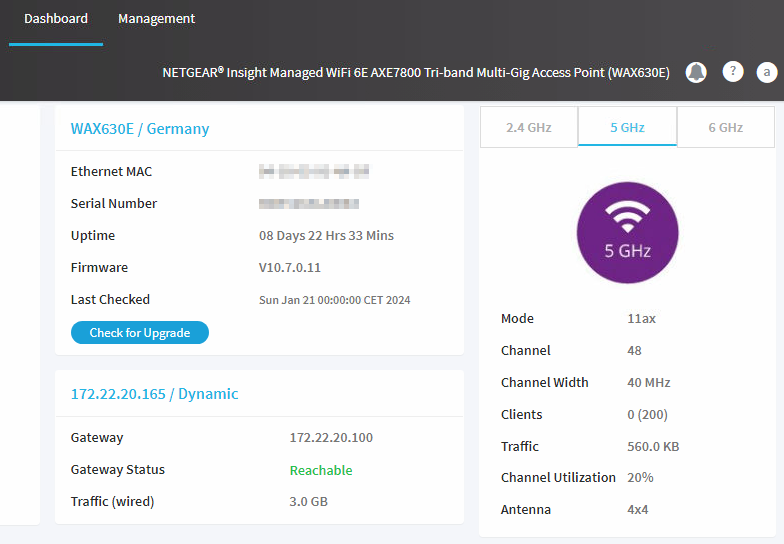

the sniffer tool can only capture packets on one channel at a time, for example Channel 48 on the 5GHz band. If you are capturing packets to assist with troubleshooting a wireless issue, you should first determine which band the issue is seen on i.e. 2.4Ghz, 5GHz, 6GHz. If you are troubleshooting an issue on all bands, please take note of the Channel and Channel Width setting on each band and repeat the capture process on each.
If the access point is managed in Insight:
- Log in to the Insight Cloud Portal.
- If you have an Insight Pro account, select an organization.
- Select a location.
- Select Devices.
- Double-click your device.
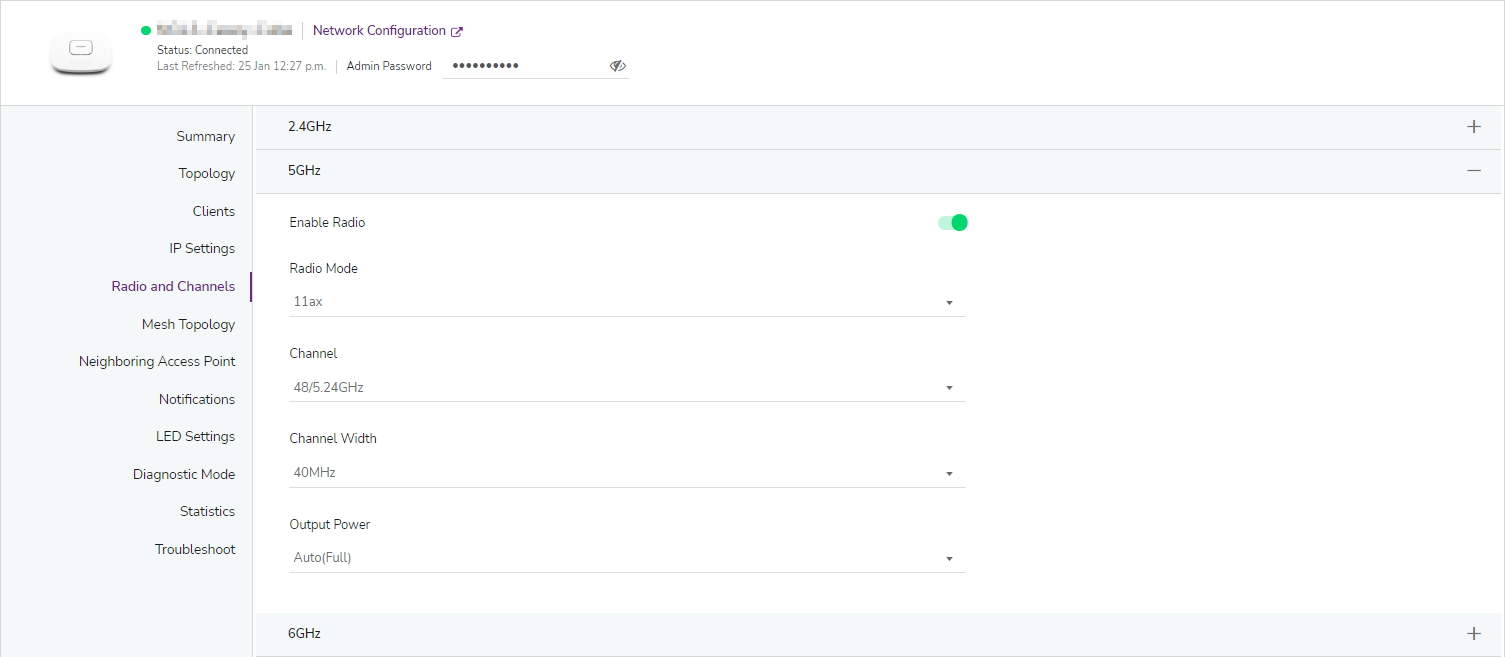
- Select Radio and Channels.
- The Channel and Channel Width is visible per radio band. Click the + symbol to view the settings.
If you are troubleshooting an issue on all bands, please take note of the Channel and Channel Width setting on each band and repeat the capture process on each.
Capturing wireless packets on MAC OS wireless diagnostics:
When using the sniffer feature to capture wireless packets, note that the wireless interface will be dedicated to capturing wireless packets and will not work for normal network traffic while the capture is running.
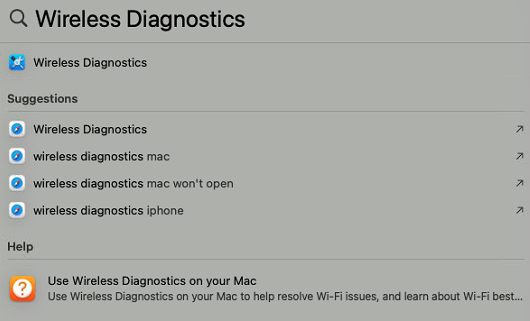
- On Mac OS go to Spotlight Search and type Wireless Diagnostics. Click on Wireless Diagnostics in the results to open the tool.
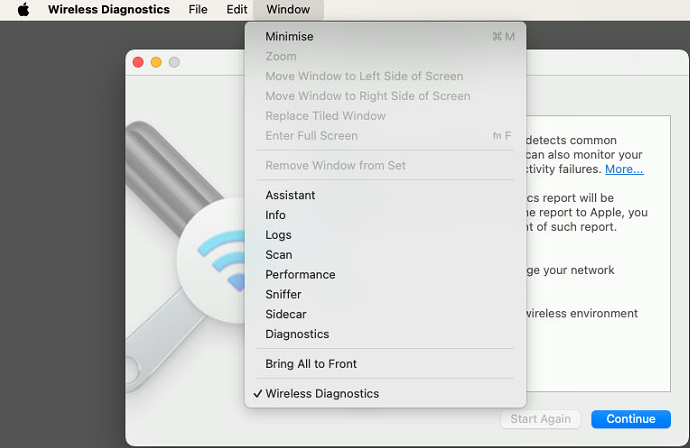
- With the Wireless Diagnostics page open, go to the top menu and click Window > Sniffer.
- In the Channel drop down list, select the channel to match the channel set on the access point.
- In the Width drop down list, select the width to match the channel width set on the access point.
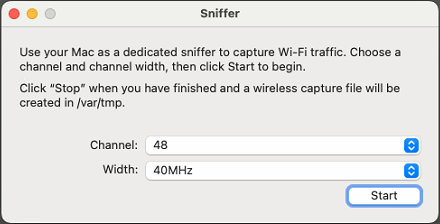
- Click Start to begin. Enter the Mac OS admin password.
- Click Stop to end the capture.
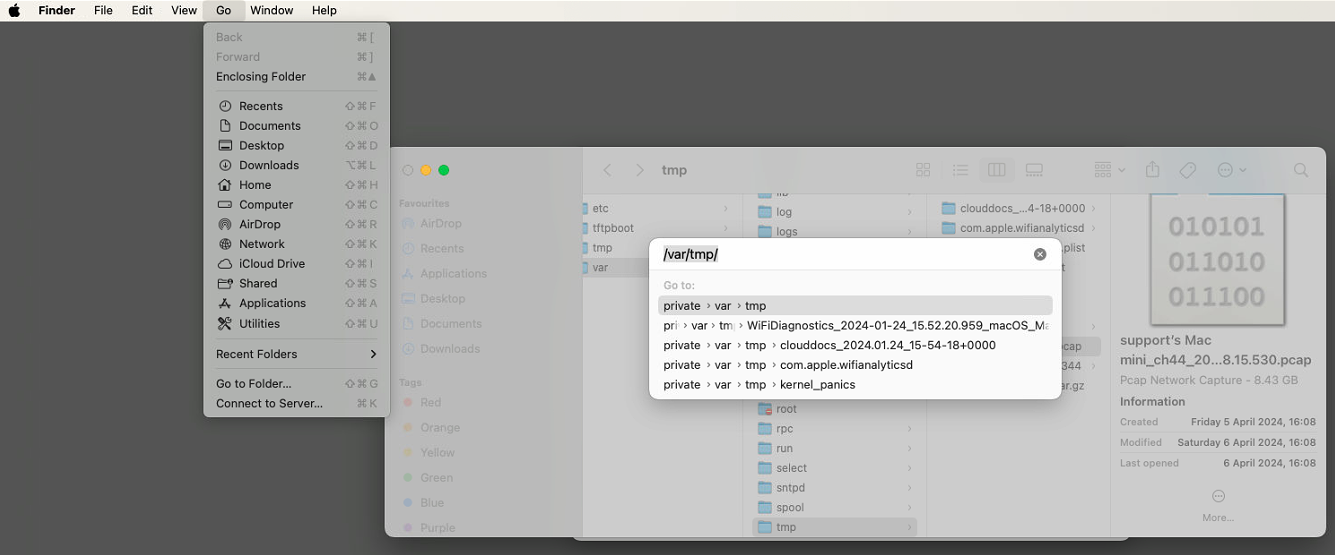
- The packet capture is saved in /var/tmp and is in .pcap format. To access the file, launch the Finder application, select Go, then Go to Folder and type in the
destination path /var/tmp