

To restore Internet connectivity for your CAX30, follow these troubleshooting steps.
Solution 1. If Traffic Meter is enabled, disable it.
If Traffic Meter is already disabled, skip to Solution 2 below and perform a factory reset on your cable modem router. Traffic Meter is disabled by default. If you’re not sure whether Traffic Meter is enabled, check the Traffic Meter tile in the Nighthawk app.
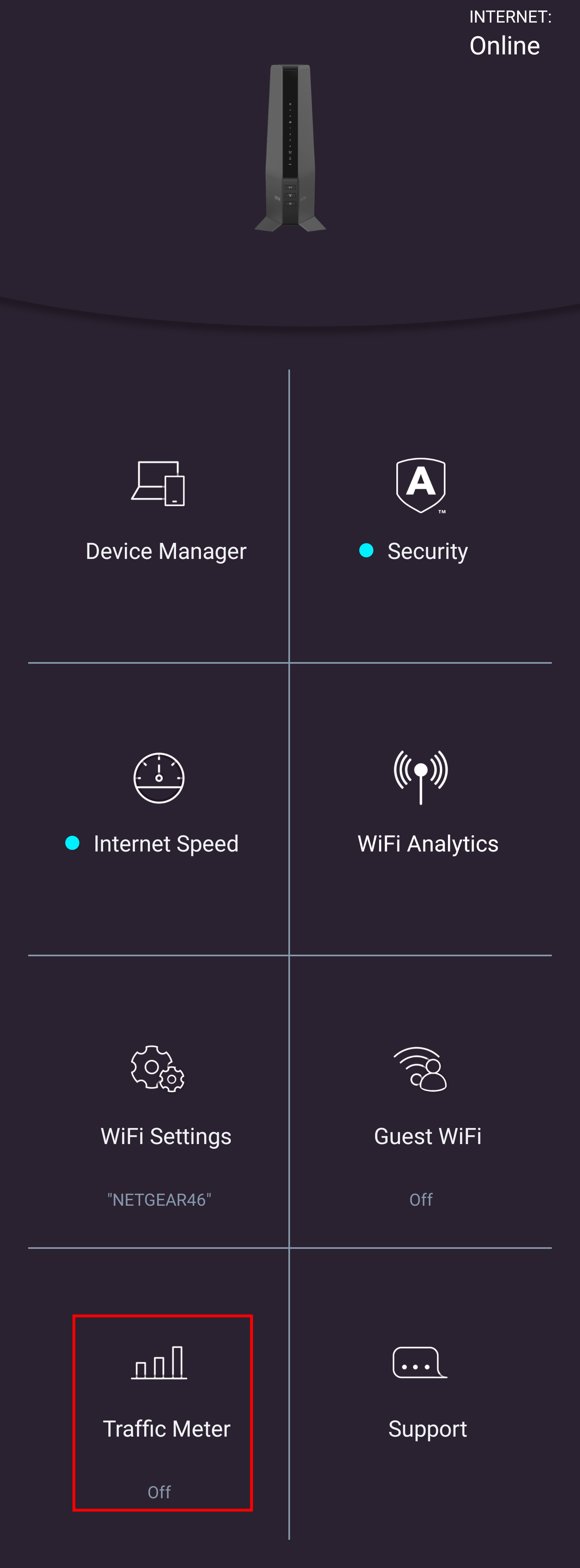
If you normally manage your CAX30 in the Nighthawk app, we recommend using the Nighthawk app to disable Traffic Meter. Otherwise, use the modem router’s web interface from your computer or mobile device.
- Launch the Nighthawk app from a mobile device that is connected to your wireless network.
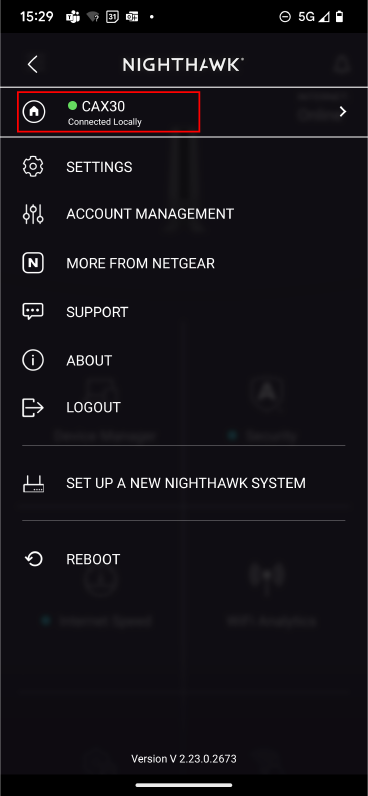
- Tap the menu in the upper left corner of the screen, tap your model number, and select Connected Locally if it is not already selected.
You might see a "Check your internet connection" error message. You can safely ignore it.

- Tap the Traffic Meter tile.
- If Traffic Meter is enabled, disable it.

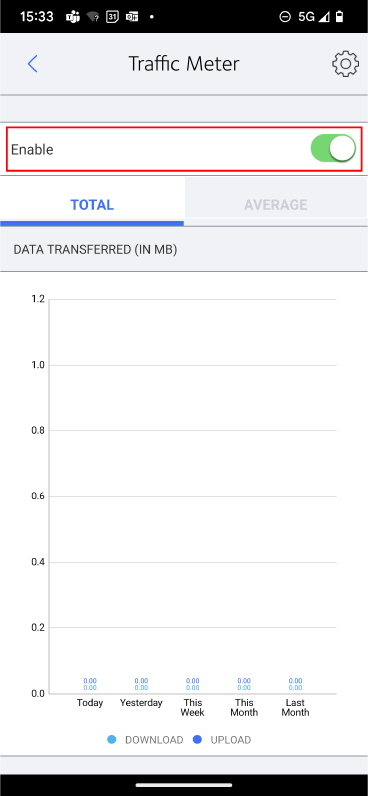
If Traffic Meter is already disabled (background appears gray), skip to Solution 2 below. - Tap OK.
Your settings are saved. If Traffic Meter was previously enabled, check to see if your Internet connection is fixed. If it is not fixed, proceed to Solution 2.
- Connect your computer or mobile device to the modem router with WiFi or Ethernet:
- Launch a web browser and enter routerlogin.net or 192.168.1.1 in the address field.
- Log in with the user name admin and your administrator password.
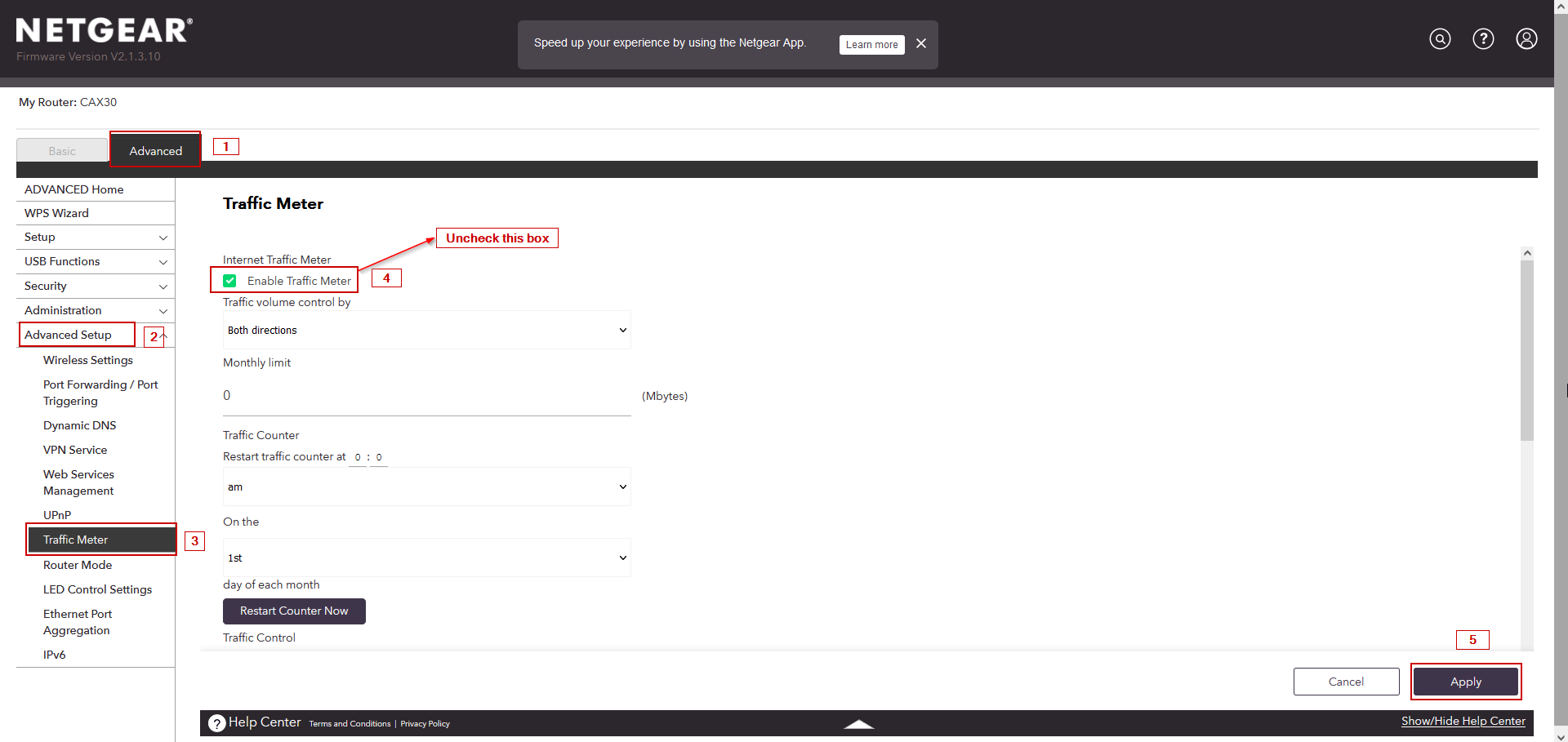
The Basic home page displays. - Select the Advanced tab > Advanced Setup.
- Clear the Enable Traffic Meter check box and click Apply.
If the check box is already cleared, skip to Solution 2 below.
If Traffic Meter was previously enabled, check to see if your Internet connection is fixed. If it is not fixed, proceed to Solution 2.
Solution 2. If disabling Traffic Meter did not help, reset your CAX30 to factory default settings
If Traffic Meter is already disabled, or if disabling Traffic Meter did not help, reset your CAX30 to factory default settings and set up your CAX30 again. You must reconfigure all of your settings after resetting your CAX30. For more information:
Next Steps
The majority of our CAX30 customers have successfully restored connectivity using these two solutions. If you are still experiencing an issue after trying these steps, register your CAX30 to your MyNETGEAR account, then email NETGEAR support at cax30_support@netgear.com. Please include your CAX30 serial number in your email.
For help finding your serial number, see How do I find my NETGEAR home product’s serial number?.