

The following aricle explains the process to update the Nighthawk M1 Mobile Router's FW to the latest version.
To manually update firmware Nighthawk M1 Mobile Router:
- Connect to WebUI using 192.168.1.1 and login.
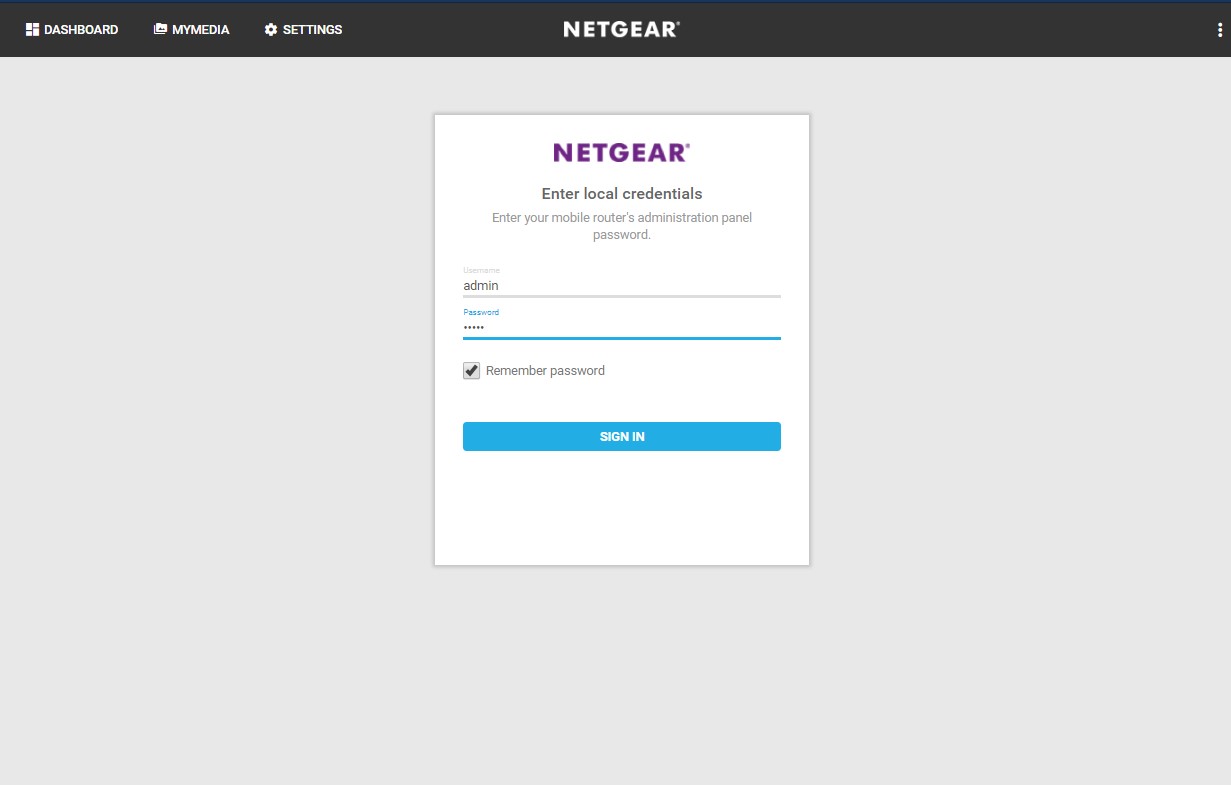
- Click on Settings in the top left corner of the home page.
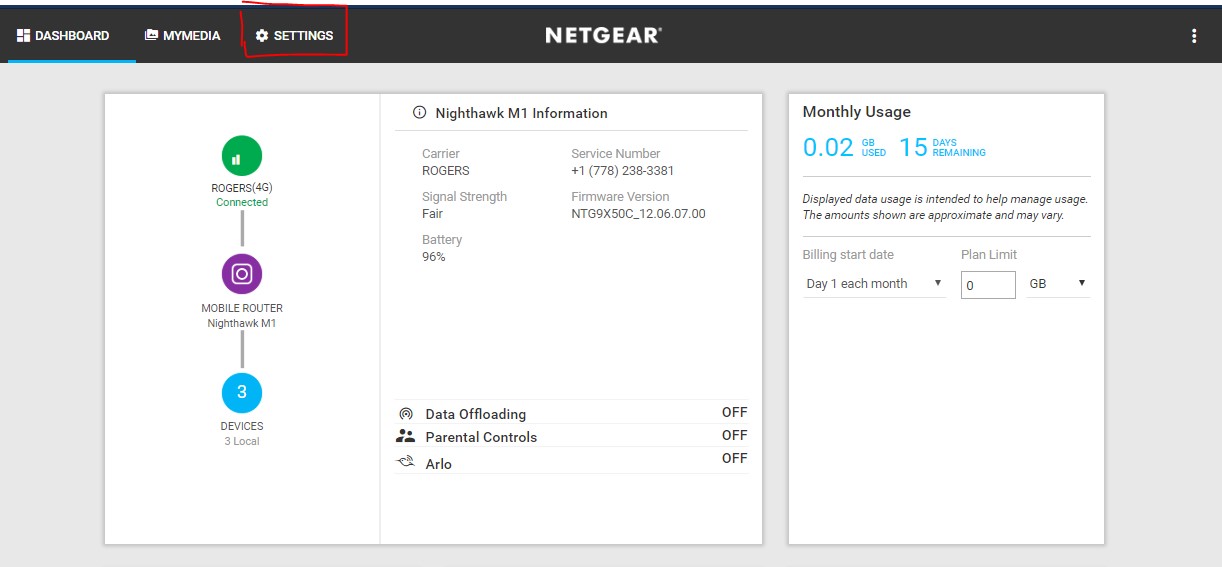
- Click on the Administration tab.
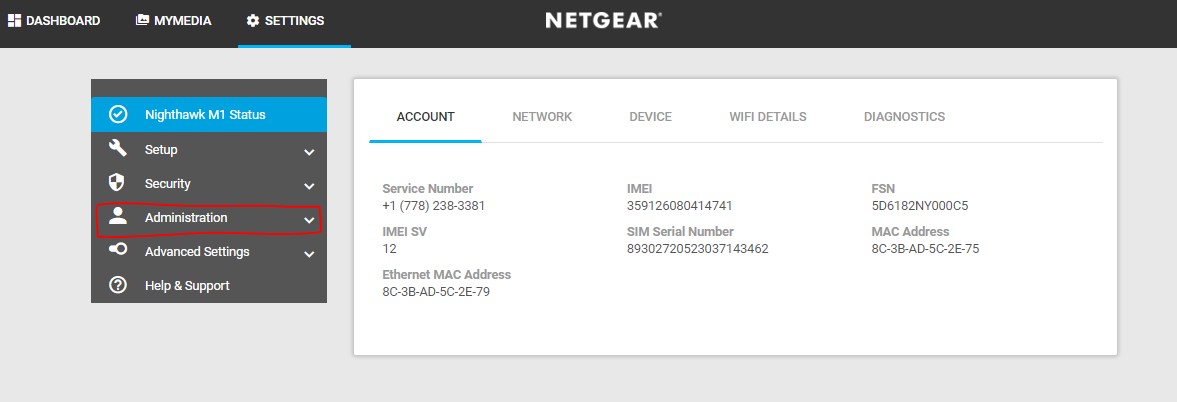
- Select the Firmware Update Option.
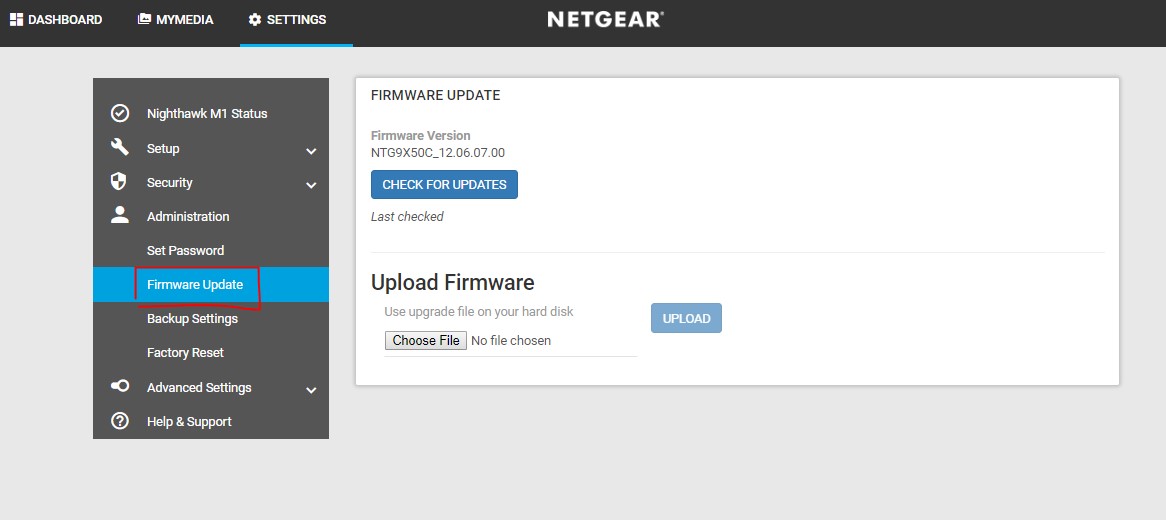
- Click on the Choose File button.
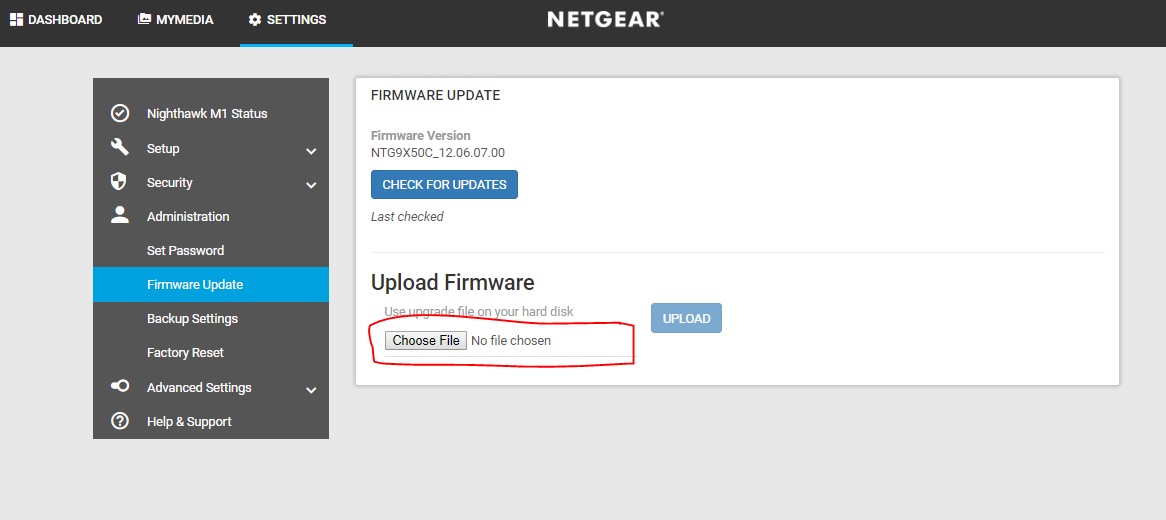
- Select and upload a .secc.spk file. This can be downloaded on the NETGEAR MR1100 support site https://www.netgear.com/support/. Click on the Upload button afterward.
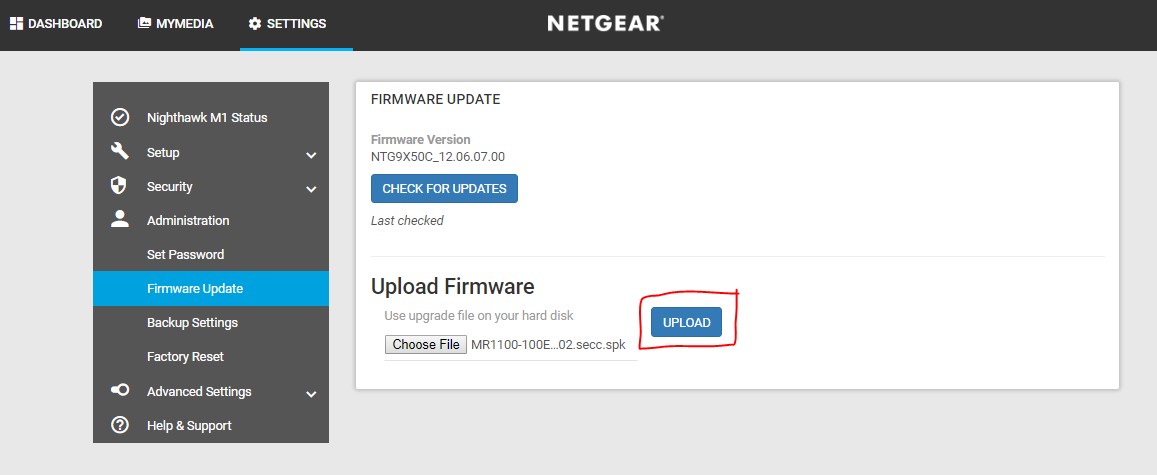
- Wait until you see a pop up for “Uploading File” on the WebUI. Afterward, you should see a pop up for “Firmware successfully updated”


Additionally, on the LCD screen of the M1 device, this screen should be displayed. Make sure to not power off the device.

- Log back into WebUI using 192.168.1.1 after the M1 device has finished updating.
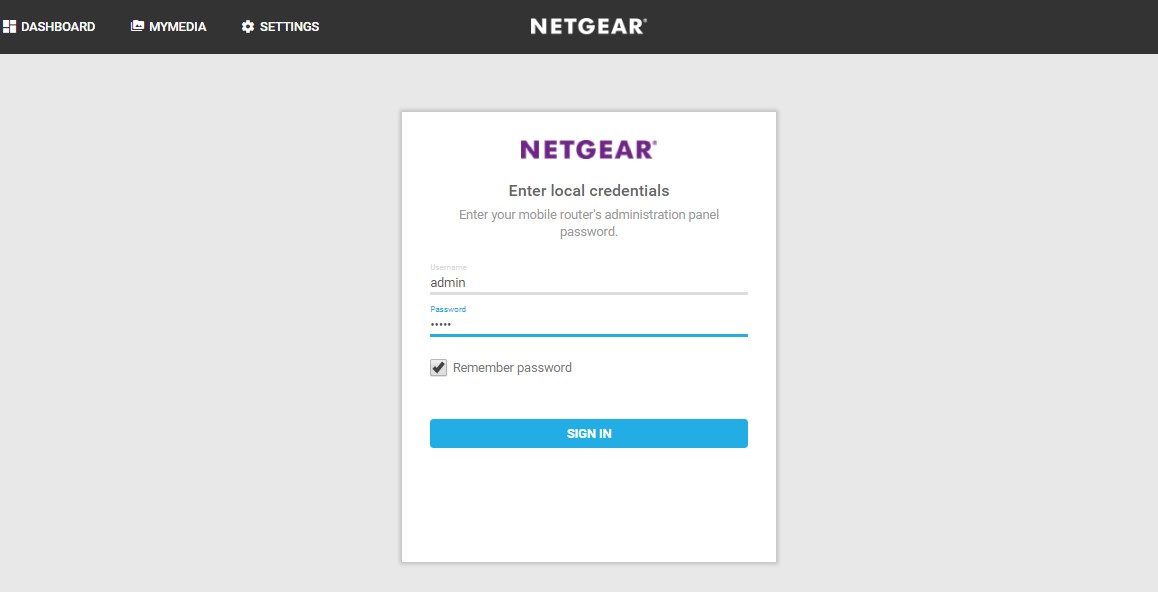
- “Success. New firmware successfully installed” should be displayed on the home page. Follow the instructions to clear browser cache.

- Click on Settings in the top left corner of the home page.
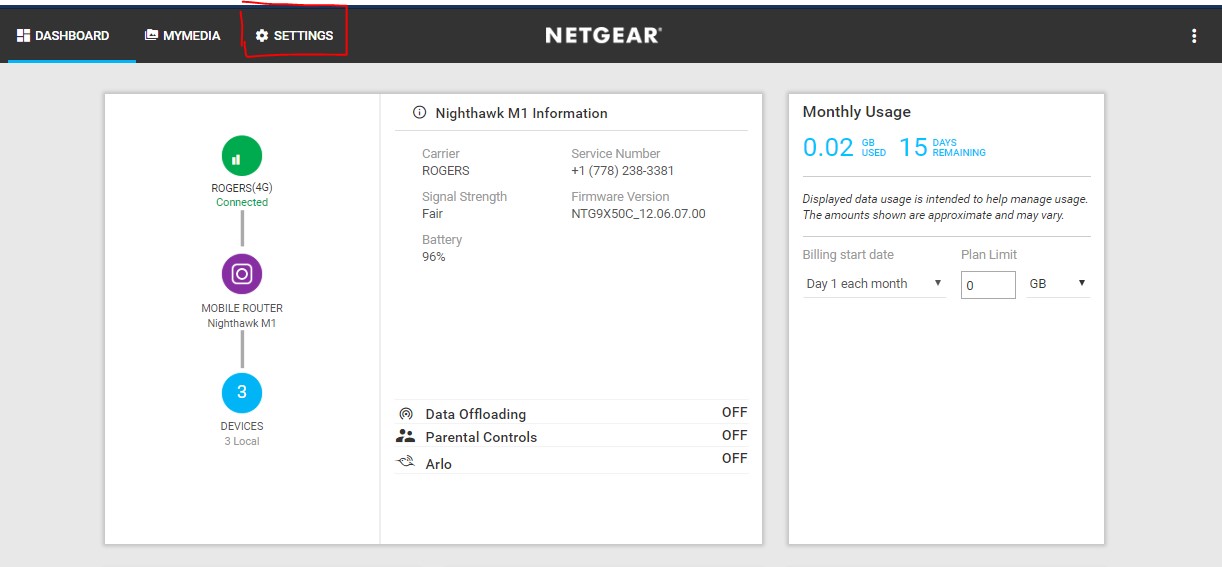
- To check if the device has successfully finished the local firmware update, click on the “Device” tab to check for the Firmware Version, PRI Version, etc.

Last Updated:07/07/2025
|
Article ID: 000061326