

Bug Fixes:
- Boot code version displays incorrectly on System > Management > System Information page.
- Default Management VLAN 1 remains effective even after changing the management VLAN ID to a number other than VLAN 1. This only occurs under these conditions:
- Assign a static IP address
- Select a management VLAN ID other than VLAN 1
- Use a DHCP server to connect a port in VLAN 1 to a network
- Switch reboots when configuring CoS Interface Shaping Rate (QoS > CoS > Advanced > CoS Interface Configuration) on LAG interface with port 10 as a LAG member.
Known issues:
- Incorrectly displays the number of configured IPv6 routes.
- Multicast forwarding entries are not cleared immediately after the port is shut down.
- Link flaps every 60 seconds with port 10 if using an AGM734 SFP Transceiver to connect a peer that is powered off.
Notes:
- The released zip contains switch firmware (MX510TX_MX510TXPP_V6.7.0.37.bin) and MIB file. Please unzip the file to retrieve the switch firmware for upgrade.
- If updating firmware through a USB device, then the USB device must support the FAT32 file type. The NTFS file type is NOT supported.
Limitations:
- On high speed ports 7~10 (5G or 10G), minimal interface shaping rate is 3.6Mbps.
- Cable testing when performed on ports 5~9 (multi-Gigabit ports):
- Cable status may show Open at 140 meter instead of good cable, if there is no cable or cables up to 1 Meter.
- Cable Length in some cases may show “Length > 140 Meters” for cables shorter than 5 meters.
- When configuring management VLAN other than VLAN 1
- Default static IP (192.168.0.239) becomes 0.0.0.0
- Workaround: Use DHCP or assign a valid static IP address.
Upgrade Procedure
- Download the new firmware 6.7.0.37 from NETGEAR Support website and store it on your local PC-. Unzip the file to get the switch image MX510TX_MX510TXPP_V6.7.0.37.bin
Download Link : http://www.downloads.netgear.com/files/GDC/MS510TX/MS510TX_TXPP_V6.7.0.37.zip
- There are four methods to upgrade the new firmware from PC to the switch.
- HTTP
- TFTP
- USB
- SCC (Smart Control Center)
Below are the steps to upgrade the firmware via HTTP, which is the most convenient method. For the other three methods, please check the IG and SW User Manual for details.
- To use HTTP, go to Maintenance > Download > HTTP File Download, and then select the firmware file image_ng_ms510_6.7.0.37.bin. Click the Apply button to start downloading the firmware.

The download can take several minutes. Do not power cycle the switch before the Transfer Status confirms that the download completed successfully
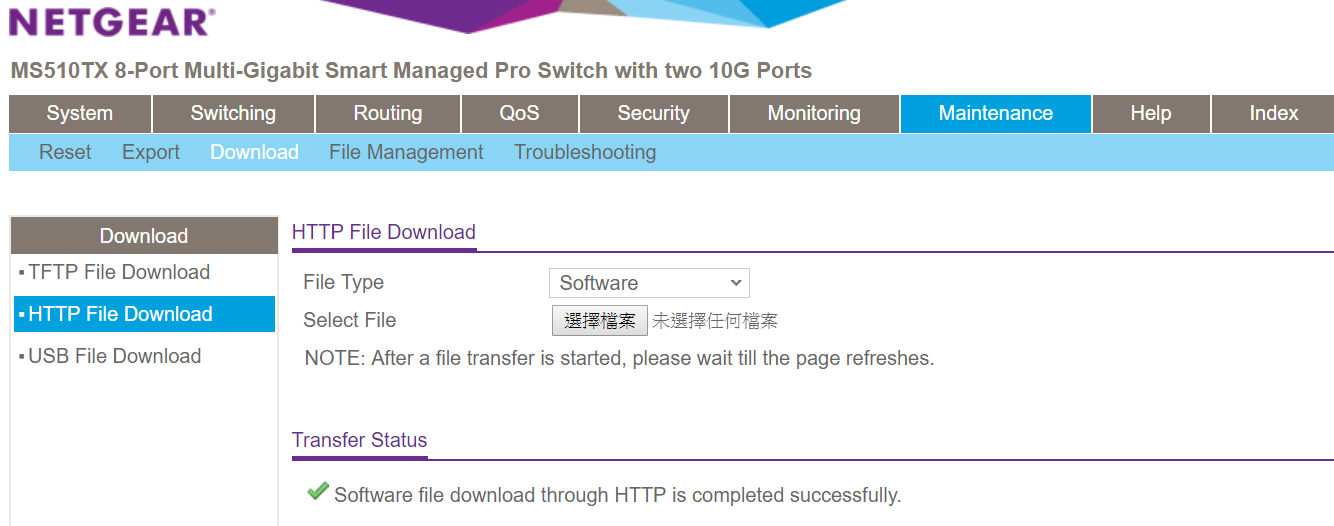
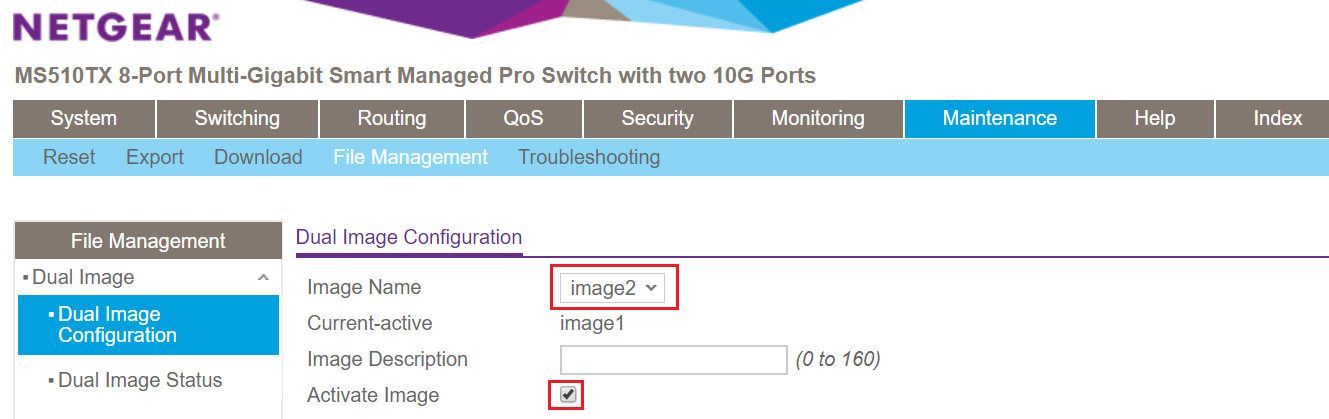
- When the download is complete, select Maintenance > File Management > Dual Image > Dual Image Configuration.
- In this example, the Current-active image (the image currently in use), is image1. To upload a second image, select image2 in Image Name.
- Select the Activate Image checkbox.
- Click the Apply button.
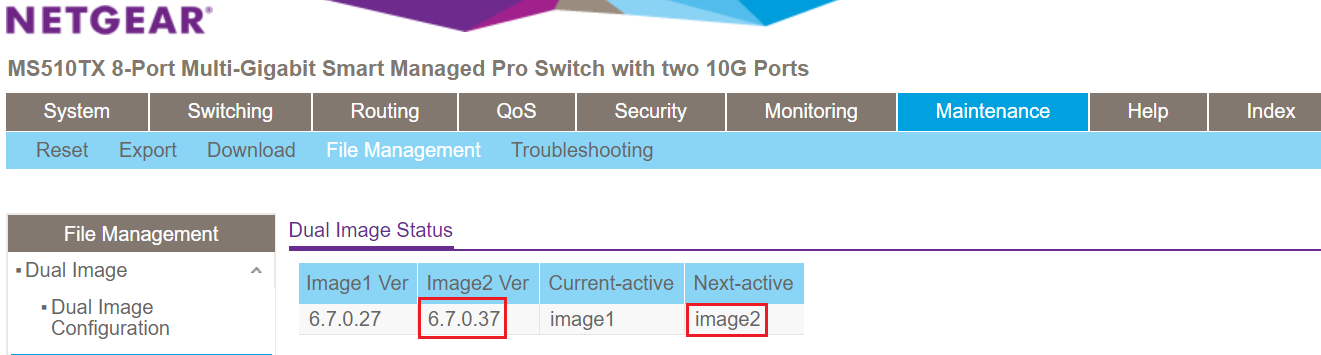
- Go to Maintenance > File Management > Dual Image > Dual Image Status to confirm that the Next-active image is version 6.7.0.37. If not, go back to step 4 to select and activate the 6.7.0.37 image.
- Go to Maintenance > Reset > Device Reboot, select the checkbox, and then click the Apply button.
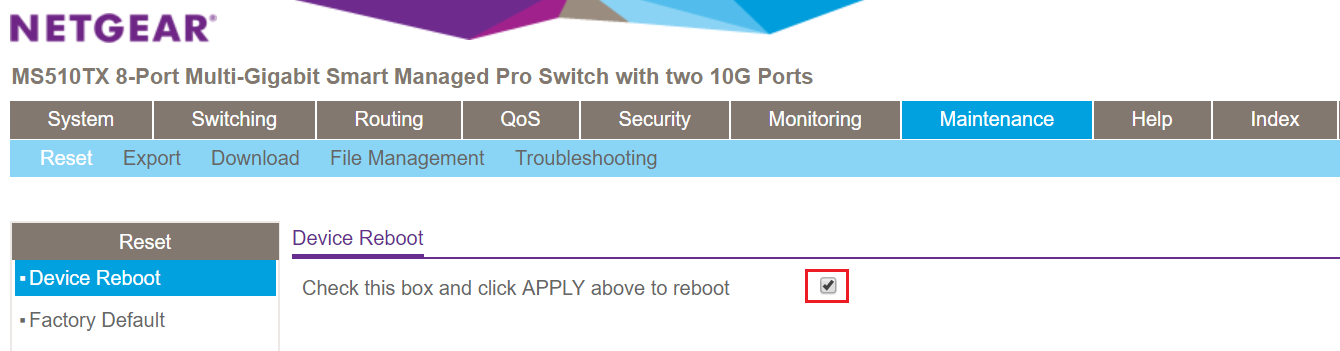
The restart may take several minutes, do not power cycle or reboot the switch before the process is complete.
- After the switch restarts, log into the switch to double check whether the FW upgraded correctly. Go to System > Management > System Information.
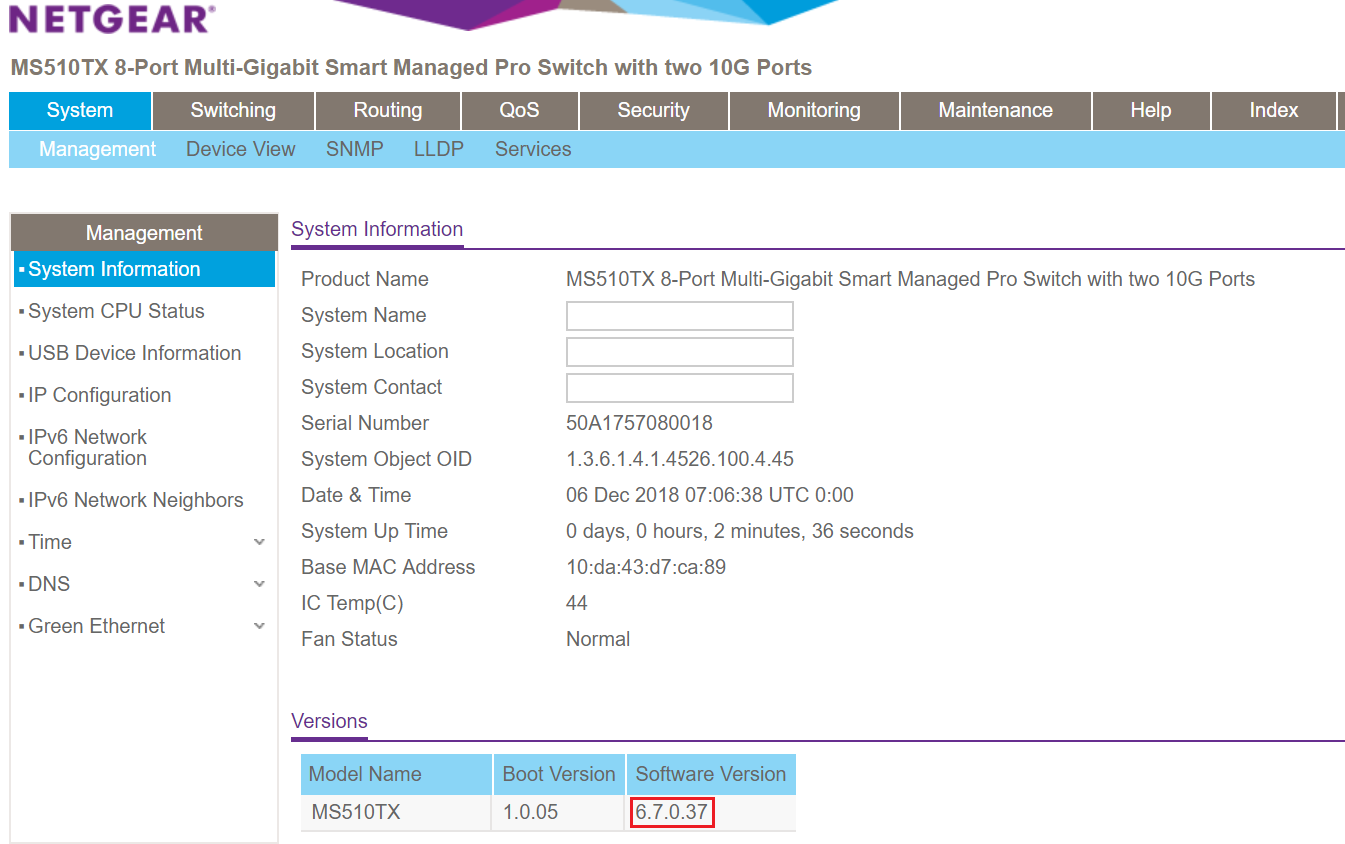
Last Updated:07/07/2025
|
Article ID: 000060644