

Bug Fixes:
- When an SFP+ port is connected at 10 Gbps, it might not come up after a system reboot.
Known issues:
- The switch incorrectly displays the number of configured IPv6 routes.
[Workaround]: Please count the listed static routes in the table
Download Link : http://www.downloads.netgear.com/files/GDC/XS708T/XS708T_XS712Tv2_XS716T_V6.6.3.5.zip
Firmware Update Instructions (For XS708T/XS716T FW upgrades from v6.6.1.7 to v6.6.3.5):
- Make sure the firmware version of your XS708T/XS716T is v6.6.1.7 before updating it to v6.6.3.5.
Otherwise, download the v6.6.1.7 image first and follow the firmware update procedure in its release notes.The Smart Control Center (SCC) tool is required to update firmware from v6.6.1.7 to v.6.6.3.5.
(https://www.netgear.com/support/product/Smart%20Control%20Center%20(SCC).aspx#download) - Make sure that your computer is in same subnet with the XS708T/XS716T. For example, if your XS708T/XS716T IP address is 192.168.0.239/24, set the IP address of your computer to 192.168.0.10/24
- Launch Smart Control Center (SCC) tool (v1.1.3.4)
- Connect a computer to the switch using port 2 to port 5 of the switch when updating the firmware.
- On the SCC tool, click the Discover button.
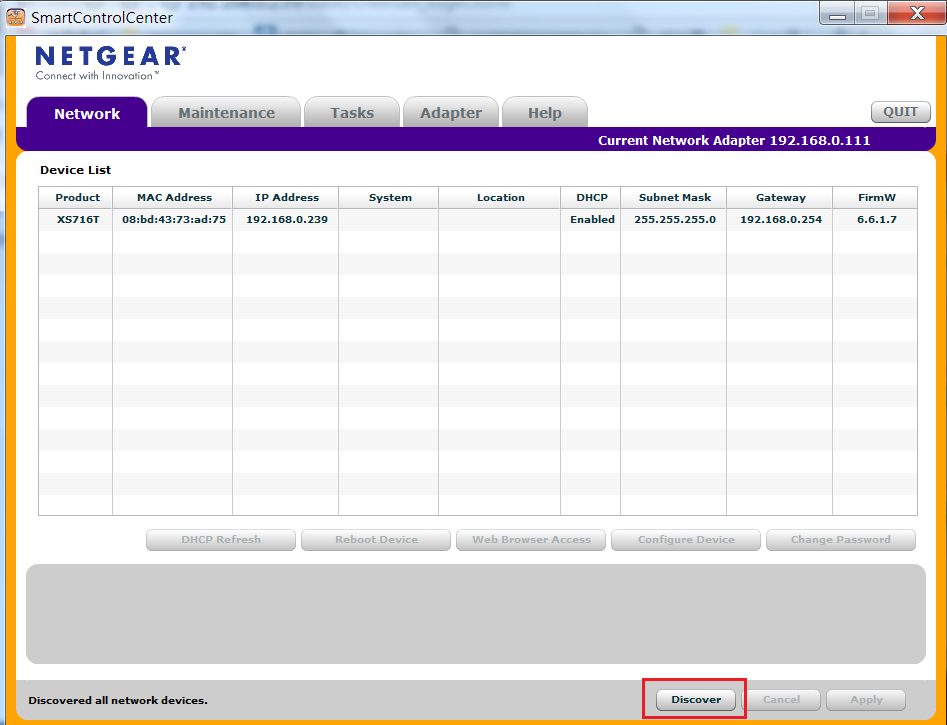
- After your XS708T/XS716T is discovered by the SCC tool, select Maintenance > Firmware.

- Click the XS708T/XS716T device in the list, you should see a tick after you select the device.

- Click the Download Firmware button, and select the v6.6.3.5 firmware file.
The file name should be XS708T_XS712Tv2_XS716T_V6.6.3.5.stk, which is unzipped from the firmware release zip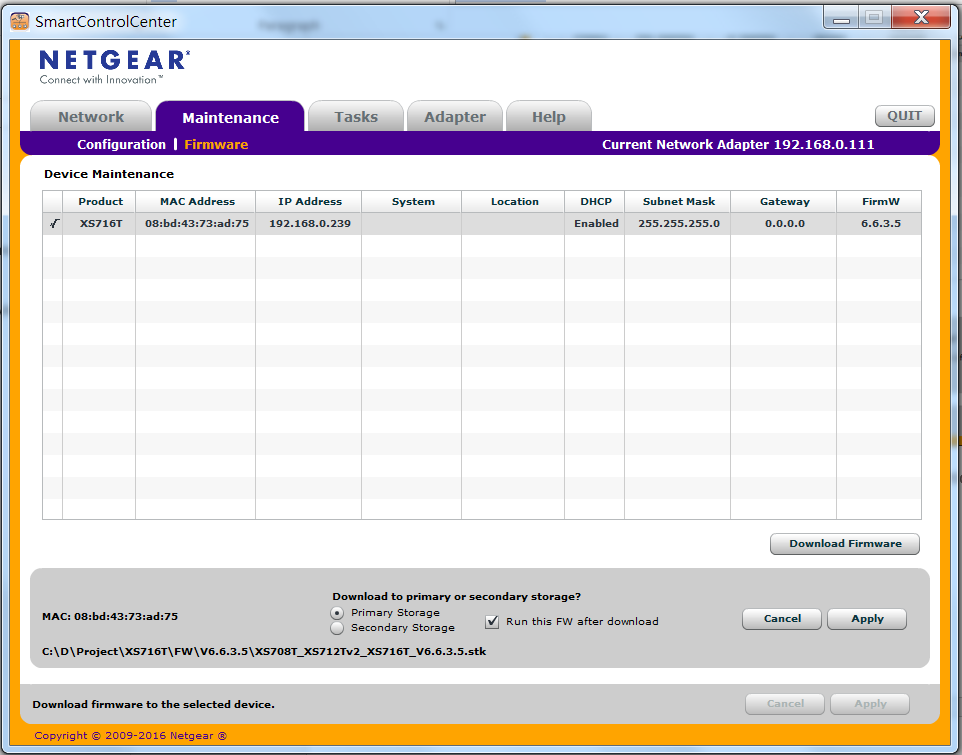
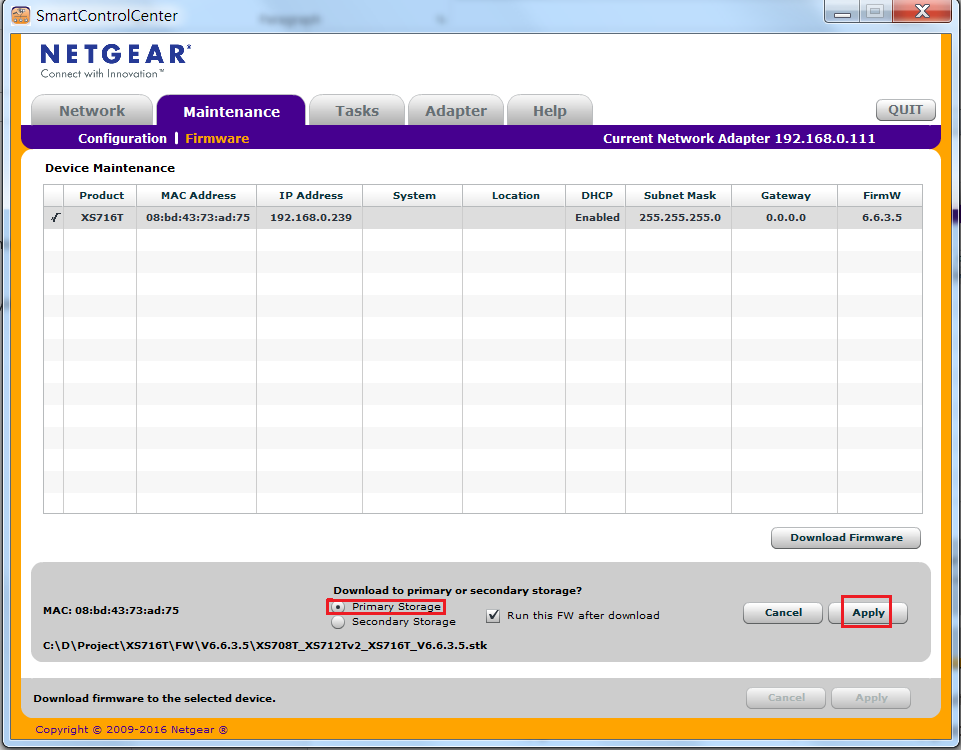
- Select the Primary Storage radio button and the Run this FW after download check box, then click the Apply button.
- Enter the admin password of your XS708T/XS716T.
You could either select Run Now to update firmware now, or select a specific time to upgrade the firmware. Then, click the Apply button. - The v6.6.3.5 firmware update process will be started (if you choose “Run Now”)
- During firmware update, DO NOT power off the PC or XS708T/XS716T, and DO NOT unplug the Ethernet cable.
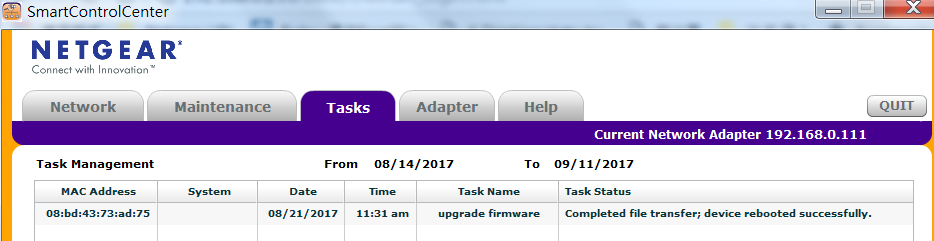
- You can check the firmware update progress on the SCC tool in the Task tab.When the firmware update is complete, you should see “Complete file transfer; device rebooted successfully” message on the SCC tool.
- After the update is complete, the Boot Version is B1.0.0.11 and the Software Version is 6.6.3.5. This can be verified in GUI > System Information

Firmware Update Instructions (For XS712Tv2 and XS708T/XS716T FW upgrades from v6.6.3.3 to v6.6.3.5)
Below are the steps to update the firmware using HTTP. For an alternative method, check the Installation Guide and Software User Manual for details.
- Log in to the switch admin GUI.
- Select to Maintenance > HTTP File Download.
- Click Browse… to select firmware file.The firmware filename should be ‘XS708T_XS712Tv2_XS716T_V6.6.3.5.stk.
- Click the Apply button to start firmware update.
Notes:
- The released zip contains the switch firmware (XS708T_XS712Tv2_XS716T_V6.6.3.5.stk) and the MIB files. Unzip the file to extract the switch image for firmware updating.
- The switch fan will run at maximum speed during the boot stage (for about 2 minutes) after the power cycle; then the speed will change based on its internal device temperature.
- The USB storage device that you attach to the USB port must comply with the following requirements:
- The USB device must support USB 2.0.
- The USB device must support the FAT32 or VFAT file system. The NTFS file system is not supported. - If your XS708T/XS712Tv2/XS716T device failed to boot up (for example you accidentally unplugged Ethernet cable during firmware update), follow the steps below to update the firmware again using the SCC tool:
- Connect PC to port 2 to port 5 of the device.
- Follow the steps “Installation steps (For XS708T/XS716T)” in above section, for both XS708T/XS712Tv2/XS716T devices. - Configuration migration for firmware update from version v6.6.1.7 (For XS708T/XS716T only) or v6.6.3.2 (For XS712Tv2) to v6.6.3.5 is supported.
Last Updated:07/07/2025
|
Article ID: 000060568