

GS728TPv2, GS728TPPv2, GS752TPv2, GS752TPP supports the latest Smart Control Center, please use SCC version 1.1.3.4 for switch discovery, basic configuration and FW upgrades.
Enhancements and Modifications:
- Security – TLS V1.0 is no longer supported.
- Security – Add configurable option to disable HTTP.
- Security – Enforce more secured password rule.
- Security – The function to reset password is removed from web GUI.
- Security – Web access will be locked out temporarily when attempts to login using wrong password for more than three times.
Known issues:
- Sometime, bidirectional traffic have different latency between static and LACP mode after unplugging & plugging the fiber port
[Workaround]: Unplug and plug in the fiber port again.
- Previous gateway is lost when adding an unavailable default route.
[Workaround]: No workaround now.
Notes:
- The released zip contains switch firmware (GS728_752TP_TPP_V6.0.0.45.bix) and MIB files. Please unzip the file to extract the switch image for firmware upgrade.
Limitations:
- Configuration migration from older devices GS728TP/ GS728TPP/ GS752TP to new devices GS28TPv2/ GS728TPPv2/ GS752TPv2 is NOT supported.
- Since fiber port does not support PoE function. The LED status will stay green after changing LED mode to “PoE” using front panel push button.
Upgrade Procedure
- Download the new firmware version 6.0.0.45 from NETGEAR product support Website and store it in local PC, and remember its location in the PC’s file system. Then unzip it to get the switch image “GS728_752_TP_TPP_V6.0.0.45.bix”. Using the Download Link below, download and extract the new firmware to a convenient place such as your desktop.
Download Link : http://www.downloads.netgear.com/files/GDC/GS728TPv2/GS728_752TP_TPP_V6.0.0.45.zip
- There are three methods to upgrade the new firmware from PC to the switch.
- HTTP
- TFTP
- SCC (Smart Control Center)
Below are the steps to upgrade the firmware via HTTP, which is the most convenient method. For the other three methods, please check the IG and SW User Manual for details.
- To use HTTP method, go to GUI page “Maintenance > Download > HTTP File Download”, select the firmware file ‘GS728_752_TP_TPP_V6.0.0.45.bix’ stored in local PC via Browser button, then click Apply button to start firmware downloading.

The download will take several minutes. Do not power cycle the switch before and the success message shows up as below.
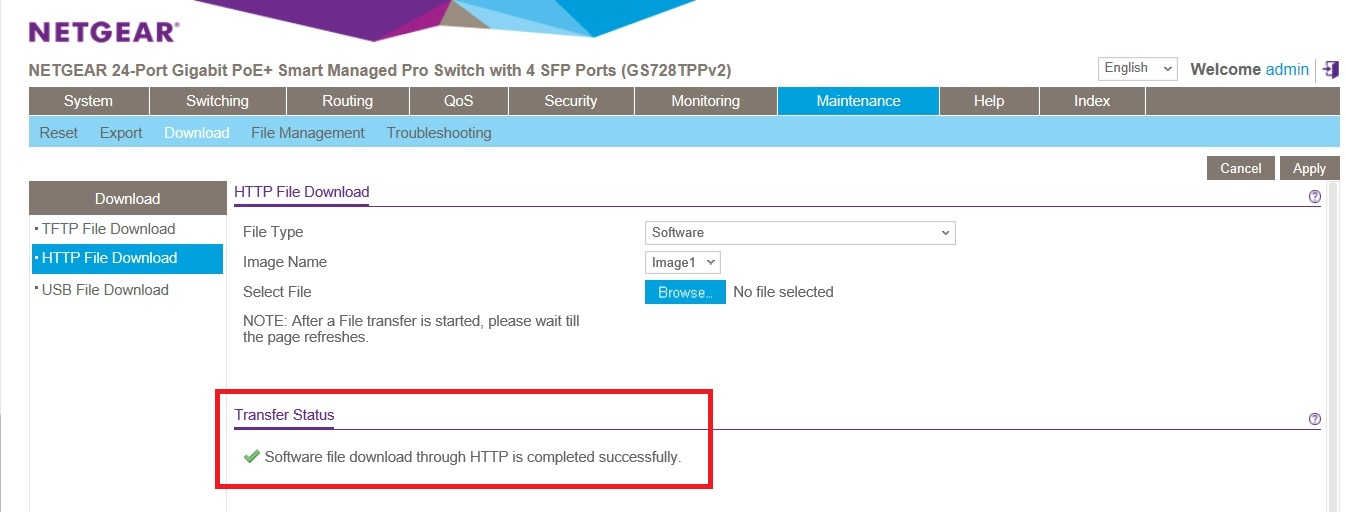
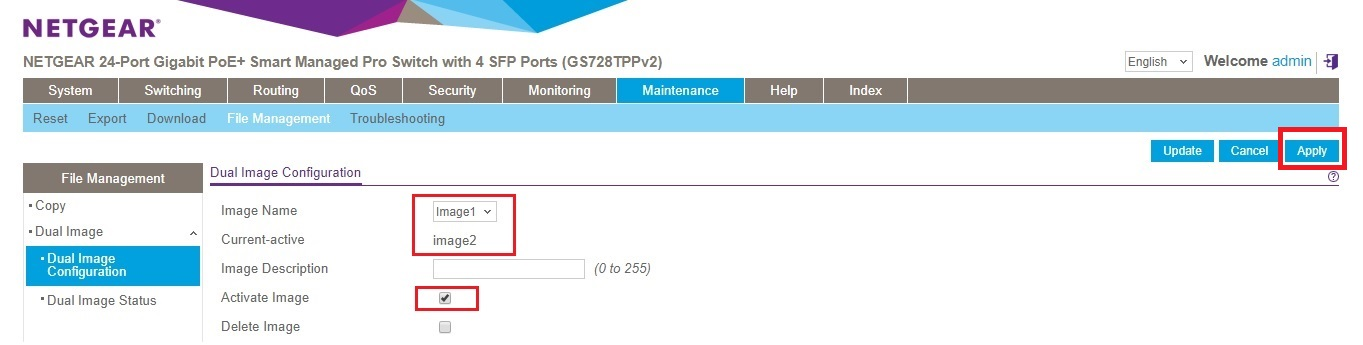
- After the successful file downloading, go to GUI page “Maintenance > File Management > Dual Image > Dual Image Configuration’.
- If the current-active image is ‘image2’, set Image Name as ‘Image1’; otherwise, set the Image Name as ‘Image2’.
- Check and ‘Active Image’ checkbox.
- Then click ‘Apply’ button.
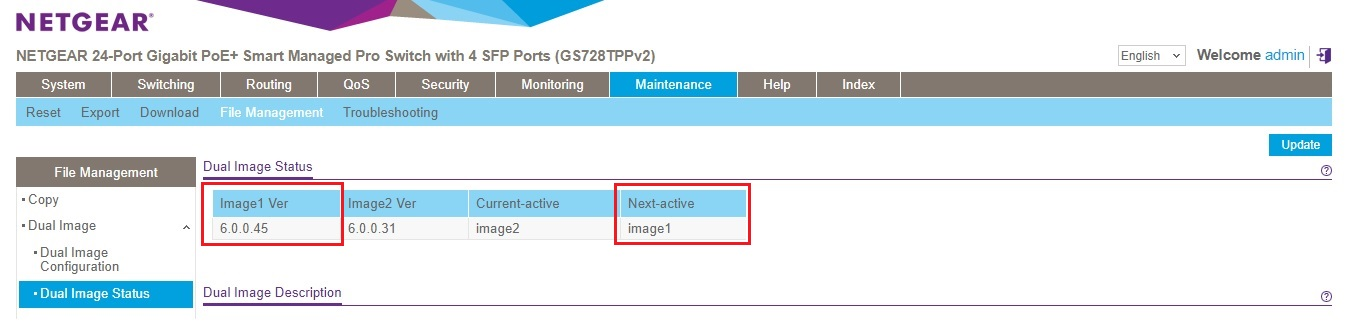
- Go to GUI page “Maintenance > File Management > Dual Image > Dual Image Status’, to double check ‘Next-active’ image is version 6.0.0.45. If not, go back to step 4 and reconfigure the correct active image.
- Go to GUI page ‘Maintenance > Reset > Device Reboot’, check the checkbox then click Apply button.

- After the switch is restarted, login the switch to double check whether the FW is upgraded correctly, via GUI page of “GUI page System > Management > System Information”.

Last Updated:07/07/2025
|
Article ID: 000060184