

Deutsche Telecom provides both Internet access and IPTV services. You can access these features by configuring the VLAN settings on your Nighthawk router. If you are using a modem provided by your ISP, use the following steps to enable IGMP proxying for IPTV service.
To enable IPTV if you are using a modem provided by your ISP:
- Connect your computer to any of the LAN ports on the back of your router.
- Launch an Internet browser.
- In the address bar, type http://www.routerlogin.com/ or http://www.routerlogin.net/.
A login screen displays. - Enter your username and password.
Note: The default username is admin. The default password is password. If you changed the default password, use your new password to log in.
The main Settings page displays. - Select the ADVANCED > Setup > WAN Setup.
- Clear the Disable IGMP Proxying check box and click the green Apply button.
If you are not using a modem provided by your ISP, you must configure the VLAN settings for your Nighthawk router.
To configure your VLAN settings for Internet access:
- Connect your computer to any of the LAN ports on the back of your router.
- Launch an Internet browser.
- In the address bar, type http://www.routerlogin.com/ or http://www.routerlogin.net/.
A login screen displays. - Enter your username and password.
Note: The default username is admin. The default password is password.
The main Settings page displays. - Select the ADVANCED tab.
- Select Advanced Setup on the left side of your screen.
A drop-down menu displays - Select VLAN/Bridge Settings.
- Click Enable VLAN/Bridge group.
- Select By VLAN tag group.
- Select the Internet radio button.
- Click Edit to configure your VLAN rules.
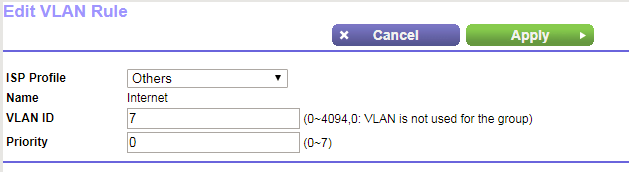
- For VLAN ID, enter 7.
- For Priority, enter 0.
Note: These are your priority bit settings. - Click Apply.
Note: The ISP Profile option is only available on the Nighthawk R9000 router.

To configure your VLAN settings for IPTV:
- Follow Steps 1-11 in the “To configure your VLAN settings for Internet access” procedure.
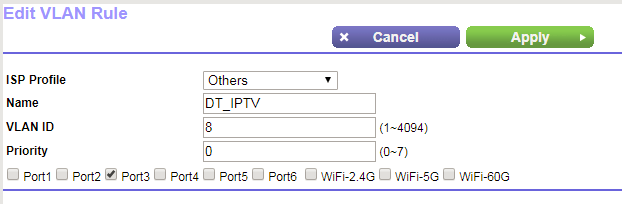
- Enter the name of your IPTV service.
- For VLAN ID, enter 8.
- For Priority, enter 0.
Note: These are your priority bit settings. - Select the LAN port that your cable box is connected to.
- Click Apply.
Note: The ISP Profile option is only available on the Nighthawk R9000 router.
Your router is now configured to support Deutsche Telekom Internet and IPTV.
Last Updated:07/07/2025
|
Article ID: 000059623