

Issues fixed since 1.0.4.6:
- Port LED and System LED on device view were always on even when disabled.
- Firmware version and Boot code information available in local browser interface.
Insight Issues fixed:
- Ethernet speed configuration for SFP+ ports from the NETGEAR Insight App.
Known issues on 1.0.4.8:
- Sometimes loop protection doesn't work between two Insight-managed switches
Workaround: disable IGMP snooping on the switch
- One ACL can bind to 24 VLANs only
Workaround: Bind ACL to the port instead of VLANs.
- All two models have both IGMP Snooping and MLD Snooping enabled globally and on VLAN 1, by default. When you disable IGMP Snooping, MLD Snooping is still enabled. MLD Snooping filters unknown IPv4 multicast out, like how IGMP Snooping causes IPv6 multicasts. If either protocol is enabled on a VLAN or globally, both IPv4 and IPv6 unknown multicast packets will be dropped.
Workaround: Enable/disable IGMP snooping and MLD Snooping simultaneously.
Operational Notes:
- After updating to the latest firmware, make sure to update to the latest version of the NETGEAR Insight app for the best functionality and user experience.
Download Link : http://www.downloads.netgear.com/files/GDC/GC728X/GC728_GC752_V1.0.4.8.zip
Upgrade Firmware Using the Insight app:
- Open the Insight app, select Networks.
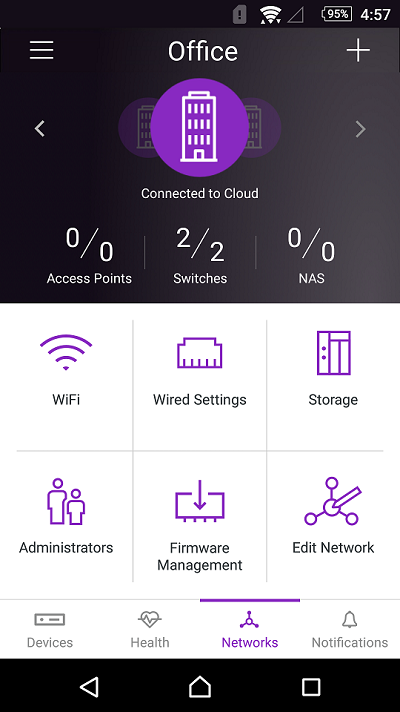
- Choose the network for the devices that you want to check for firmware updates (if you have multiple networks), and then select Firmware Management.
- If there is new firmware available for your device, select the update. The new firmware will automatically be pushed directly from the Cloud to the switch.
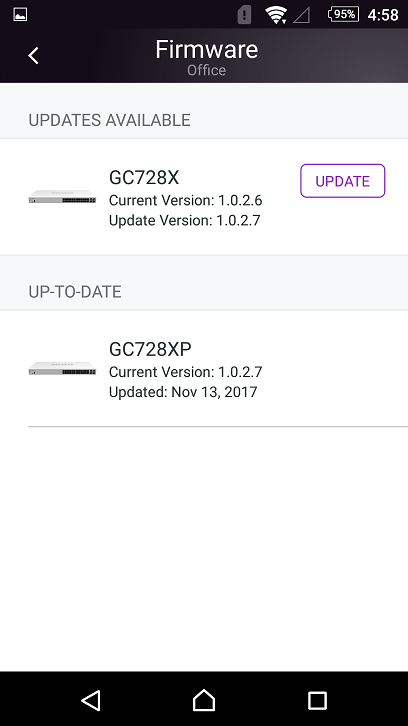
Upgrade Firmware Using a PC:
- On a computer that is connected to your Insight Managed switch or is connected to the same network as your switch, visit NETGEAR Support to download the latest firmware.
- Start typing your model number in the search box, then select your model from the drop-down menu as soon as it appears.
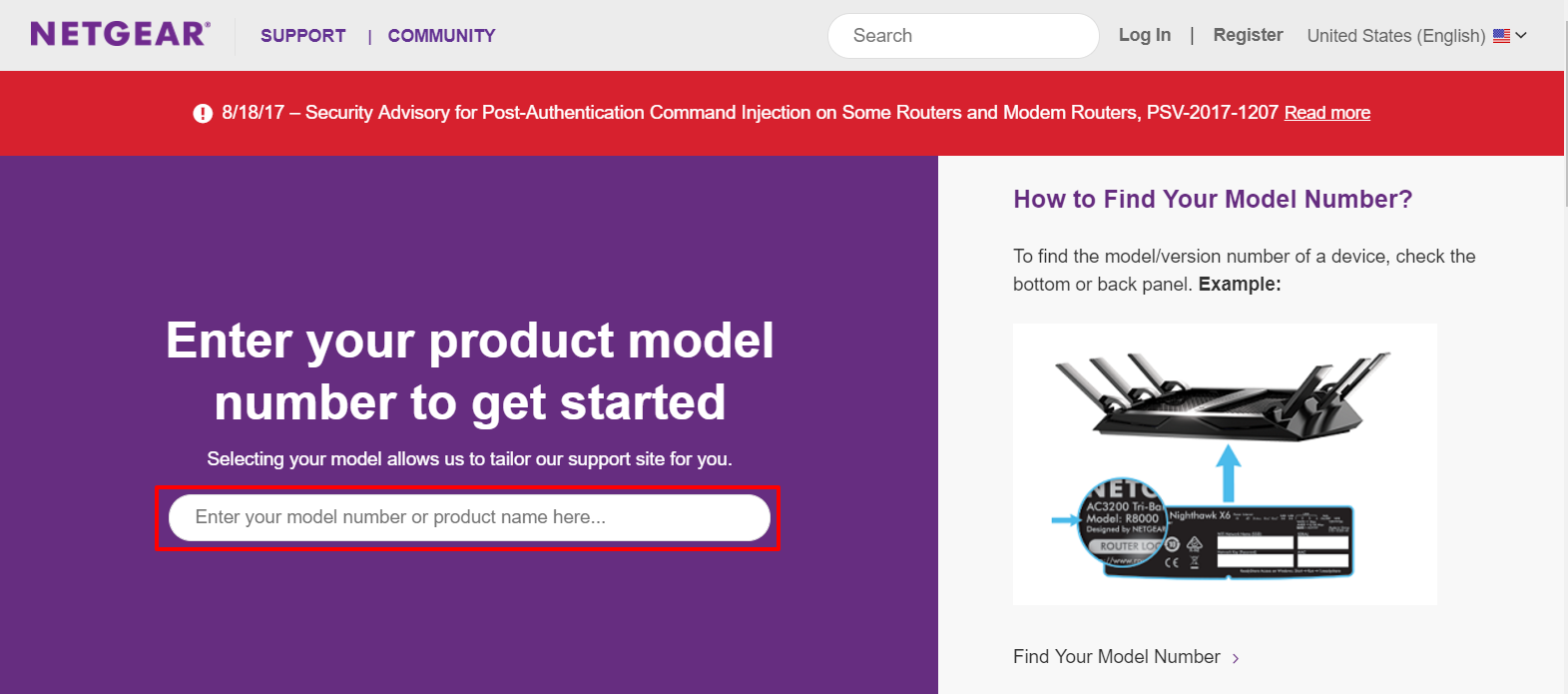
If you do not see a drop-down menu, make sure that you entered your model number correctly, or select a product category to browse for your product model.
- Click Downloads.

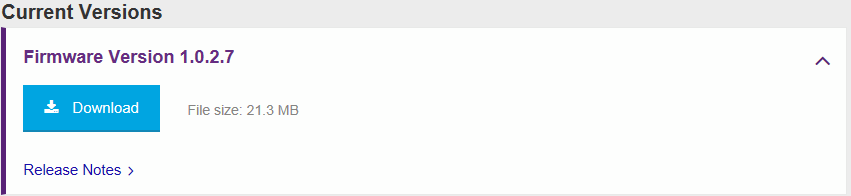
- Under Current Versions, select the download whose title begins with Firmware Version.
- Click Download.
- Type the IP address of the switch into your browser.
- Type the password for your Insight network location and click Login.
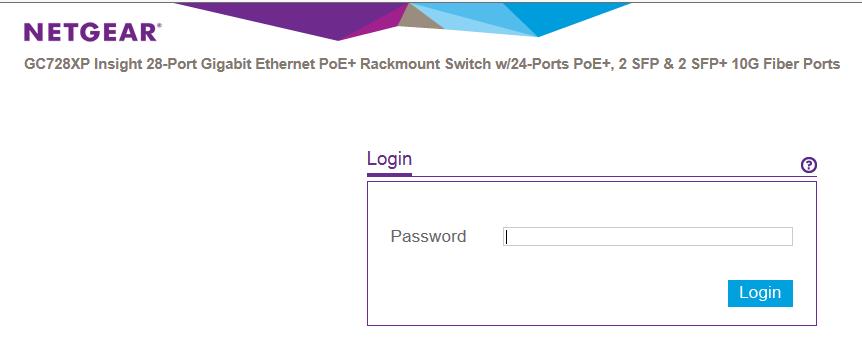
If you have not yet setup an Insight network using the NETGEAR Insight app AND added the switch to that network, use the default password of the device (password) or the password you have assigned to the device.
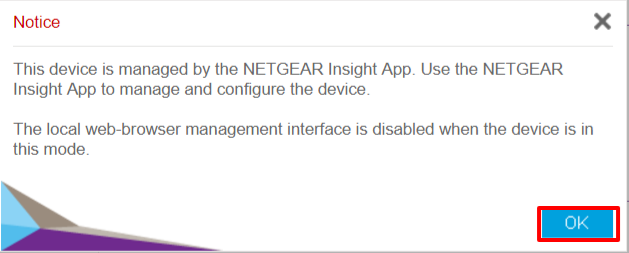
- Click OK to close the warning about Insight app management and local web-browser management.
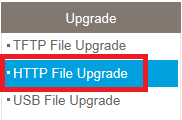
- Select Maintenance > Upgrade > HTTP File Upgrade.


- Click Browse and select the file that you downloaded in Step 5.
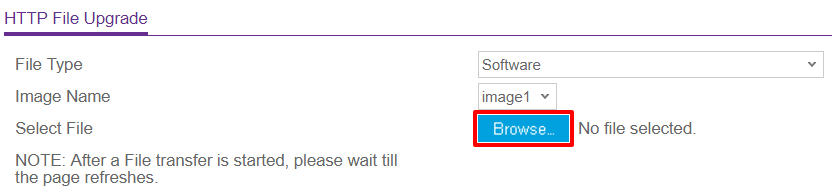
- Click Apply.
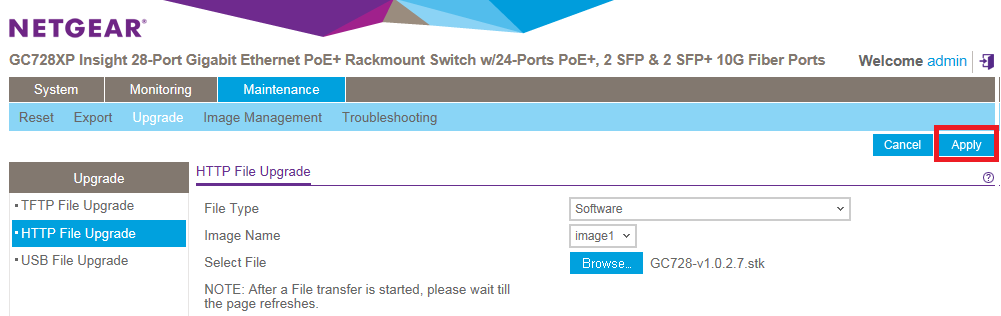
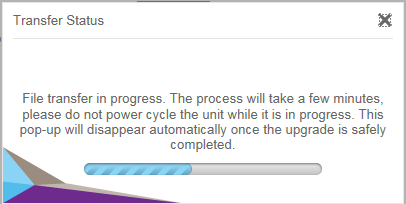
- Wait up to five minutes for the file transfer to complete.

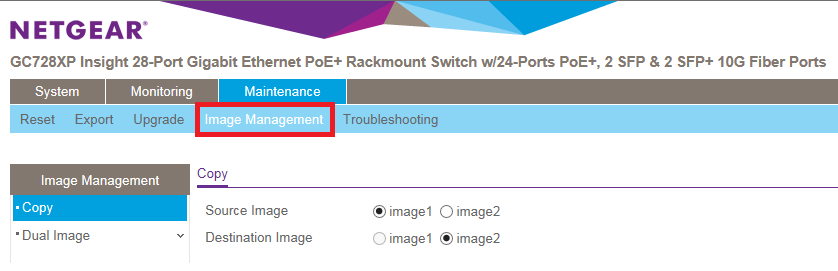
- Select Image Management and click Apply.
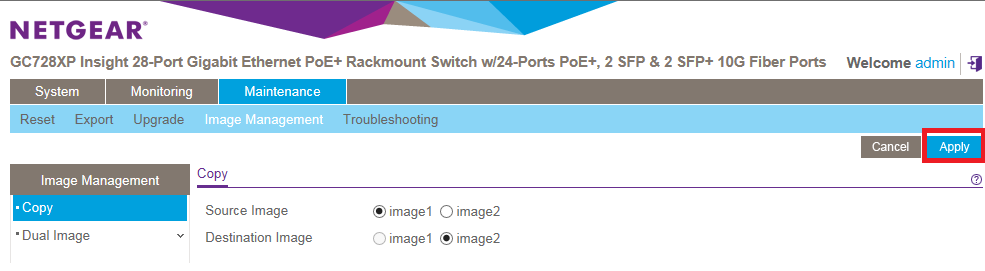
- Click OK.
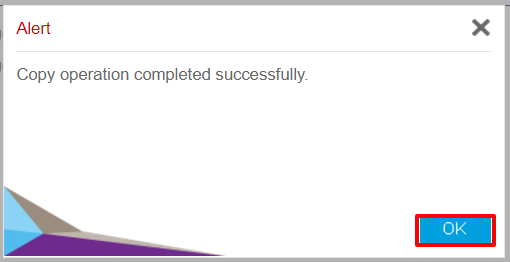
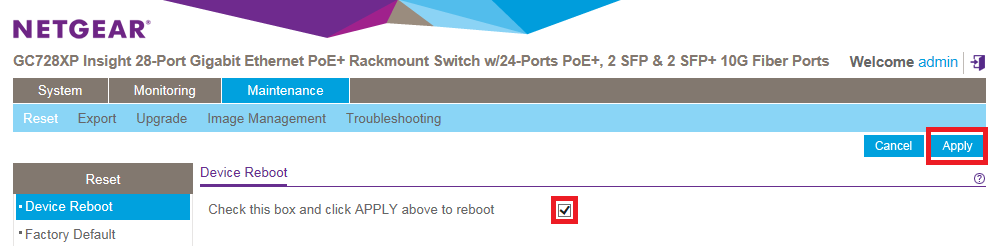
- Select Reset.

- Select the check box for Device Reboot and click Apply.
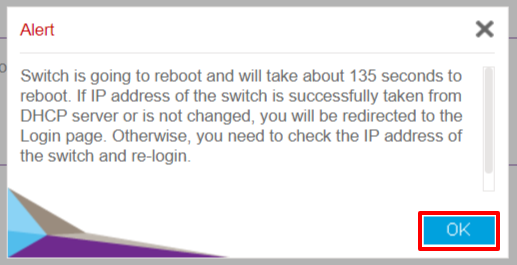
- Click OK to acknowledge that your switch’s IP address might change if the switch cannot get an IP address from the DHCP server.
- Wait a few minutes for your switch to reconnect to the cloud.
The blue cloud LED lights when your switch is connected to the cloud. You also receive an Insight app notification, and your switch’s status in the Insight app changes to green. - After the switch restarts, check the firmware version of the switch from the Insight app or log back into the local browser interface to confirm that the switch firmware is the updated version.