

You can set up your CBK40 Orbi Cable modem router and satellite either with the Orbi app or with a computer or mobile device.
To set up and activate with the NETGEAR Orbi app:
- Visit http://orbi-app.com on your Android or iOS device.
- Download and launch the NETGEAR Orbi app and follow the prompts.
To set up your Orbi cable modem router and satellite with a computer or mobile device:
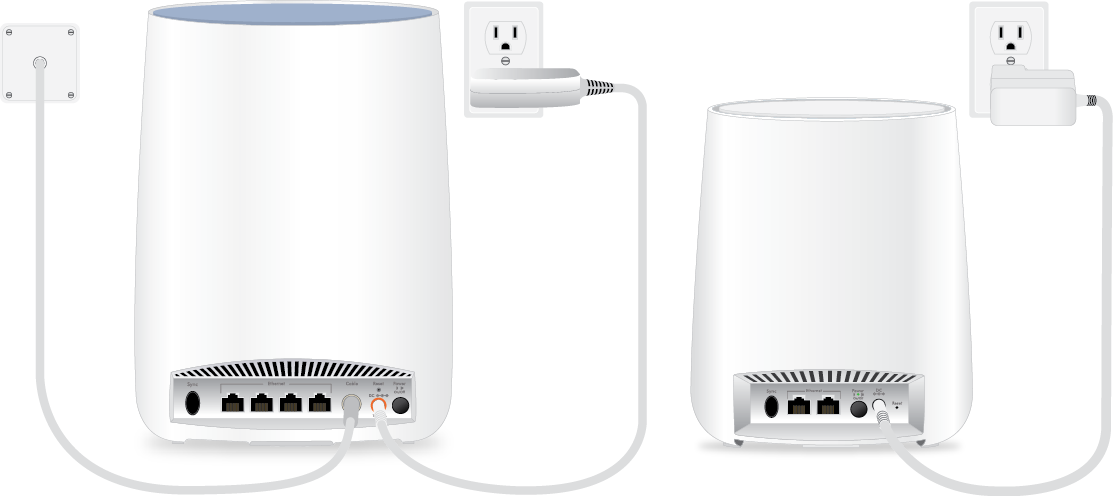
- Collect your Internet service provider (ISP) account information.
Collect your ISP account information, such as your account mobile phone number, user name, password, and account number. - Turn off and disconnect existing modems and routers.
If you are replacing a modem that is currently connected in your home, unplug the modem and plug the new cable modem router into the same outlet. - Connect a coaxial cable.
Use a coaxial cable to connect the cable coax connector on the cable router to the cable wall outlet. - Connect the power adapter.
Connect the power adapter to the cable modem router and plug the power adapter into an electrical outlet.
The startup procedure takes about one minute. When it is complete, the Power LED lights solid blue. - Wait for the Online LED
 to light solid blue.
This process might take up to 10 minutes.
When the Online LED lights, your cable router is still not connected to the Internet. You must activate your cable router with your ISP.
- Connect your computer or mobile device to the Orbi cable router with Ethernet or WiFi:
- Ethernet. Use an Ethernet cable to connect a computer to the router.
- WiFi. Use the WiFi network name (SSID) and password on the cable router label to connect.
- Log in to the cable router and change the admin password.
IMPORTANT: We recommend that you change the admin password to secure your cable router.- Launch a web browser and enter orbilogin.net or 192.168.1.1 in the address field of the web browser.
- If a login window opens, enter admin for the admin user name and password for the admin password.
- Go to the ADVANCED section and change the default password and set up security questions.
- Activate your Internet service.
For information about how to activate your Internet service, see the procedure that follows this one, To activate your Internet service with a computer or mobile device. - Place your Orbi satellite.
Place your satellite within your router’s WiFi range and power it on.
The satellite attempts to sync with your cable modem router. - Wait for the satellite to sync with your router.
The satellite’s ring LED lights white while the satellite attempts to sync with the cable router, then the ring LED lights one of the following colors for about three minutes and then turns off:
 Blue. The cable modem router and satellite successfully synced, and the connection between the cable modem router and satellite is good.
 Amber. The cable modem router and satellite successfully synced, and the connection between the cable modem router and satellite is fair. Consider moving the satellite closer to the cable modem router .
 Magenta. The cable modem router and satellite failed to sync. Move the satellite closer to the cable modem router and try again.
If the ring LED still lights magenta after about one minute, press the Sync button on the cable modem router and on the satellite. If the satellite syncs with the cable modem router, the satellite’s ring LED lights white. The ring LED then lights blue to indicate a good connection and then turns off.
To activate your Internet service with a computer or mobile device:
Before you start the self-activation process, collect the following information:
- Your ISP account information
- Cable modem router model number, which is CBR40.
- Cable modem router serial number
- Cable modem router MAC address
Your cable modem router’s serial number and MAC address are on the cable modem router label.
The following list provides contact information for ISPs that support your cable modem router.
- CableOne. http://www.cableone.net/
1-877-MY-CABLE (1-877-692-2253) - Cox. https://www.cox.com/activate
1-800-234-3993 - Mediacom. https://maestro.mediacomcc.com/walledgarden/page/login.jsp
1-855-Mediacom (1-855-633-4226) - Optimum. https://install.optimum.com/JointInstall/
1-877-810-6750 - Spectrum. https://activate.spectrum.net/
1-(833) 267-6094 - Xfinity. https://register.xfinity.com
https://www.xfinity.com/support/internet/activate-purchased-modem/
1-800-XFINITY (1-800-934-6489)
Your ISP’s contact information might change. You can also find the contact information in your monthly Internet service billing statement.
- Visit your ISP’s website and follow the onscreen instructions to activate your Internet service.
- To determine your Internet speed, visit your ISP’s speed test website and perform a speed test.