

Fixed issues and enhancements
- GUI login password is not encrypted.
- SNMPv3 password is displayed in plain text in the configuration file.
- The secret password is showing up as clear text in the configuration file on RADIUS/TACACS server.
- IPv4 traffic is dropped even when the configured QoS rule is for Ethernet IPv6.
- Dynamic LAG status is incorrectly displayed as up when LACP protocol is not up and running with peer device.
- The Remarking CoS function of Voice VLAN still works after disabling the remarking option.
- SNMP Engine ID is not unique with different MS510TX/MS510TXPP units.
Known issues:
- Switch’s DHCPv6 client can't get IPv6 address for management after enable IPv6 routing.
[Workaround]: Using static IPv6 address from management.
- Multicast forward entries would not flush immediately when port is shut down.
[Workaround]: Wait for the entries to age out when expired.
- Link flaps every 60 seconds with port 10 when it is using AGM734 connected to a peer that is shutdown.
[Workaround]: Get the port link up on peer device; or remove the connecting cable.
Notes:
- The released zip contains switch firmware (image_ng_ms510_6.7.0.30.bin). Please unzip the file to retrieve the switch firmware for upgrade.
- The USB device must support the FAT32 file type. The NTFS file type is NOT supported.
Limitations:
- On high speed ports 7~10 (5G or 10G), minimal interface shaping rate is 3.6Mbps.
- The USB device must support the FAT32 file type. The NTFS file type is NOT supported.
- Cable testing when performed on ports 5~9 (multi-Gigabit ports):
- Cable status may show Open at 140 meter instead of good cable, if there is no cable or cables up to 1 Meter.
- Cable Length in some cases may show “Length > 140 Meters” for cables shorter than 5 meters.
Upgrade Procedure
- Download the new firmware 6.7.0.30 from NETGEAR product support Website and store it in local PC, and remember its location in the PC’s file system. Then unzip it to get the switch image “image_ng_ms510_6.7.0.30.bin”.
Download Link : http://www.downloads.netgear.com/files/GDC/MS510TX/MS510TX_TXPP_V6.7.0.30.zip
- There are four methods to upgrade the new firmware from PC to the switch.
- HTTP
- TFTP
- USB
- SCC (Smart Control Center)
Below are the steps to upgrade the firmware via HTTP, which is the most convenient method. For the other three methods, please check the IG and SW User Manual for details.
- To use HTTP method, go to GUI page “Maintenance > Download > HTTP File Download”, select the firmware file ‘image_ng_ms510_6.7.0.30.bin’ stored in local PC via Browser button, then click Apply button to start firmware downloading.
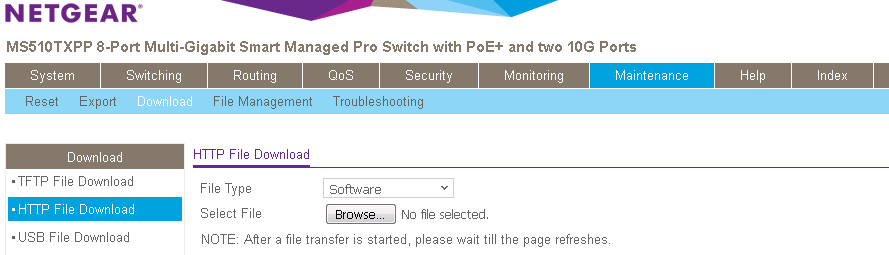
The download will take several minutes. Do not power cycle the switch before and the success message shows up as below.
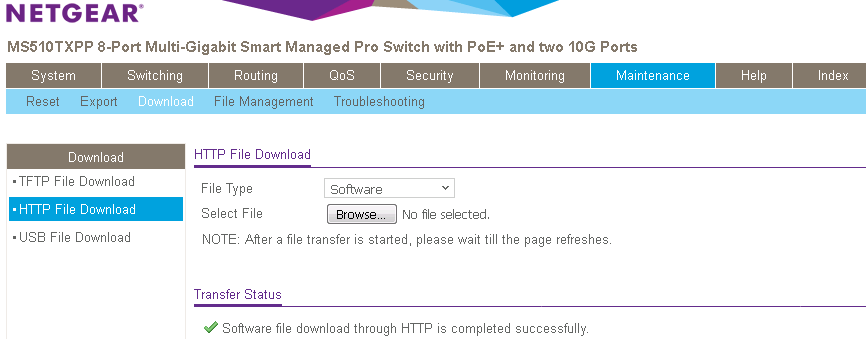
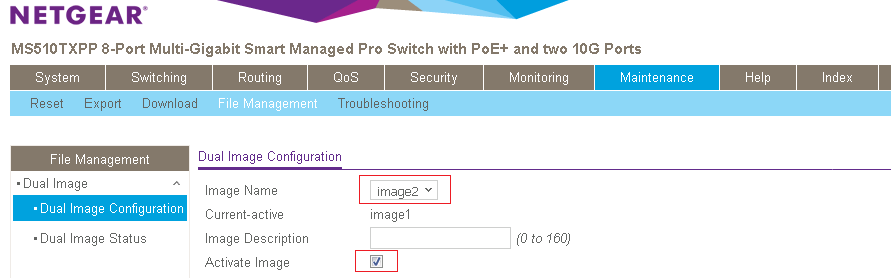
- After the successful file downloading, go to GUI page “Maintenance > File Management > Dual Image > Dual Image Configuration’.
- If the current-active image is ‘image1’, set Image Name as ‘Image2’; otherwise, set the Image Name as ‘Image1’.
- Check and ‘Active Image’ checkbox.
- Then click ‘Apply’ button.
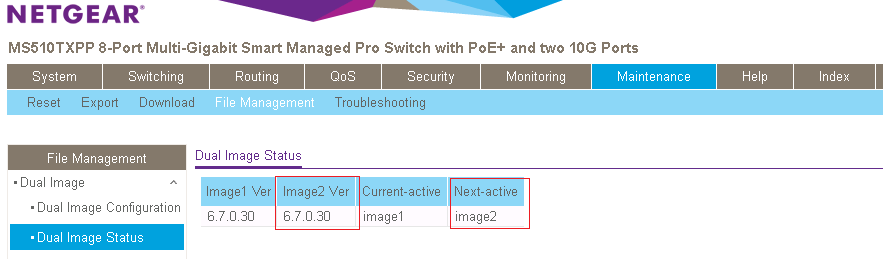
- Go to GUI page “Maintenance > File Management > Dual Image > Dual Image Status’, to double check ‘Next-active’ image is version 6.7.0.30. If not, go back to step 4 and reconfigure the correct active image.
- Go to GUI page ‘Maintenance > Reset > Device Reboot’, check the checkbox then click Apply button.
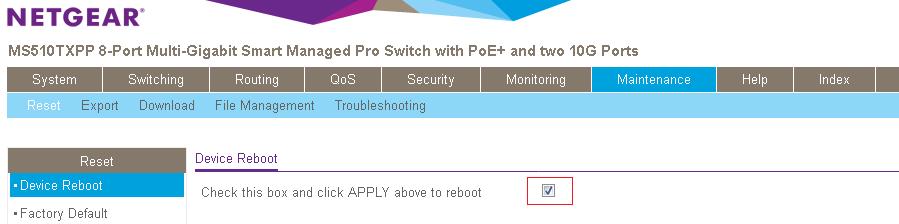
The restart may take several minutes, do not power cycle or reboot the switch before the process is complete.
- After the switch is restarted, login the switch to double check whether the FW is upgraded correctly, via GUI page of “GUI page System > Management > System Information”.
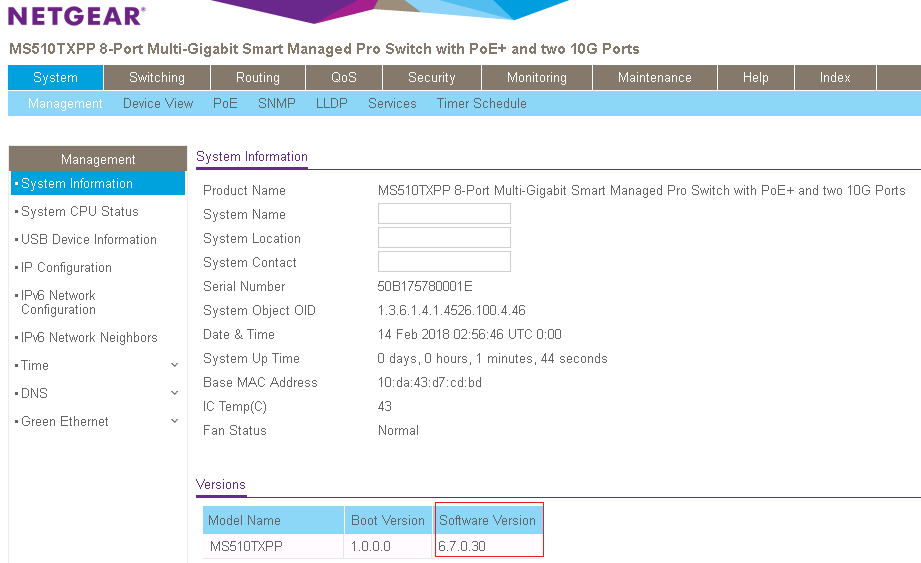
Last Updated:07/07/2025
|
Article ID: 000055590