

Bug Fixes:
- Combo port fails to linkup with Intel NIC X520 and X710 after multiple unplug/re-plug on XS712Tv2
New Features and Enhancements:
- Added GUI option to enable/disable Admin Mode of Netgear Smart Control Center (SCC) Utility
- Added LAG Hash options in LAG configuration
- GUI page string modification. ‘File Upload’ changes into ‘File Export’.
- Added Flow control options with ‘Asymmetic’ and ‘Symmtetic’.
Known issues:
- Number of configured IPv6 routes is displayed incorrectly.
[Workaround]: Please count the listed static routes in the table
Download Link : http://www.downloads.netgear.com/files/GDC/XS708T/XS708T_XS712Tv2_XS716T_V6.6.3.3.zip
Installation steps (For XS708T/XS716T)
- Please ensure the firmware version of your XS708T/XS716T is v6.6.1.7 before upgrading it to v6.6.3.3. Otherwise, please download v6.6.1.7 image first and follow the firmware upgrade procedure in its release notes.
- Smart Control Center (SCC) tool is required to update firmware from v6.6.1.7 to v.6.6.3.3. (https://www.netgear.com/support/product/Smart%20Control%20Center%20(SCC).aspx#download)
- Please ensure your PC is in same subnet with XS708T/XS716T
- For example, if your XS708T/XS716T IP address is 192.168.0.239/24, please set your IP address of your PC to 192.168.0.10/24
- Launch Smart Control Center (SCC) tool (v1.1.3.4)
- Please use port 2 to port 5 on XS708T/XS716T when upgrading FW
- On SCC tool, click “Discover” button.

- After your XS708T/XS716T is discovered by SCC tool, click “Maintenance” tab > “Firmware”

- Click the XS708T/XS716T device in the list, you should see a tick after you selected the device.

- Click “Download Firmware” button, and select v6.6.3.3 firmware file. The file name should be xs7xxtv6.6.3.3.stk, which is unzipped from the firmware release zip.

- Select “Primary Storage” and “Run this FW after download”, and click “Apply” button.
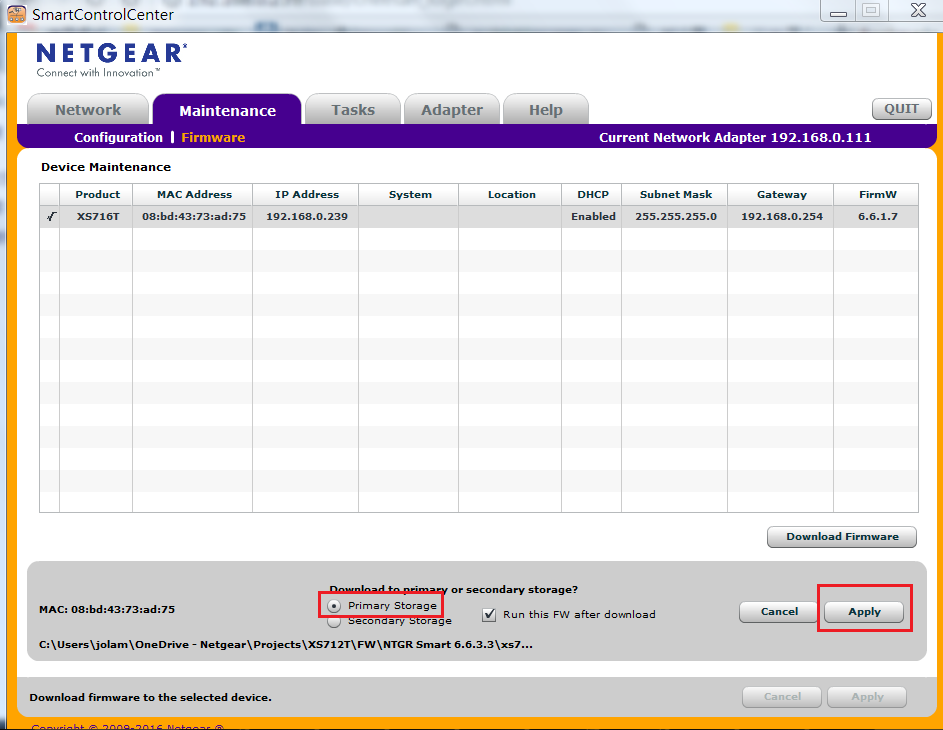
- Input login password of XS708T/XS716T. You could either select “Run Now” to upgrade firmware now, or select specific time to upgrade the firmware. Then, click “Apply” button.
- The v6.6.3.3. firmware update process will be started (if you choose “Run Now”)
- During firmware update, DO NOT power off the PC or XS708T/XS716T, and DO NOT unplug Ethernet cable.
- You could check the firmware upgrading progress on SCC tool by “Task” tab.
- When firmware upgrade completed successfully, you should see “Complete file transfer; device rebooted successfully” on SCC tool.

- Boot version is B1.0.0.11 and Software version is 6.6.3.3 when you check via GUI > “System Information”

Installation steps (For XS712Tv2)
- Login XS712Tv2 admin GUI
- Go to ‘Maintenance’ > ‘HTTP File Download’
- Click ‘Browse…’ to select firmware file.
- Firmware filename should be ‘xs7xxt-v6.6.3.3.stk’
- Click ‘Apply’ to start firmware upgrade.
Notes:
- The released zip contains switch firmware (xs7xxt-v6.6.3.3.stk) and MIB files. Please unzip the file to extract the switch image for firmware upgrade.
- Switch FAN will run at maximum speed during the boot stage (for about 2 minutes) after power cycle; then the speed will change based on its internal device temperature.
- The USB storage device that you attach to the USB port must comply with the following requirements:
- The USB device must support USB 2.0.
- The USB device must support the FAT32 or VFAT file system. The NTFS file system is not supported. - In case if your XS708T/XS712Tv2/XS716T device failed to boot up (e.g. accidentally unplugged Ethernet cable during firmware upgrade), please follow the below steps to upgrade the firmware again by SCC tool:
- Connect PC to port 2 to port 5 of the device.
- Follow the steps “Installation steps (For XS708T/XS716T)” in above section, for both XS708T/XS712Tv2/XS716T devices. - Configuration migration for firmware upgrade from version v6.6.1.7(For XS708T/XS716T)/v6.6.3.2(For XS712Tv2) to v6.6.3.3 is supported.
Last Updated:07/07/2025
|
Article ID: 000048431