

This procedure explains how to change read and write access for an entire USB drive that is connected to your router or gateway.
Read access is the permission to view files on your USB storage device, and write access is the permission to add, change, or delete files on your USB storage device.
To change read and write access for a network folder:
- Launch a web browser from a computer or mobile device that is connected to the network.
- Enter http://www.routerlogin.net.
A login window opens. - Enter the router user name and password.
The user name is admin. The default password is password. The user name and password are case-sensitive.
The BASIC Home page displays. - Select ADVANCED > USB Functions > ReadySHARE Storage.

- In the Available Network Folders table, select a device.
If a single device is attached to the USB port, the radio button is selected automatically. - Click Edit.
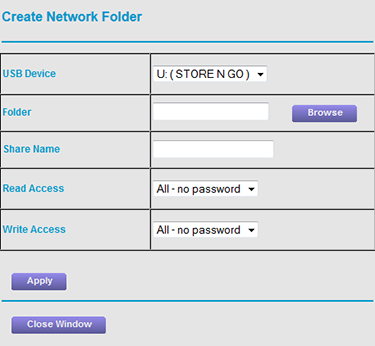
- Ensure that the Folder field is blank.
This ensures that you are in the root directory on the USB device. - Change the Read Access and Write Access settings as needed:
- If you want to let anyone on your network read or write files on the USB device, select All – no password for both Read Access and Write Access.
- If you want to require a user to enter the router or gateway’s administrator credentials to read or write files on the connected USB device, change Read Access, Write Access, or both to admin.
- Click Apply.
Your settings are saved. - Click Close Window.
Last Updated:07/07/2025
|
Article ID: 000038775