

Bug Fixes:
- Multicast packet with destination MAC address of 01:80:c2:00:00:1c and Ethernet type of 0x88CC causes loop in properly converged STP topology.
- Debugging URL of ‘devshell’ is accessible without authentication.
- Time Zone displayed incorrectly in system information page.
- Combo ports 15T and 16T cannot link up with Intel NIC X552/X557-AT 10GBASE-T.
Known issues:
- Number of configured IPv6 routes is displayed incorrectly.
[Workaround]: Please count the listed static routes in the table
Notes:
- The released zip contains switch firmware (xs7xxt-v6.6.1.7.stk) and MIB files. Please unzip the file to extract the switch image for firmware upgrade.
- Switch FAN will run at maximum speed during the boot stage (for about 2 minutes) after power cycle, then the speed will change based on its internal device temperature.
- The USB storage device that you attach to the USB port must comply with the following requirements:
- The USB device must support USB 2.0.
- The USB device must support the FAT32 or VFAT file system. The NTFS file system is not supported.
Upgrade Procedure:
- Download the new firmware 6.6.1.7 from NETGEAR product support Website and store it in local PC, and remember its location in the PC’s file system. Then unzip it to get the switch image “xs7xxt-v6.6.1.7.stk”.
Download Link: http://www.downloads.netgear.com/files/GDC/XS708T/XS708T_XS716T_V6.6.1.7.zip
- There are four methods to upgrade the new firmware from PC to the switch.
- HTTP
- TFTP
- USB
- SCC (Smart Control Center)
Below are the steps to upgrade the firmware via HTTP, which is the most convenient method. For the other three methods, please check the IG and SW User Manual for details.
- To use HTTP method, go to GUI page “Maintenance > File Management > Dual Image > Dual Image Configuration”, find the backup (next-active) image.
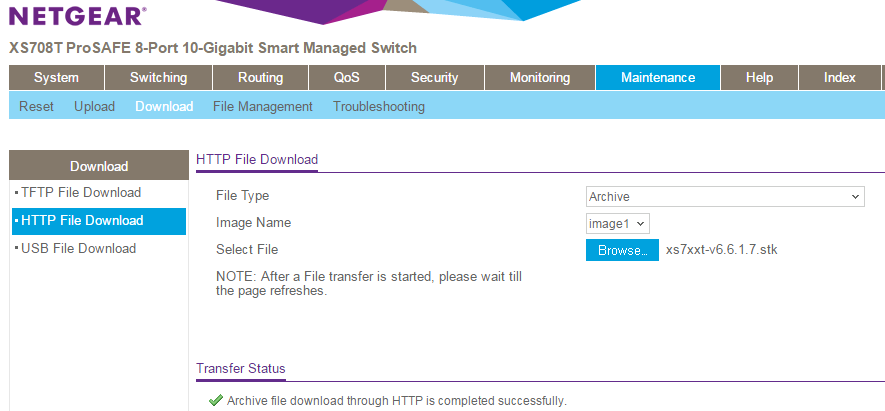
- Suppose the backup-image is image1, then go to “Maintenance > Download > HTTP File Download”, set File Type as ‘Archive’, set Image Name as ‘Image1’, select the firmware file ‘xs7xxt-v6.6.1.7.stk’ stored in local PC via Browser button, then click Apply button to start firmware downloading.

The download will take several minutes. Do not power cycle the switch before and the success message shows up as below.
- Go to GUI page “Maintenance > File Management > Dual Image > Dual Image Configuration”, set ‘Image Name’ with Image1, check the checkbox of ‘Activate Image’, then Apply.

- Go to GUI page “Maintenance > File Management > Dual Image > Dual Image Status”, to double check 6.6.1.7 is correctly downloaded to image1 and image1 is the ‘next-active’ image. If not, go back to step 3 to download the switch image again.

- Go to GUI page ‘Maintenance > Reset > Device Reboot’, check the checkbox then click Apply button.

The restart may take several minutes, do not power cycle or reboot the switch before the process is complete.
- After the switch is restarted, login the switch to double check whether the FW is upgraded correctly, via GUI page of “GUI page System > Management > System Information”.

Last Updated:10/17/2025
|
Article ID: 000038683