

URL filtering allows you to control access to web content by denying access to specific URLs or Keywords. Utilizing the URL filtering feature helps to prevent wireless clients from viewing or accessing inappropriate content or web sites.
Enable the URL Filtering feature
1. Go to Management - Configuration - Security - URL Filtering.
2. Select Enable.
3. Click Apply.
Applying a filter using Blocked URL's or Keywords
To filter a URL, enter the URL in the field below the Blocked URLs section, and click Add.
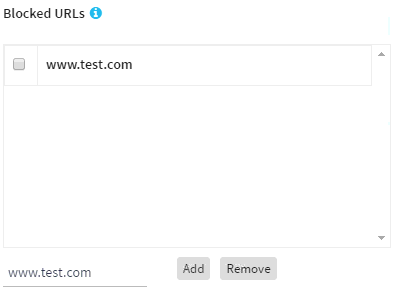
Blocked URLs will block only the URL(s) added to this list, and all URLs in the domain of which the host name is a part of are not blocked. For example, if you enter and add www.drive.google.com, only the web pages of
www.drive.google.com are blocked but all other web pages in the www.google.com domain are not blocked.
You can use the Popular URL list to select a single URL or multiple URLs and add them to the list of Blocked URLs. Select the check box next to the URL you wish to add from the Popular URL list, click Move.

To remove a URL from the list, select the checkbox next to the URL and click Remove.

To filter a keyword, enter the Keyword in the field below the Blocked Keywords section, and click Add.

Blocked Keywords will block all URLs which contain a word in the list. For example, if you enter and add Jobs, all URLs that contains Jobs (or jobs) are blocked.
Additional information:
-
When the access point is operating in AP mode, it can only filter URL's for associated wireless clients. It cannot filter URL's for wireless clients connected to another wireless access point operating in the same network or clients cabled into the network.
-
When the access point is operating as part of a wireless bridge (WDS), if URL filtering is applied to the base access point it will filter URL/Keywords for clients connected to the remote access point.
-
If access to any Blocked URL or Keyword is attempted, it is logged in the AP logs, which are found in Management - Monitoring - Logs.