

Accessing your WAC104 for the first time requires connecting your Mac to your access point and setting a static IP address on your Ethernet or wireless adapter. This article outlines the steps required to set a static IP address on your Ethernet adapter if using a direct connection between your Mac and the access point or wireless adapter if connecting wirelessly to the access point.
Connecting directly to the access point via Ethernet cable:
1. Click the Apple icon, then System Preferences.

2. Open Network.
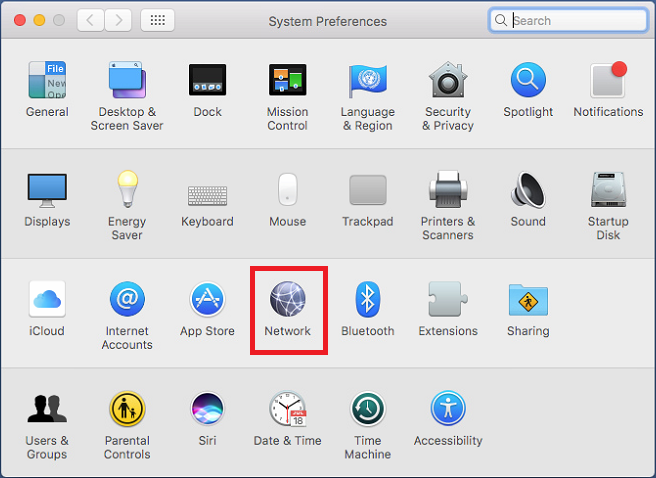
Record the IP address and subnet mask of your computer so that you can reinstate these IP address settings later.
3. In the network settings select Ethernet, set Configure IPv4: Manually.
Enter IP address 192.168.0.210 in the IP address field.
Enter 255.255.255.0 in the subnet mask field.
Click Apply.
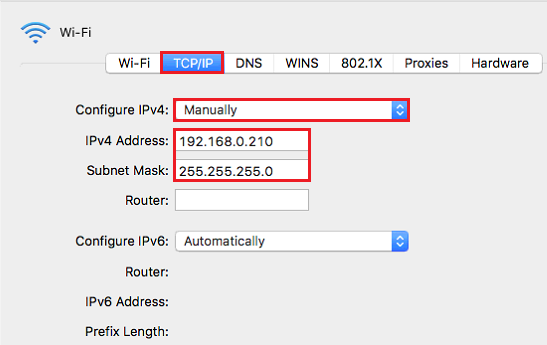
Your Ethernet adapter is now configured with static IP 192.168.0.210 and the access point web interface is accessible at http://192.168.0.100
Connecting wirelessly to the access point:
When the access point is in factory default settings it will broadcast 2 wireless networks with open security. The wireless networks are NETGEAR_11N on the 2.4GHz band and NETGEAR_11AC on the 5GHz band. Connecting to either of these SSID's is required to access the web interface and configure the access point.
1. Click the Apple icon, then System Preferences.
2. Open Network.
3. Select Wi-Fi. Click on the up/down arrow next to Network Name to see the list of available wireless networks. Select the wireless network broadcasting from your access point to connect to it, either NETGEAR_11N or NETGEAR_11AC
A password is not required.
Click Advanced.
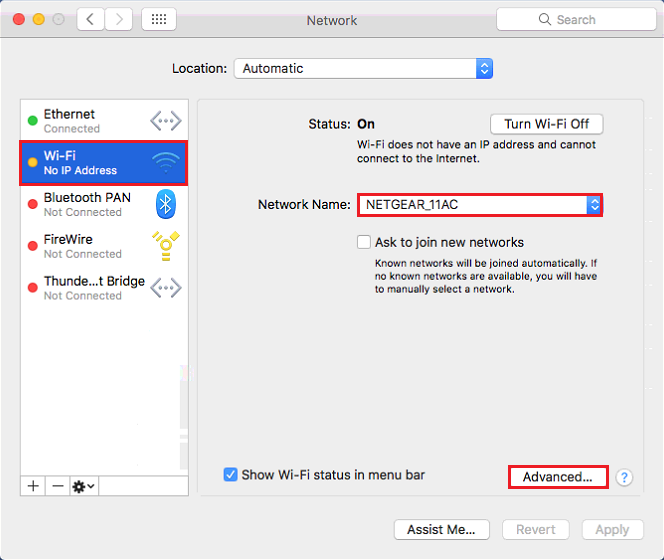
4. In the Advanced settings click on TCP/IP.
Set Configure IPv4 to Manually.
Enter IP address 192.168.0.210 in the IP address field.
Enter 255.255.255.0 in the subnet mask field.
Click OK.
The access point web interface is now accessible at http://192.168.0.100