

A NETGEAR access point (AP) has a default IP address of 192.168.0.100. If your AP is offline and in factory default state, you can connect a Windows device to the AP by setting a static IP address on your Ethernet adapter. This article describes the steps that are required to set a static IP address on your Ethernet adapter for a direct Ethernet connection between your Windows device and the AP.
To connect directly to an AP that is offline and in factory default state using an Ethernet cable from your Windows device to the AP:
1. In Windows, type network connections in the Search panel. In the search results click View network connections.
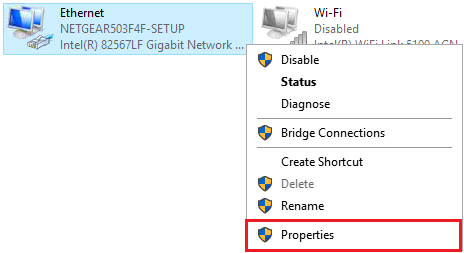
2. Right click on Ethernet (Local Area Connection) and click Properties.
3. Select Internet Protocol Version 4 (TCP/IPv4) and click Properties.
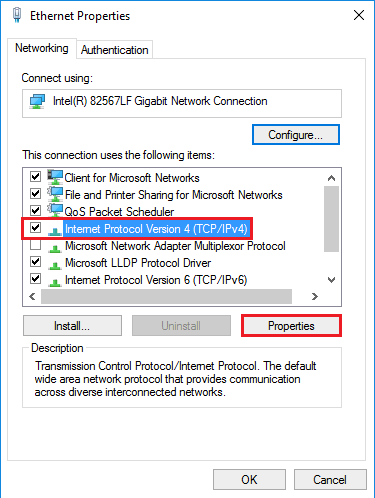
4. Record the IP address and subnet mask so that you can reinstate these IP address settings later.
5. Select the Use the following IP address radio button. Enter IP address 192.168.0.210 in the IP address field and 255.255.255.0 in the Subnet mask field.
Then, click OK twice.
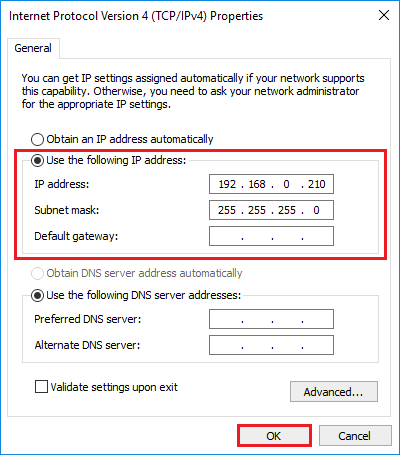
Your Ethernet adapter is now configured with static IP address 192.168.0.210.
6. Access the AP device user interface (UI) by launching a web browser on your Windows device and entering 192.168.0.100 in the address bar.
Your browser might display a security warning because of the self-signed certificate on the AP, which is expected behavior. You can proceed, or add an exception for the security warning. For more information, see What do I do if I my browser displays a security message?
7. If you are prompted for the AP user name and password, enter admin and the default password, which is password. The user name and password are case-sensitive.
You can now set up your AP.