

Not what you're looking for? Return to the ReadyCLOUD FAQ.
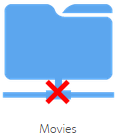
Did you log into ReadyCLOUD and see that there exists a red X on one of your folders as seen above? The red x generally signifies that the share has not been shared to any users.
Access your ReadyNAS Admin Page and view the protocols enabled per share.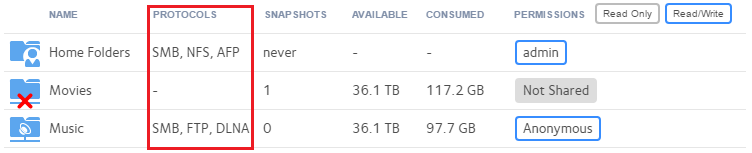
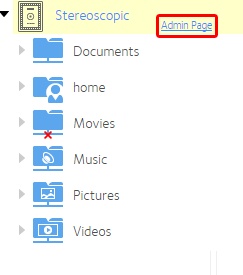
If you're on the same local network as your ReadyNAS, you can select Admin Page to go to the ReadyNAS. Not on the same local network? Access your Admin Page Remotely using ReadyCLOUD Desktop client.
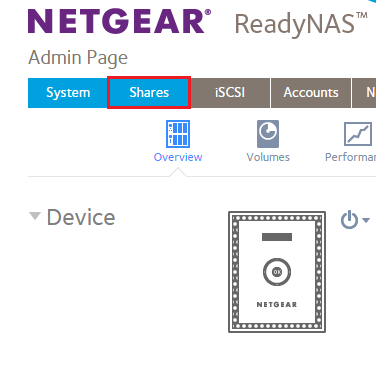
Once connected to the Admin Page, click Shares
Click the gear icon beside the problem share and then click Settings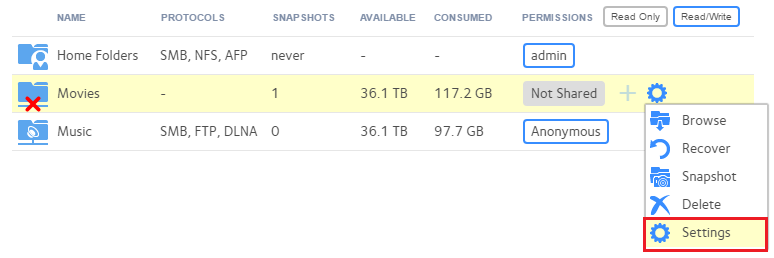
Select Network Access
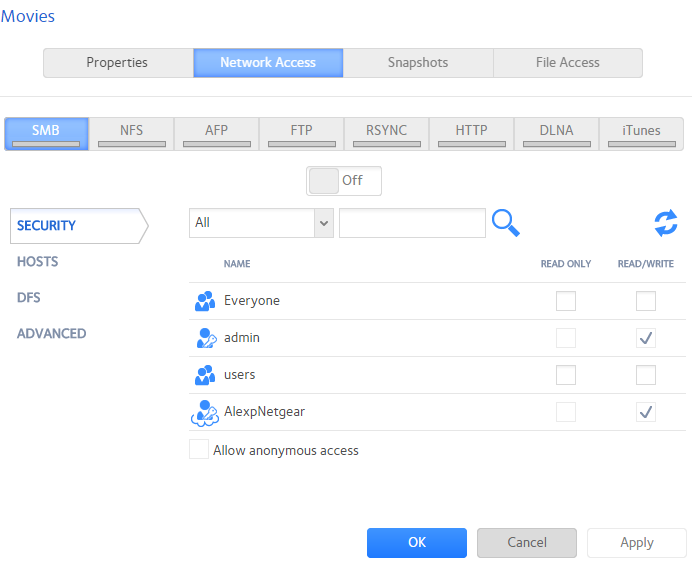
Enable any protocol to remove the red x.
Last Updated:07/08/2025
|
Article ID: 29798