

To test whether a cable is working or not, you can use either the device's web gui or the ProSAFE Plus Configuration Utility.
To use the feature access your device by browser:
- Open a web browser.
- In the browser address field, type the IP address of the smart switch.
The default IP address is 192.168.0.239 and the default subnet mask is 255.255.255.0.
You are prompted to enter your password. - Type the password in the Password field. The default password is password. Passwords are case-sensitive.
- Click the Login button.
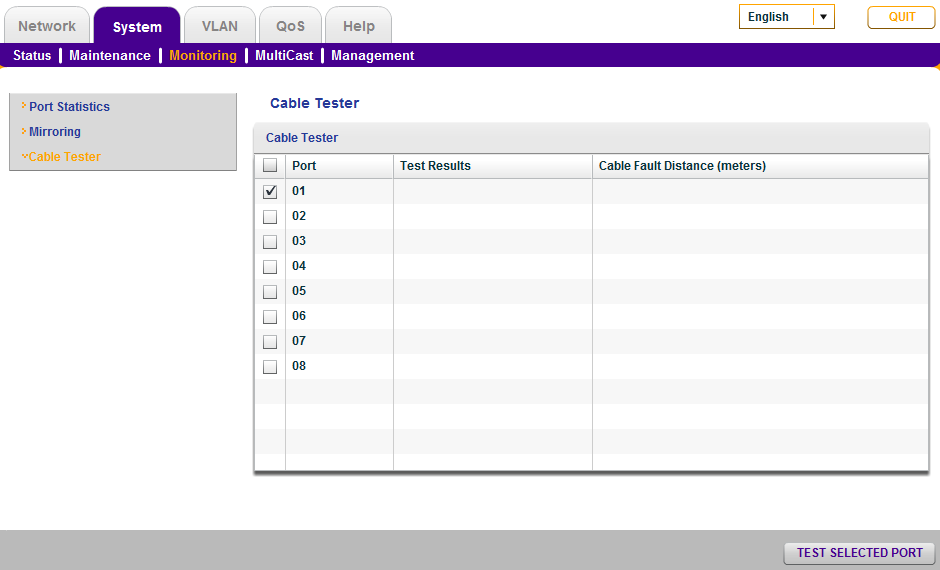
After the system authenticates you, the System Information screen displays. - Select System > Monitoring > Cable Tester.
- Select the check box.
- Click the Test Selected Port button. The switch then will test the cable and provide the output.

However, in the ProSAFE Plus Configuration Utility, it will look like this, following the instructions below:
- Select your switch in the utility, and click Apply.
- Type the password in the Password field. The default password is password. Passwords are case-sensitive.
- Click the Login button.
After the system authenticates you, the System Information screen displays. - Select System > Monitoring > Cable Tester.
- Select the check box.
- Click the Test Selected Port button. The switch then will test the cable and provide the output.
Important note:
The cable diagnostic utility in the device might yield different results. It can be due to a variety of factors, from link speed (10/100/1000) or cable types (Cat5, 5e, 6, 7, STP, UTP, etc). This is generally due to the electric signal changes based on those factors. Since the switch is a gigabit switch, it is recommended to use CAT5e STP cable, or better, and a gigabit link partner.
Last Updated:07/07/2025
|
Article ID: 29789