

Not what you're looking for? Return to the ReadyCLOUD FAQ.
The ReadyCLOUD desktop app has advanced settings that should only be used in specific circumstances.
To open the advanced settings:
- Click on the blue gear to open the settings menu.

- Click on Settings.
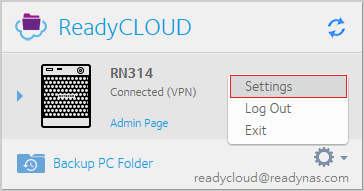
- Once in Settings, there are two tabs: General and Network.
General
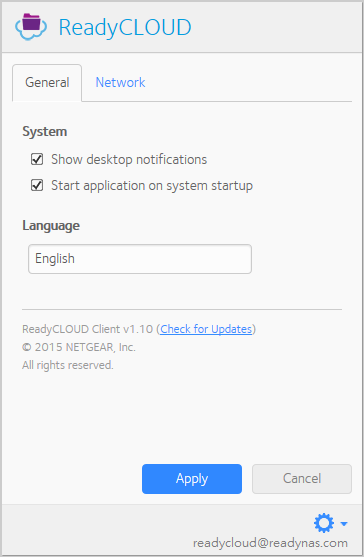
- Show desktop notifications: This option will show notifications, such as when a sync is successful.
- Start application on system startup: This option starts ReadyCLOUD when your operating system boots.
- Language: This allows you to set the language of the ReadyCLOUD client
- Version information is also provided at the bottom of the General tab

Network

- Reuse connection method : When this option is checked, your client will retry the same connection method that was last successful first. Connection method types include local connection to your device, a direct connection, or using a relay. Otherwise, the connection will attempt to find the best method, which can result in a delay of connection. If you consistently change networks and this option is not checked, the ReadyCLOUD client will determine the best method for connectivity.
- Use Automatic Proxy Detection: This will automatically detect your proxy settings if needed for certain networks that require a proxy to connect to the internet.
- Manually Set Proxy Server : This is where you can configure a manual proxy server for username and login level proxy servers.

Last Updated:07/08/2025
|
Article ID: 29784