

ReadyNAS OS 6 supports Private
Not what you're looking for? Return to the ReadyNAS Backup FAQ
Shared Time Machine allows all users to backup their Mac OS X computers to one shared location on the ReadyNAS.
To backup data on your Mac OS X to shared Time Machine:
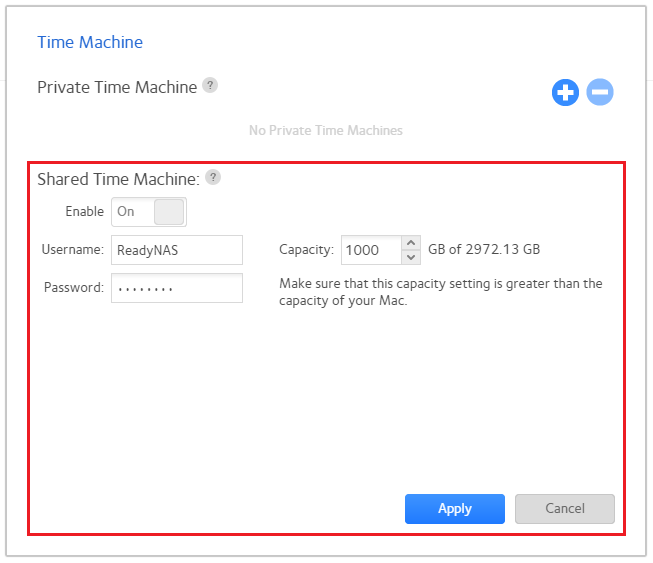
In the ReadyNAS Admin Page, click Backup > Time Machine.

The Time Machine windows opens.
In the Shared Time Machine section, set the Enable toggle switch to On.
Enter a Password - each user connecting to the Shared Time Machine will connect using this username and password. ReadyNAS is the default username and cannot be changed.
Set a Capacity - the capacity should be sufficiently large enough to accomodate the combined sizes of the Mac OS X computers.
Click Apply.
On your Mac OS X computer, launch Time Machine.
Click Select Backup Disk.
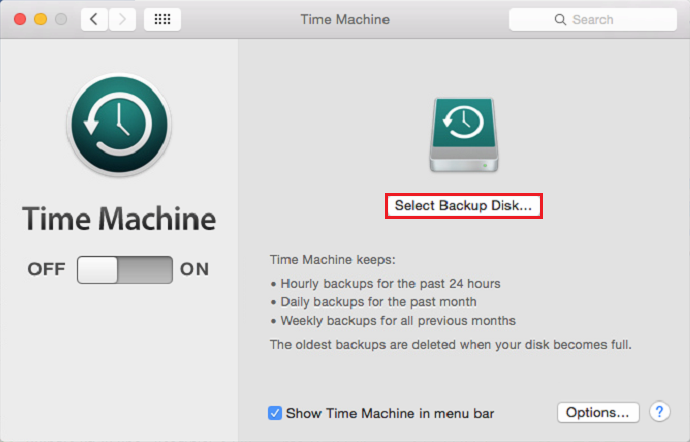
Select the Available Disk from your ReadyNAS. Click Use Disk.

Enter the shared Username and Password. click Connect.
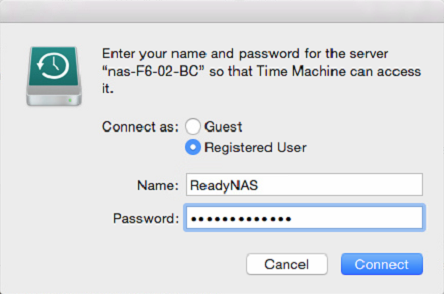
Your Mac is now connected to the shared Time Machine backup location and the backup is ready to run.
