

In this article, we describe the method on connecting your ReadyNAS to VMware ESX as a datastore using an iSCSI LUN. We will use the vSphere Web Client for the datastore configuration.
You can also setup ReadyNAS OS 6 as an NFS datastore
ReadyNAS iSCSI target as a Datastore
Create an iSCSI LUN
- Go to Shares
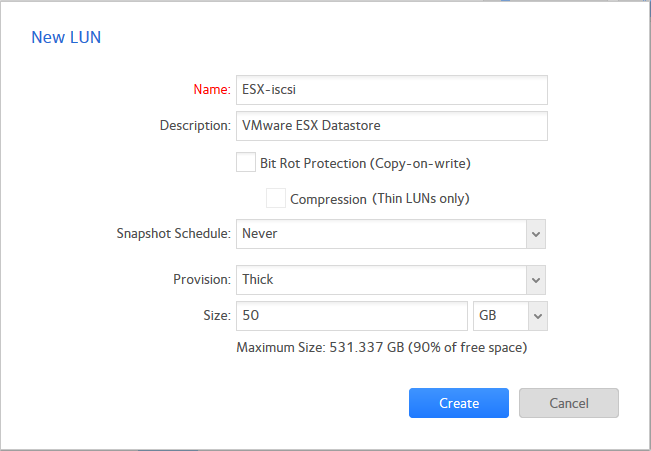
- Click New LUN
- Enter new share properties
- Click Create
Assign iSCSI LUN to a LUN Group
- Go to iSCSI
- The newly created iSCSI LUN will appear in Unassigned LUNs
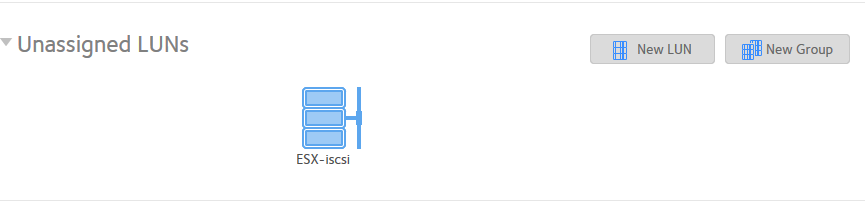
- The LUN can be added to an existing Group, or a new Group can be created by click New Group.
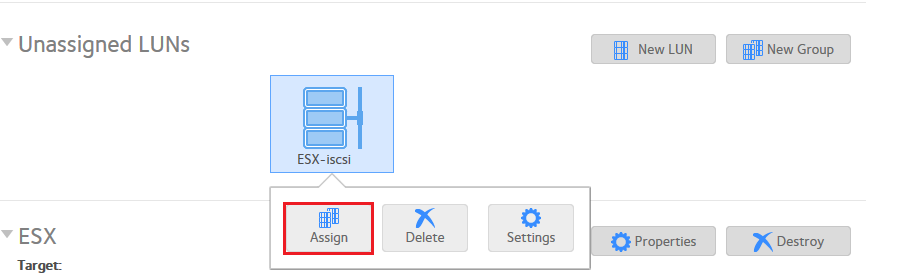
- To add the LUN to a group lieft click on the LUN and click Assign
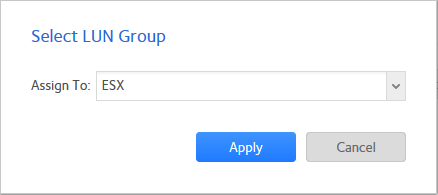
- Select the LUN group from Assign To
- Click Apply
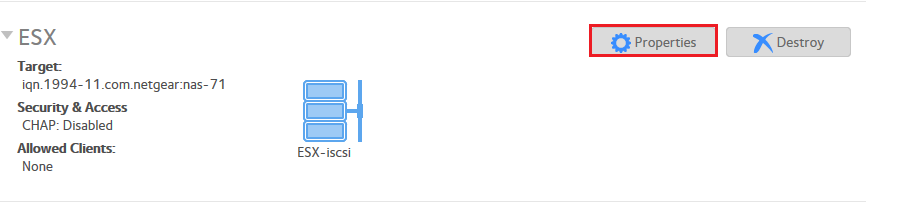
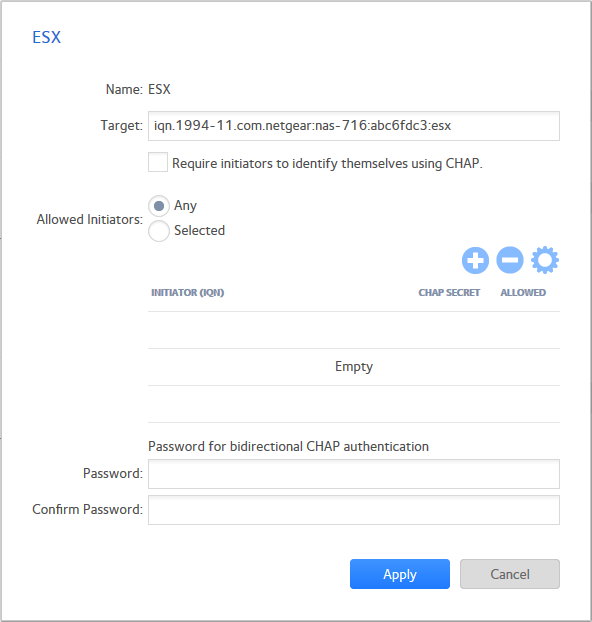
- To assign/change security properties of the LUN group click on Properites of the LUN group
vSphere Web Client: Add the new iSCSI LUN as datastore
- Open up the vSphere Web Client.
- Navigate to Hosts.
- Select the Host you wish to add the Datastore to.
- Click Actions
- Click New Datastore

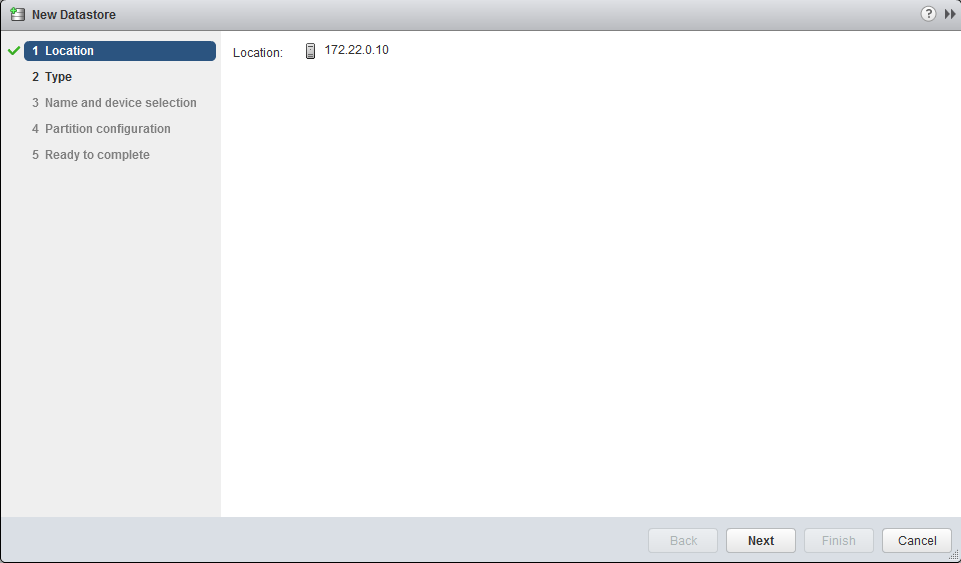
- Confirm location as the selected host. Click Next
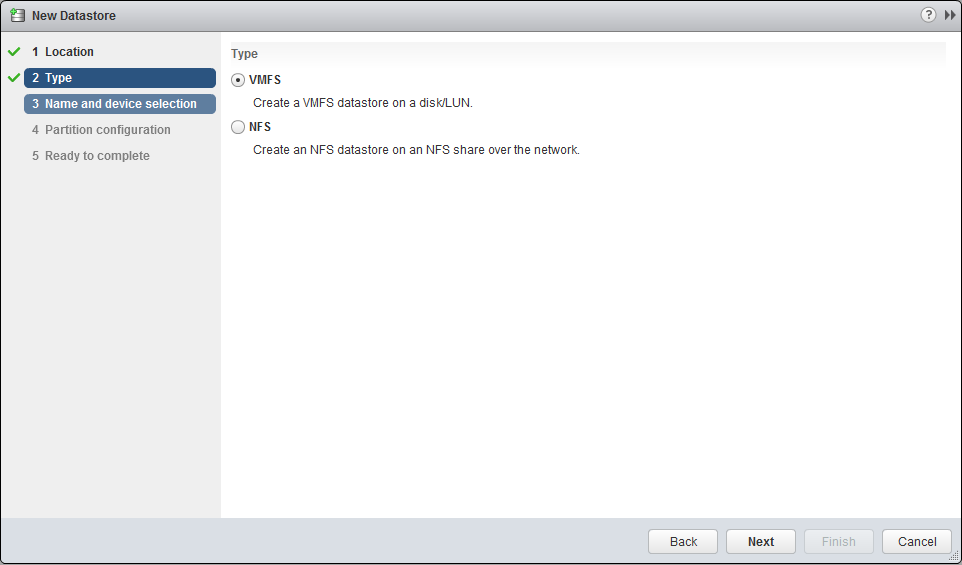
- Select Type as VMFS. Click Next
- Name the Datastore
- Select the iSCSI target. Click Next

- Select the VMFS version accordingly

- This next page lets you select the partition layout, here we will leave the defaults. Click Next

- You are now shown a review confirmation page. Click Finish if everything looks good.

- If no errors occurred, you should now see your ReadyNAS share displayed in the vSphere Web Client in Datastores

- Now that the ReadyNAS is connected to your ESX server, you can now create new Virtual Machines, and store their files directly on the ReadyNAS!

Last Updated:10/17/2025
|
Article ID: 28436