

ReadyNAS storage systems and ReadyNAS software are end-of-life.
You can install the Plex Media Server on your ReadyNAS storage system to organize, manage, and stream media to local and remote devices.
For detailed breakdown on how Plex transcodes, visit Plex's Transcoding Media article. To see what devices support transcoding, visit Plex's NAS Compatibility Guide. For instructions on Plex's basic setup, visit Plex's basic setup wizard.
Many apps can be installed directly from the local admin page of ReadyNAS storage systems connected to the Internet. If your ReadyNAS storage system is not connected to the Internet, you can still install an app manually but must first download the app to an Internet-connected computer, and then upload the app to the ReadyNAS system.
| Direct-play only models | Direct/Transcoding capable models |
|---|---|
|
|
Install the Plex Media Server:
- Download Plex Media Server for your ReadyNAS platform from the Plex's website:
- From the Plex Media Server tab, go to the Platform menu and select Netgear.
- Click Choose Package and select the proper package for your ReadyNAS:
- RN102, RN104 and RN2120 will download the ARM 7.
- RN202, RN212, RN204, and RN214 will download ARM 7 (RN2xx Series).
- All other ReadyNAS devices will download Intel 64-bit.
- Download the package to your computer, making note of the download location.
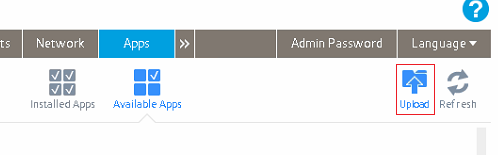
Your browser notifies you when the download is complete. - Go to your ReadyNAS Admin Page and click the Apps tab.
- Click the Upload button at the upper right of the screen.
- In the pop-up window, browse to the download folder and select the downloaded package.
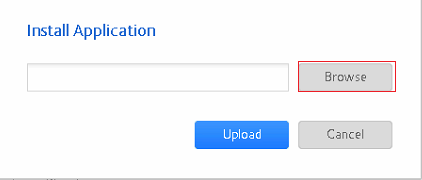
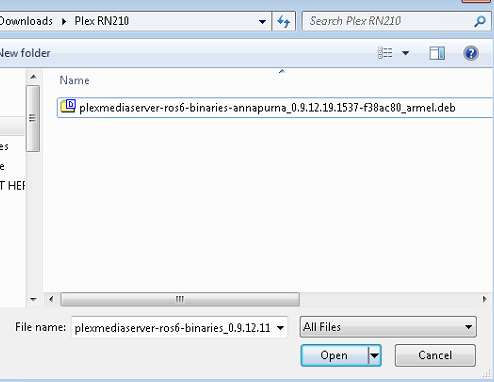

- Click the Upload button.
The app will begin installing in the background and alert you when it has been installed successfully. - Click the Installed Apps button.
The app displays on the Installed Apps screen. - After the app is installed, view the app by clicking the Installed Apps icon.
- To enable Plex, next to the Plex Media Server icon, switch the OFF toggle to ON.
A message about enabling the service will quickly display and then disappears. - Click the Launch button.
Plex's Terms of Service displays in a new browser window or tab. - Click AGREE if you agree to continue.